Print definitions, batch printing, label print and receipt-printer setup.
Overview
The Print area controls how documents come out of the printer — which template, on which printer, in what batch, in what physical format. Designed once at go-live then largely left alone, with occasional template tweaks driven by branding or regulation.
Print Definitions
Per-document template assignment — e.g. which invoice template prints at counter 1, which salary-slip template emails to staff. Lets you have different layouts per location without code.
Batch Printing
Re-prints a batch of documents (invoices, slips, labels) in one go — useful after a printer jam, after a template change, or when emailing statements to all overdue customers.
Label Print
Prints item / batch labels with barcode or QR code. Templates are sized for common label-printer rolls (38×25mm, 50×25mm, etc.); the picker lets you set quantity per item before printing.
Receipt Printer Setup
Configures the thermal receipt printer at each counter (ESC/POS commands, paper width 58mm or 80mm, auto-cut, cash-drawer kick code). One-time setup per terminal.
Print menu
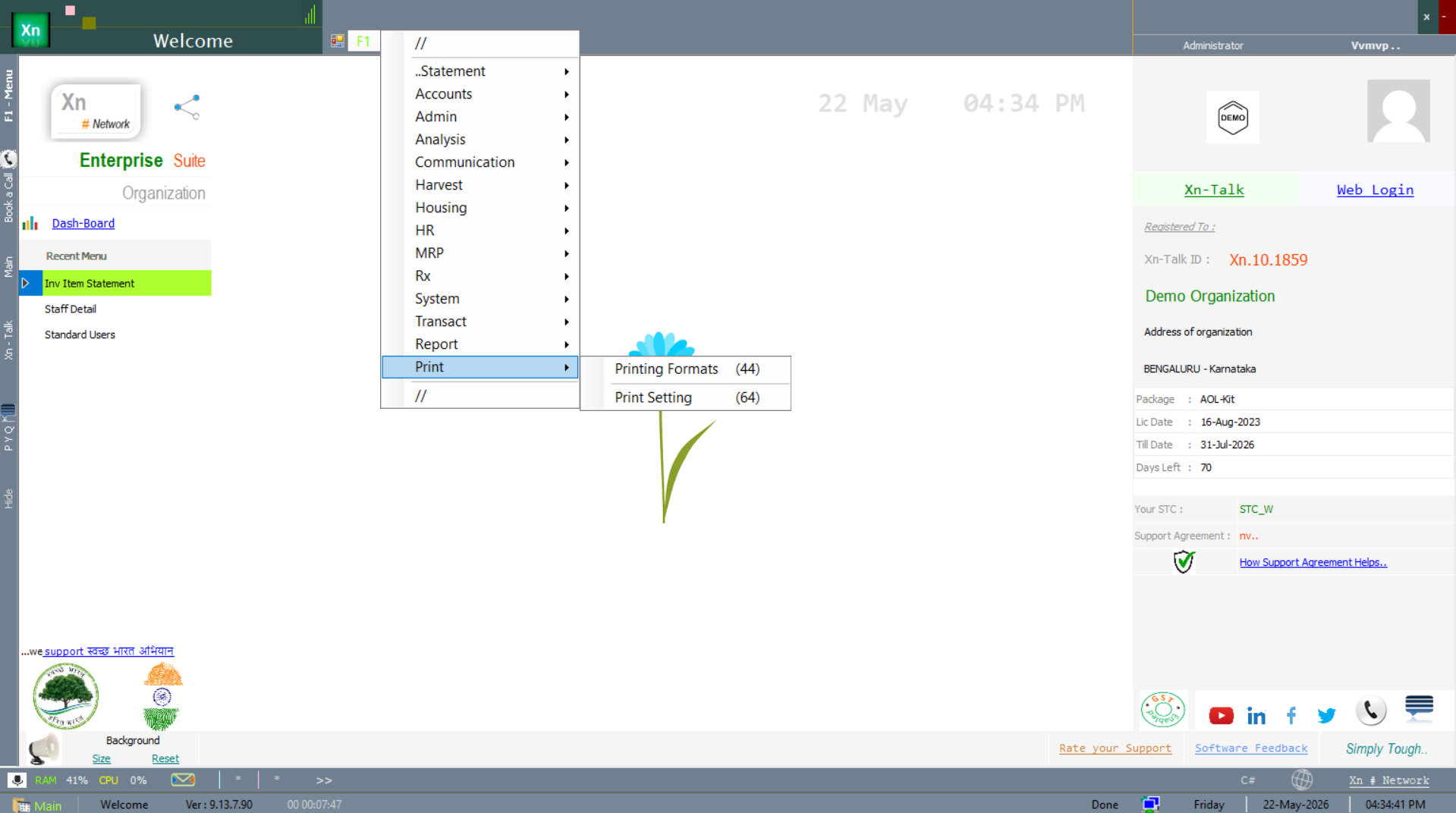
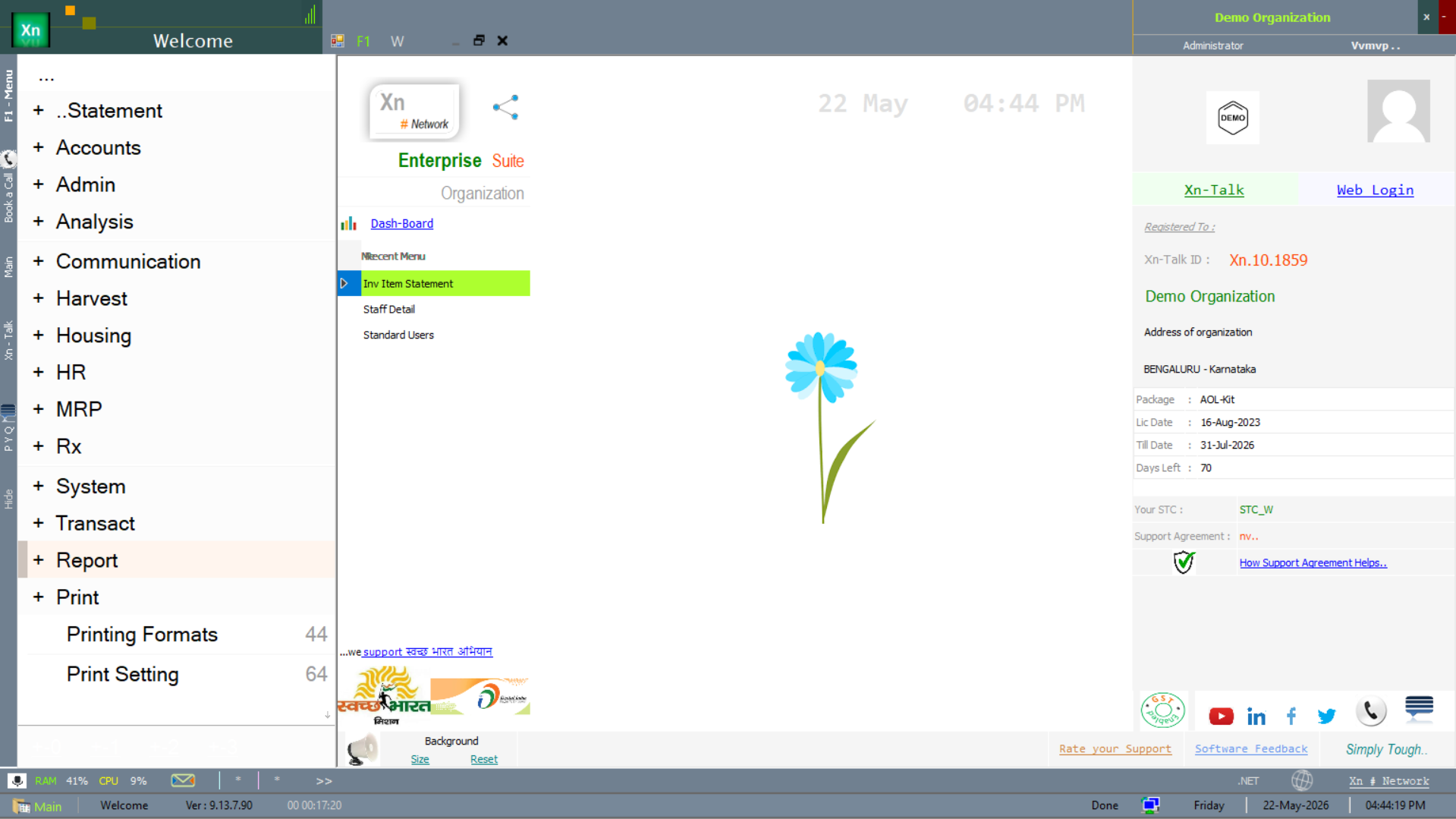
Print-related screens live under the Print branch of the Welcome screen.
License configuration
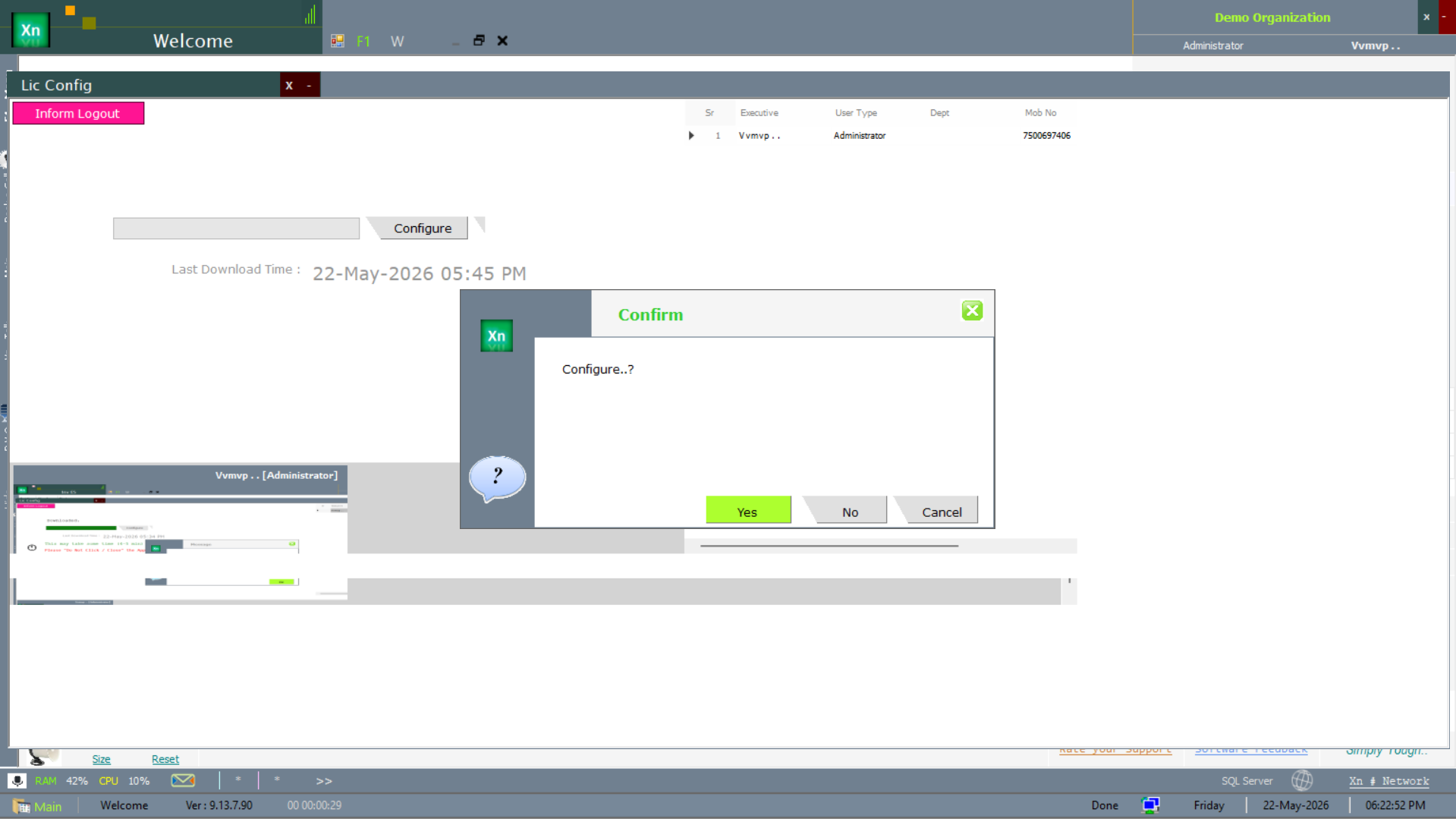
The Lic Config dialog confirms the print-module licence on first launch in a new terminal. Click Yes to accept the print-licence for that terminal.
Printing Formats (template designer)
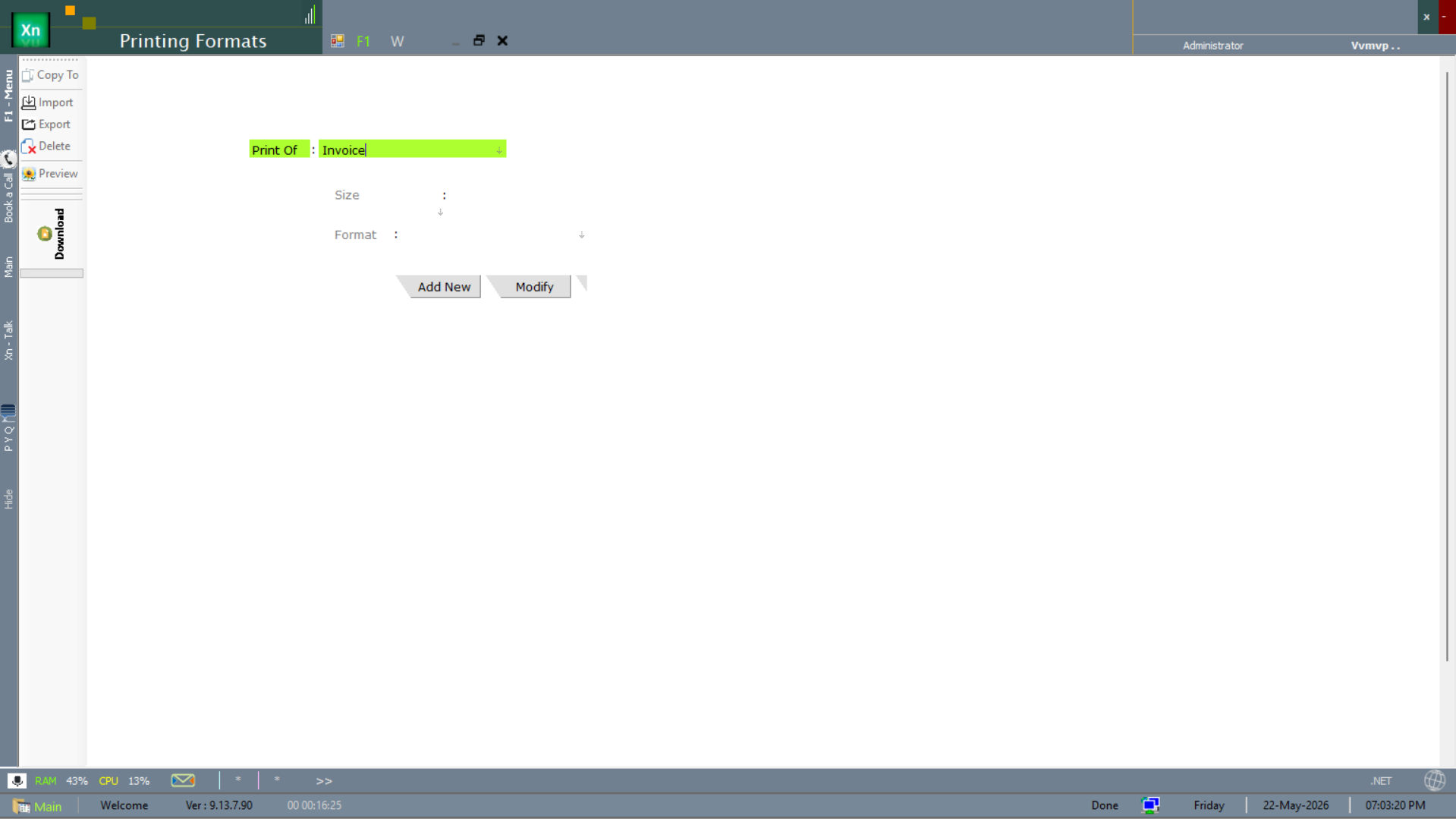
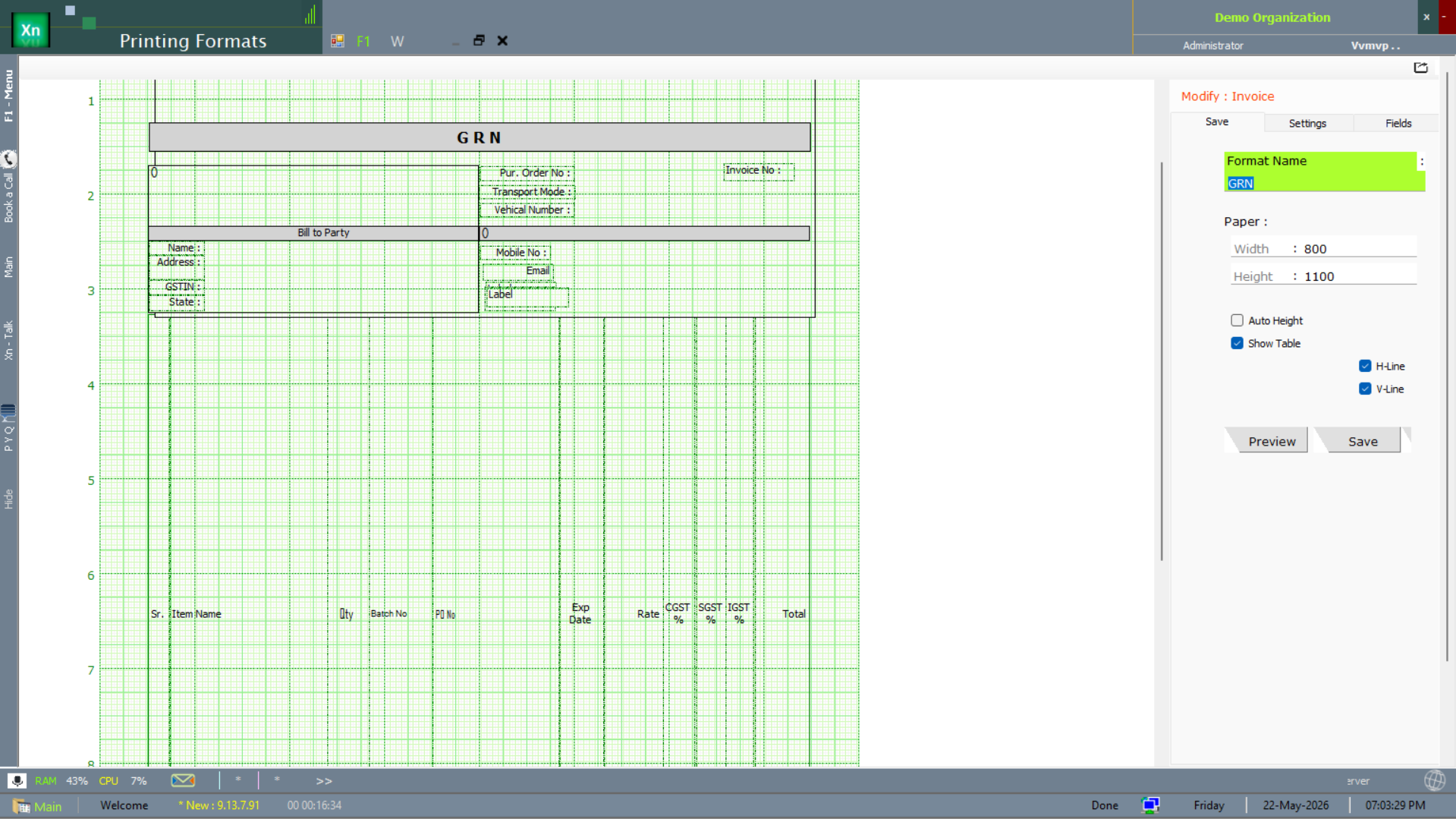
The Printing Formats screen is the visual print-template designer / preview editor — drag fields onto an outline of the document for the layout you need. Each format has its own Add New / Modify entry. Templates configured here are referenced by the Print Definitions assignment.
Print Setting
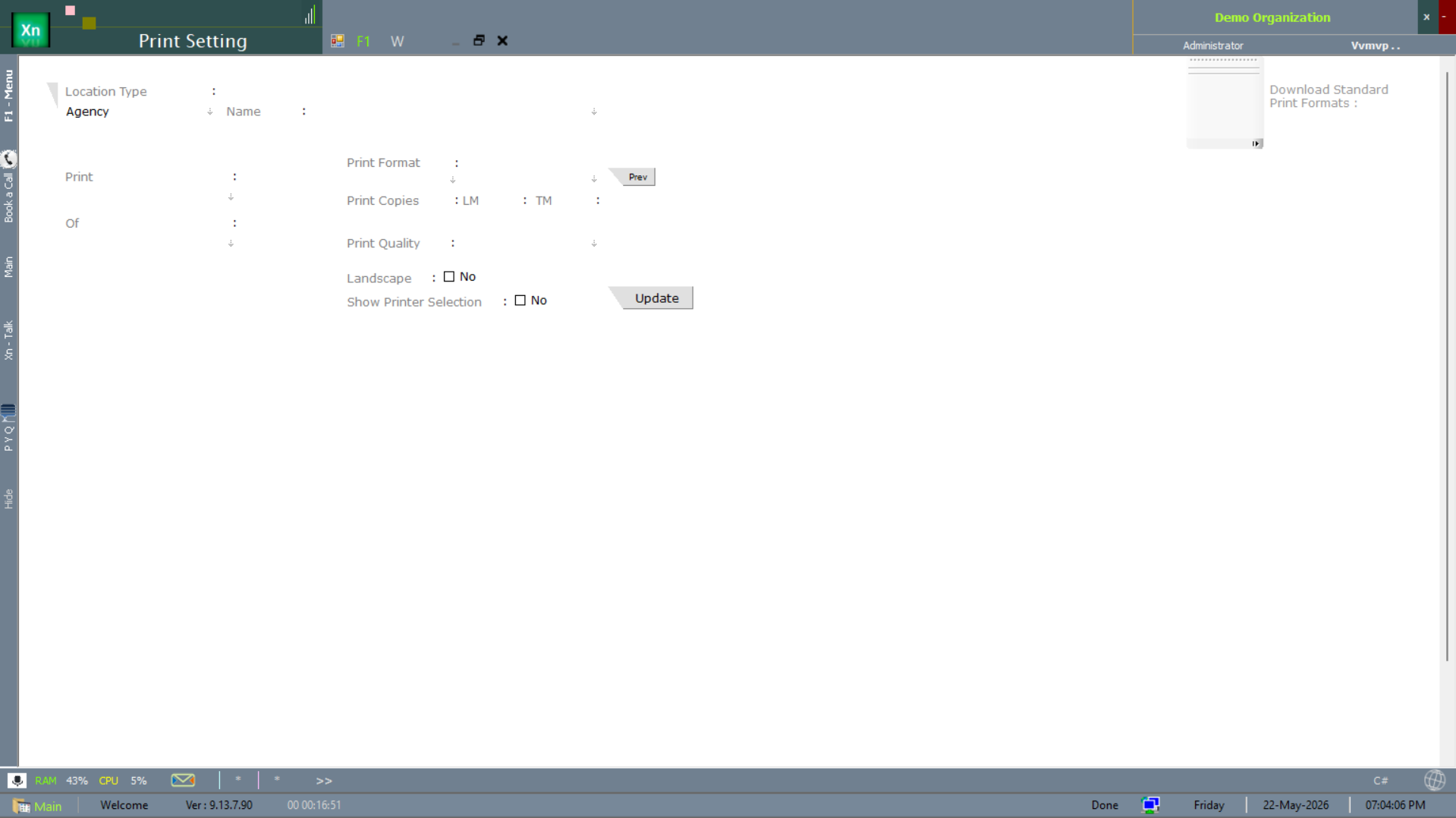
The Print Setting screen controls the global and per-location output preferences — format, quality, orientation, default printer. Tuned once per terminal.