MRP
Material Resource Planning — deciding what to buy or make, when, and how much.
Overview
MRP turns forward demand (sales forecasts and confirmed orders) plus current stock and open POs into a recommended action list. It is the difference between firefighting and planning — once configured, it tells the planner exactly what needs attention each morning. The sections below appear in the order you would normally configure them: first the per-item parameters (coverage, lead time, ROP, safety stock, EOQ, ABC), then the forecasting and planning engine, then the workbench and tracing screens where the planner acts on results.
MRP menu
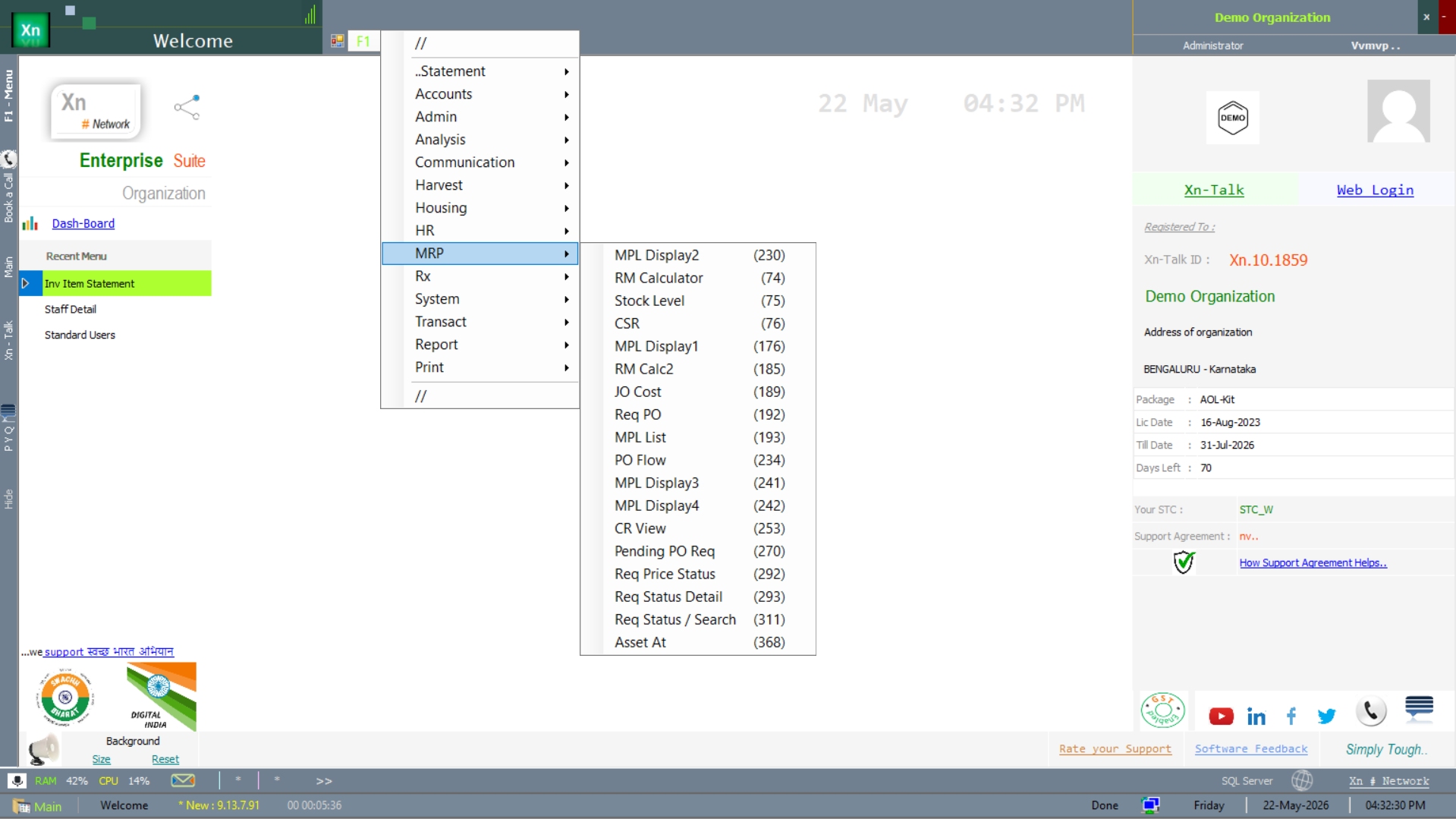
The MRP module is reached from the MRP branch of the Welcome screen. Hovering the menu reveals 18+ entries covering planning lists (MPL Display 1–4, Plan List), calculators (RM Calculator), tracing (Item Tracing, Location Item Tracing) and the supporting reports.
Item Coverage
Defines which items are MRP-driven and which are manually re-ordered. Items flagged out of coverage do not appear in planning runs — useful for ad-hoc SKUs and one-off purchases. The screen shows current coverage status next to each item, with a bulk-update action to flip many items at once.
Lead Time Setup
Days between PO and receipt, defined per item or per supplier. The planner uses the longer of the two when computing the order date so that stock arrives before the re-order point is breached. For imports, include customs clearance days; for local suppliers count the typical day-of-week pattern.
Re-Order Point (ROP)
The stock level at which the system raises a re-order suggestion. The simple formula is ROP = (average daily demand × lead time in days) + safety stock. Update the ROP whenever demand or lead-time changes materially — the system can also recompute it monthly from the rolling 90-day average if you enable auto-ROP.
Safety Stock
Buffer above the lead-time demand to absorb spikes and supplier delays. Typical safety stock is one to two weeks of average demand for A-class items and less for C-class. Set too high and you tie up cash; set too low and you stock out — the Slow Moving / Non Moving report and the stock-out log together show whether you have the balance right.
Economic Order Quantity (EOQ)
The order size that minimises the combined cost of placing orders and holding stock. The classic formula is EOQ = sqrt((2 × annual demand × ordering cost) / holding cost per unit per year). The planner uses EOQ as the default lot size unless a supplier minimum or pack-size constraint overrides it.
ABC Classification
Auto-classifies items into A (top 70-80% of value), B (next 15-20%) and C (the long tail). A items get the tightest planning — daily review, low safety stock, exception messages enabled. C items are usually planned monthly with a generous safety stock. Re-classify quarterly so seasonal items are graded correctly.
Forecast Input
Per-item monthly demand forecasts, used by net-requirement planning. You can key forecasts manually, import from Excel, or use the moving-average / weighted-average / seasonal-index methods built in. Forecasts override the historical average only for the months you fill in — blank months fall back to the moving average.
Net Requirement Planning
The core engine: takes forecasts plus confirmed orders, subtracts on-hand stock and on-order quantity, applies safety stock, and emits a recommended action per item. Output is a list of planned orders (suggested POs and MPLs) with quantity and date.
Planned Orders
The output of a planning run. Each row shows the item, the suggested supplier, the quantity, the recommended order date and the required receipt date. Planned orders are firm-suggestions only; nothing is committed until you convert them.
Convert to PO
Promotes selected planned orders into actual Purchase Orders. The conversion groups lines by supplier so one PO covers many items going to the same vendor. Once converted, the planned order disappears from the workbench and the PO appears in the PO Tracker.
Convert to MPL
Promotes planned orders for in-house items into Manufacturing Plans. The MPL inherits the BOM and routing; you can adjust the planned start date and the assigned line / shift before releasing.
Exception Messages
Warnings the planner flags during a run — "Expedite open PO", "Cancel surplus PO", "Reschedule in", "Reschedule out". Each message links to the underlying document so the planner can act in one click. Treating exceptions promptly is the single biggest source of MRP value.
Vendor Selection
Chooses the best vendor per item using a configurable score — lowest price, shortest lead time, highest on-time-delivery percent, or a weighted mix. The Supplier Performance report under Special Reports feeds the scoring data.
MRP Parameters
Global tuning: planning horizon (typically 90-180 days), frozen period (the front N days nothing is changed), time-fence after which exception messages stop firing, and the default lot-sizing rule (EOQ / Fixed / Lot-for-Lot).
Run MRP
Triggers the planning engine. Can be on demand for an item / category / supplier, or scheduled nightly for the entire item master. A full run on a typical mid-size installation completes in 2-5 minutes; partial runs are near-instant.
MRP Log
History of every planning run with start time, end time, item count and any errors. Useful for support and for proving that the nightly job actually ran.
Planner Workbench
The interactive screen where the planner reviews suggestions, accepts in bulk, edits quantities, or rejects with a reason code. Keyboard shortcuts (A to accept, E to edit, R to reject) make daily review fast.
MRP vs MPS
MPS (Master Production Schedule) plans finished goods at the top of the BOM tree from sales forecasts and orders. MRP then explodes the MPS down through the BOM to plan raw materials and sub-assemblies. Both run inside the same engine — flip the level filter at run time.
Manufacturing Plan (MPL) list screens
Four display variants of the MPL list ship; each surfaces the same plan data with different filter sets so different roles see what they need. Pick the variant that matches your role rather than reformatting one variant repeatedly.
Plan List
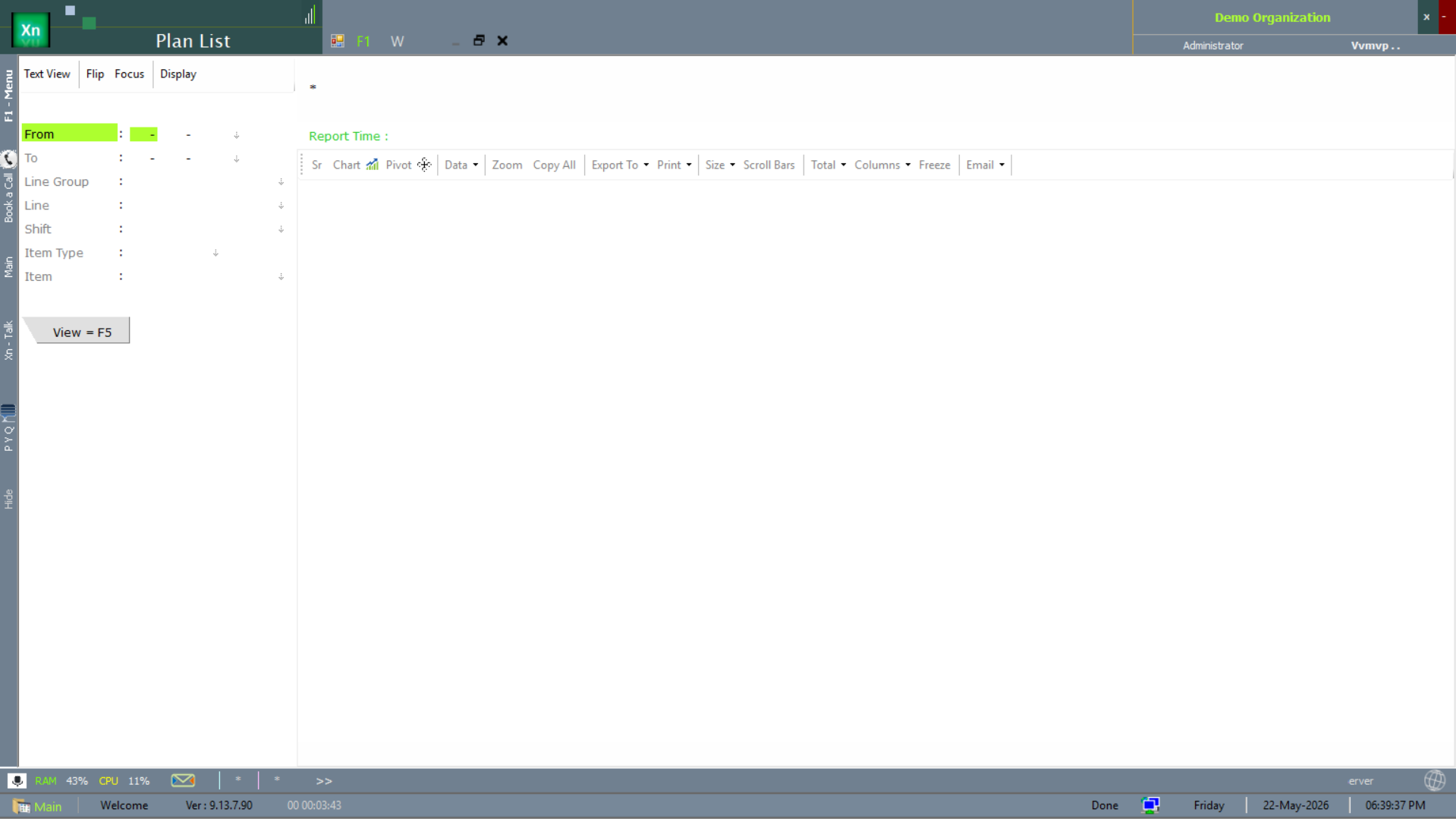
The umbrella list view — every Manufacturing Plan with detailed filter fields (item / line / shift / date). Use this as the entry point when you don't know which plan you need.
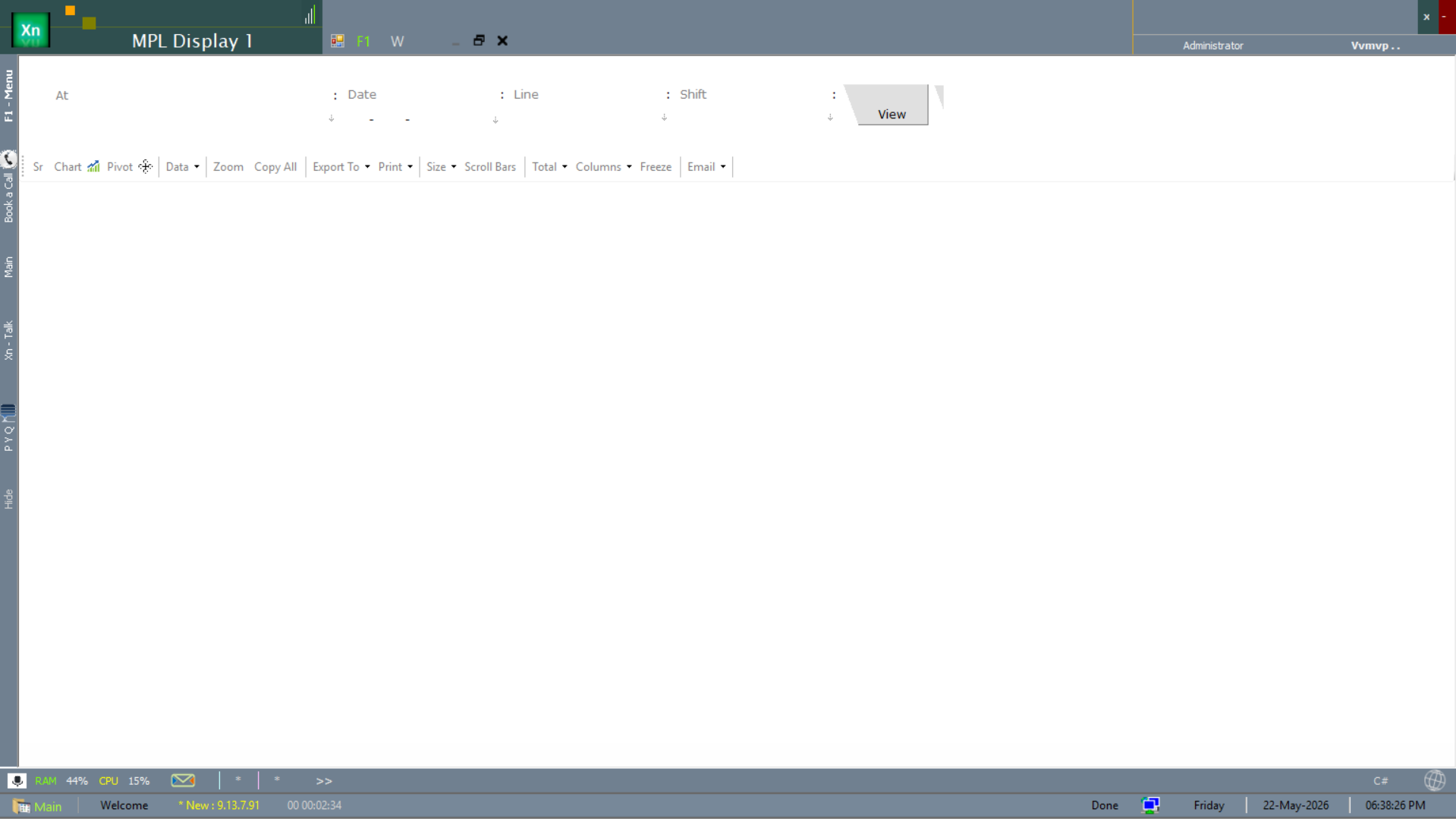
MPL Display — date / line variant
MPL Display 1 filters the plan by date and production line — the planner's daily view.
MPL Display — line / shift variant
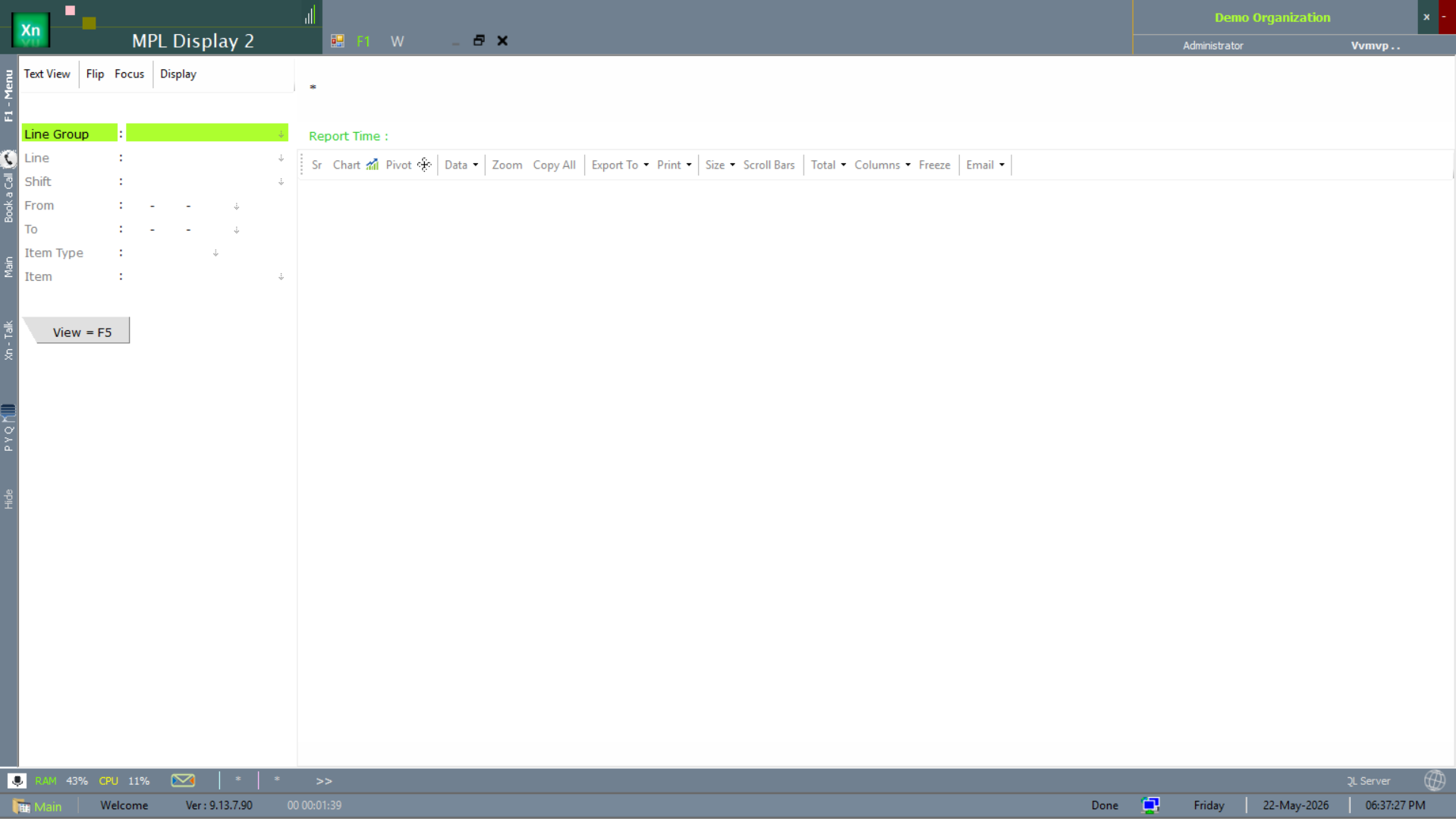
MPL Display 2 swaps the date filter for a shift filter — the supervisor's view of one line for one shift.
MPL Display — line / shift variant 3
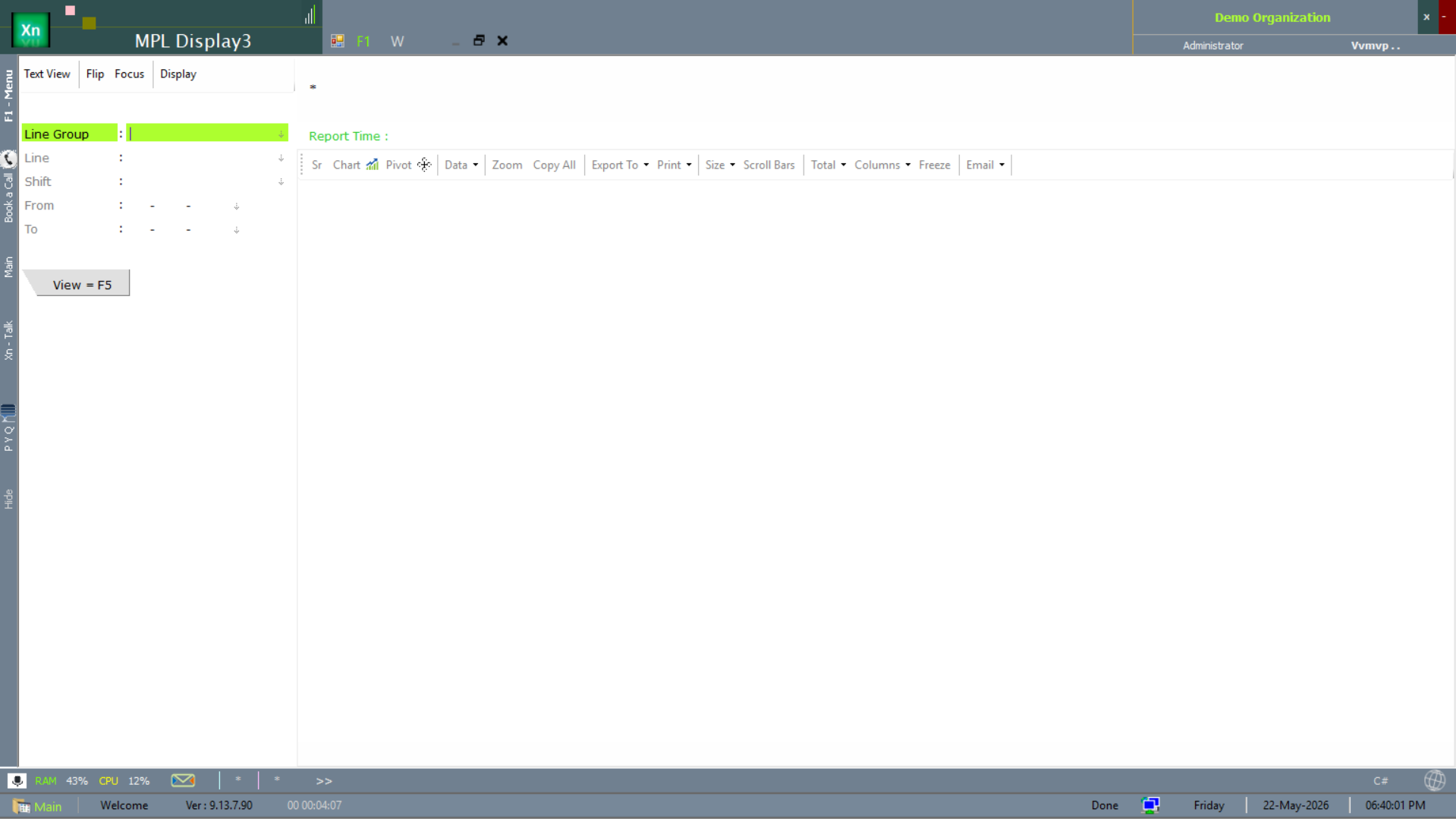
MPL Display 3 is the third line / shift variant, set up for a different role's preferred column set.
MPL Display — line / shift variant 4
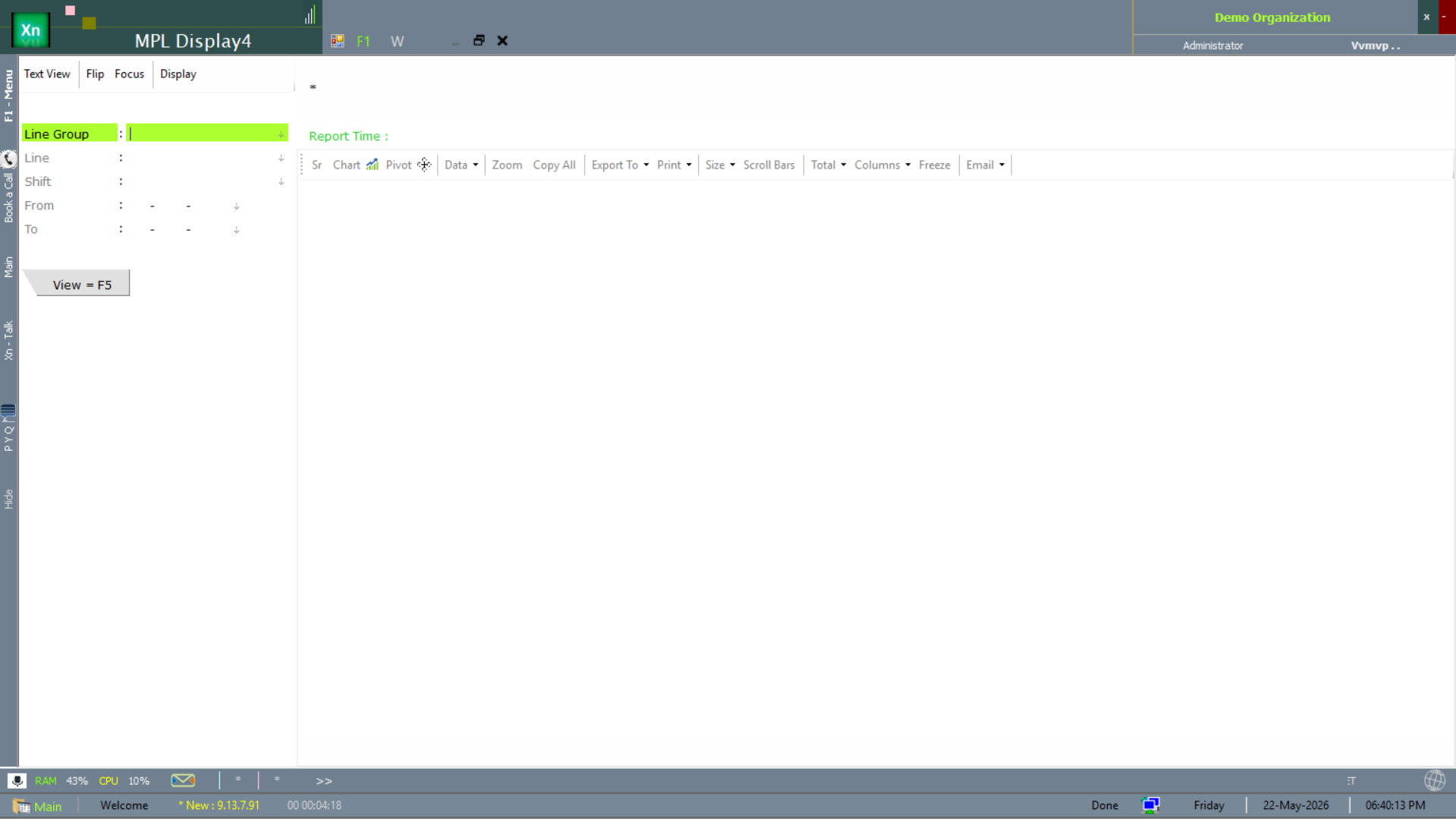
MPL Display 4 mirrors Display 3 with a further column refinement — pick this variant only if a power user has tailored it for your role.
Raw Material (RM) Calculator
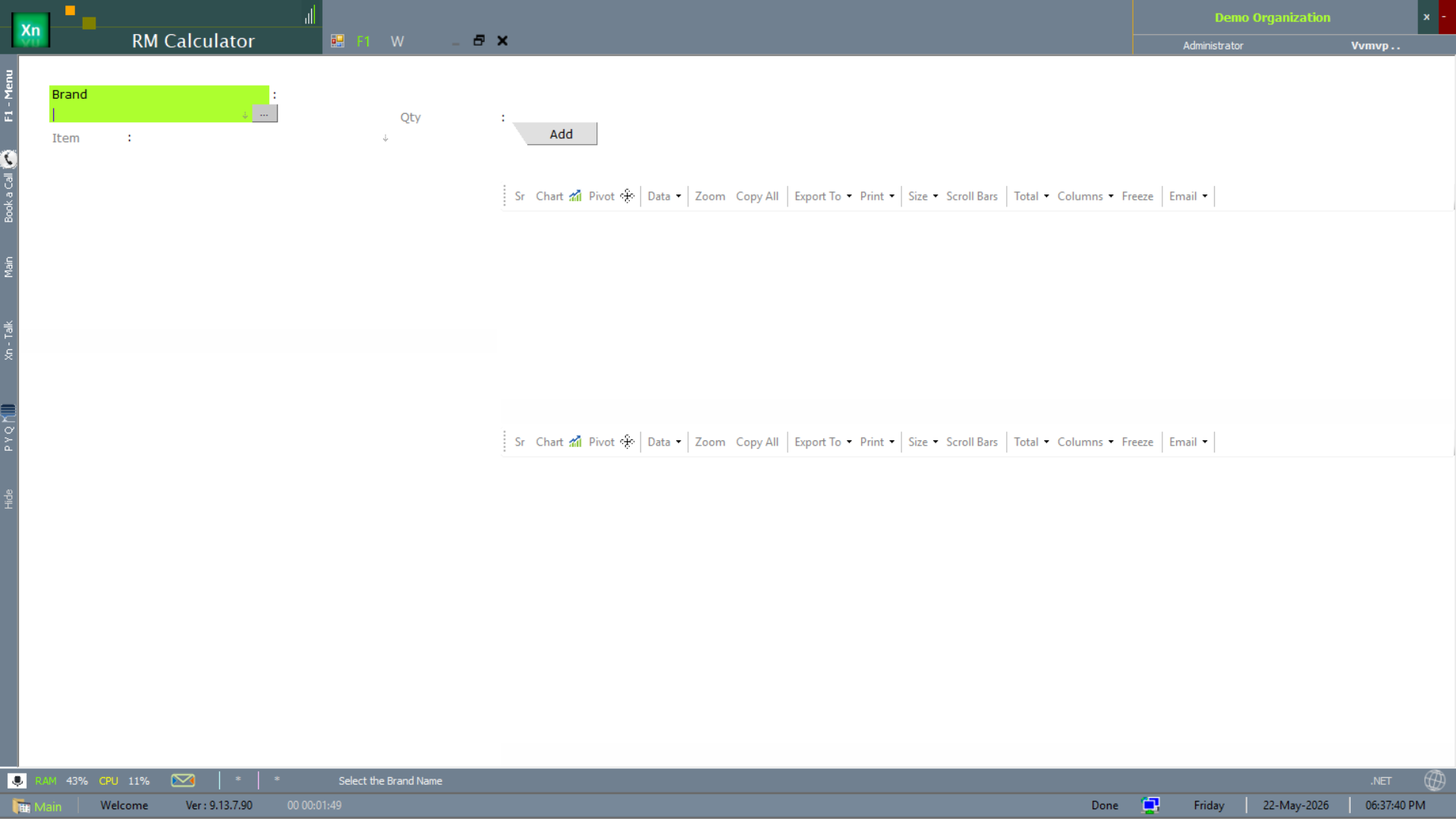
The RM Calculator turns a finished-goods quantity into the implied raw-material requirement using the BOM — a sanity check before releasing a plan, or a back-of-envelope tool when costing a quote. The dual-table layout shows input quantities on the left and the calculated RM needs on the right; the standard export toolbar pushes the result into Excel.
RM Calculator 2
RM Calc2 is the alternate layout of the RM Calculator — the same BOM-explosion logic with a wider grid that lets you cost several finished-goods lines at once rather than one at a time. Use it when you are pricing a multi-item quotation and want the combined raw-material requirement and cost in a single view.
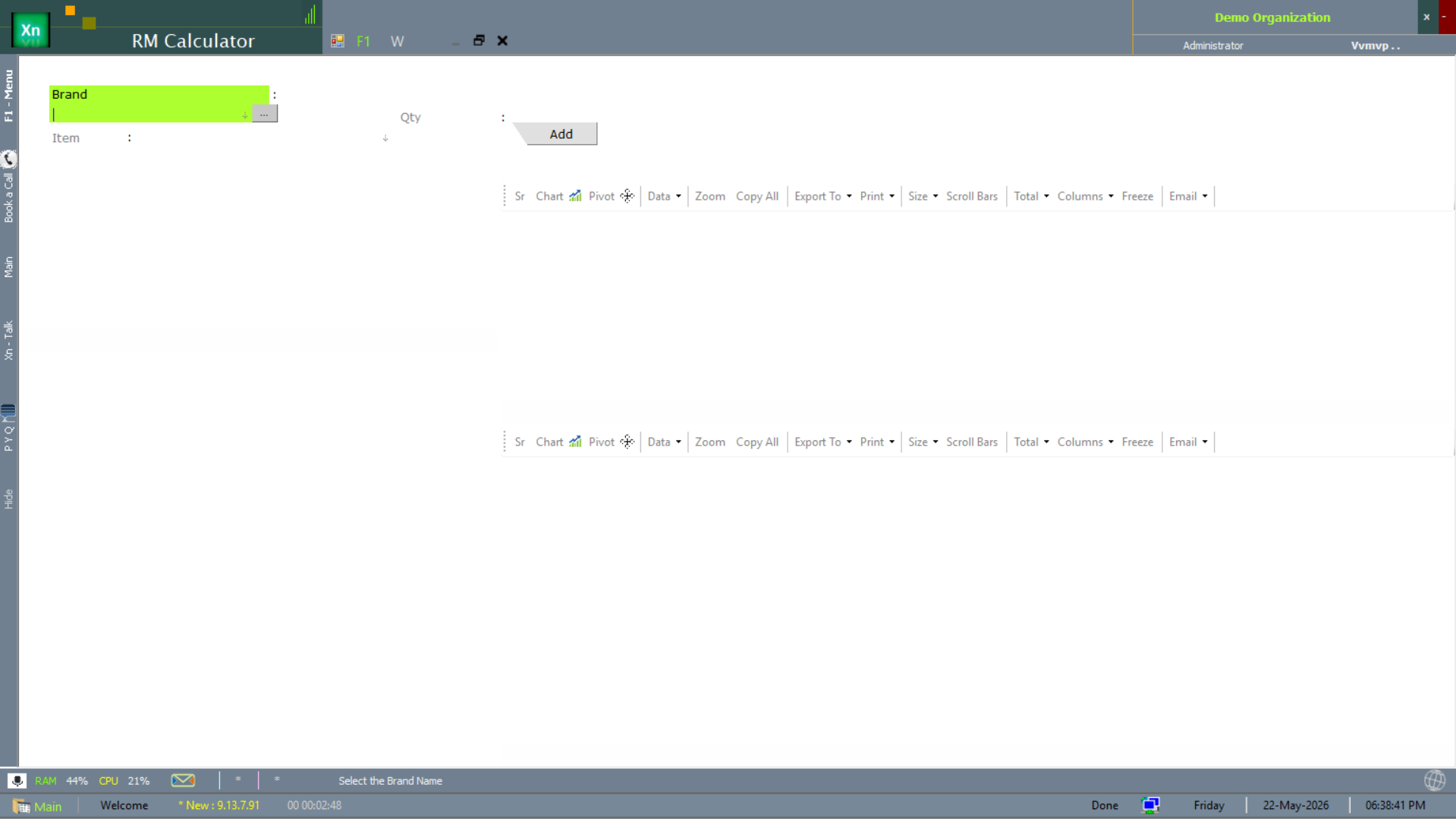
Customer Service Report (CSR)
The CSR measures how well the plan is serving committed customer orders — on-time-in-full per location. Used as the daily KPI for the planning team.
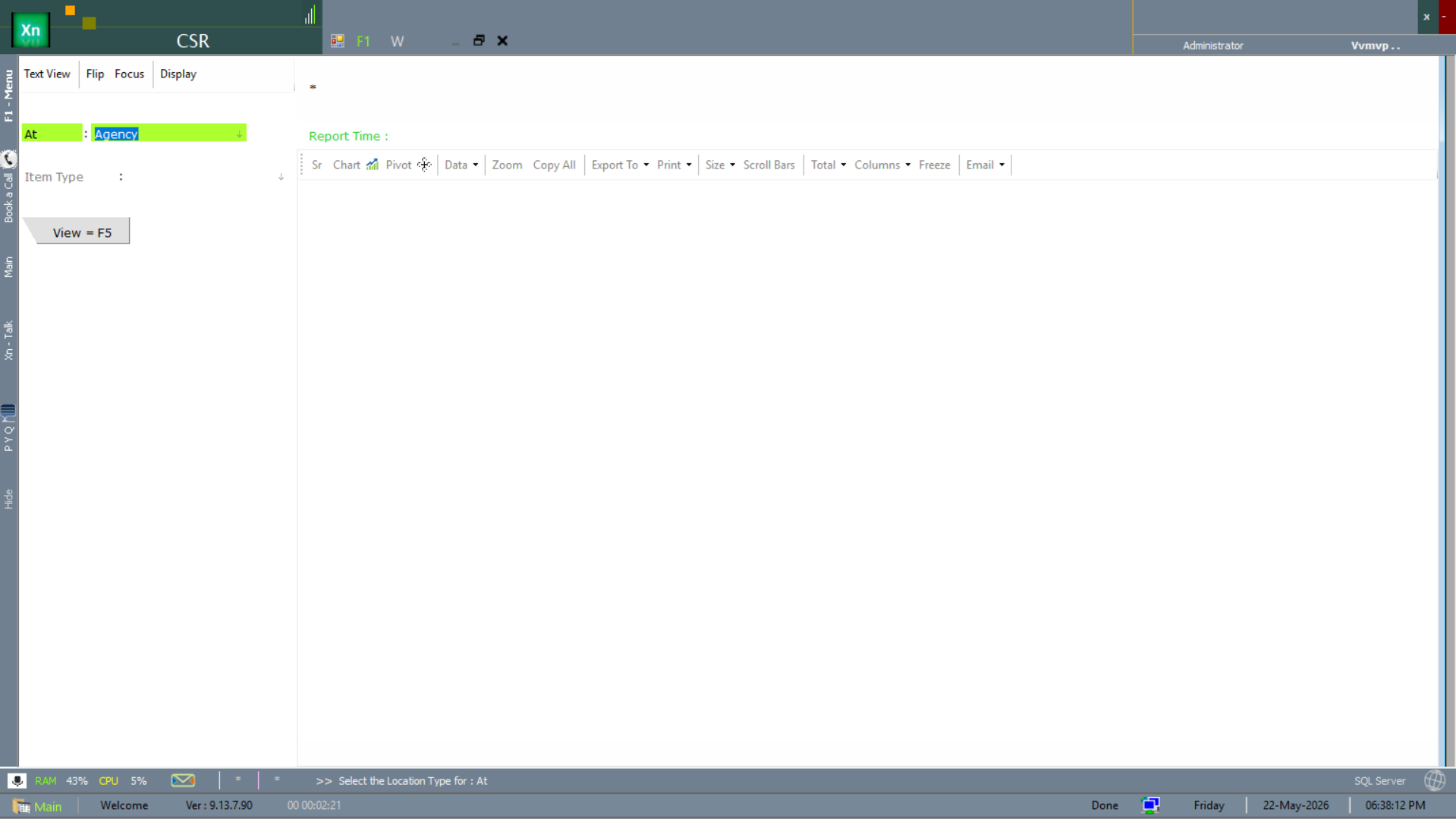
Stock Flow — planning filter (C variant)
The Stock Flow C filter form is the planning-side variant of the Stock Flow report (the operational variant lives under Stock Reports). It adds Item Type and Item filters to the standard At / From / To set so the planner can scope to one BOM segment at a time.
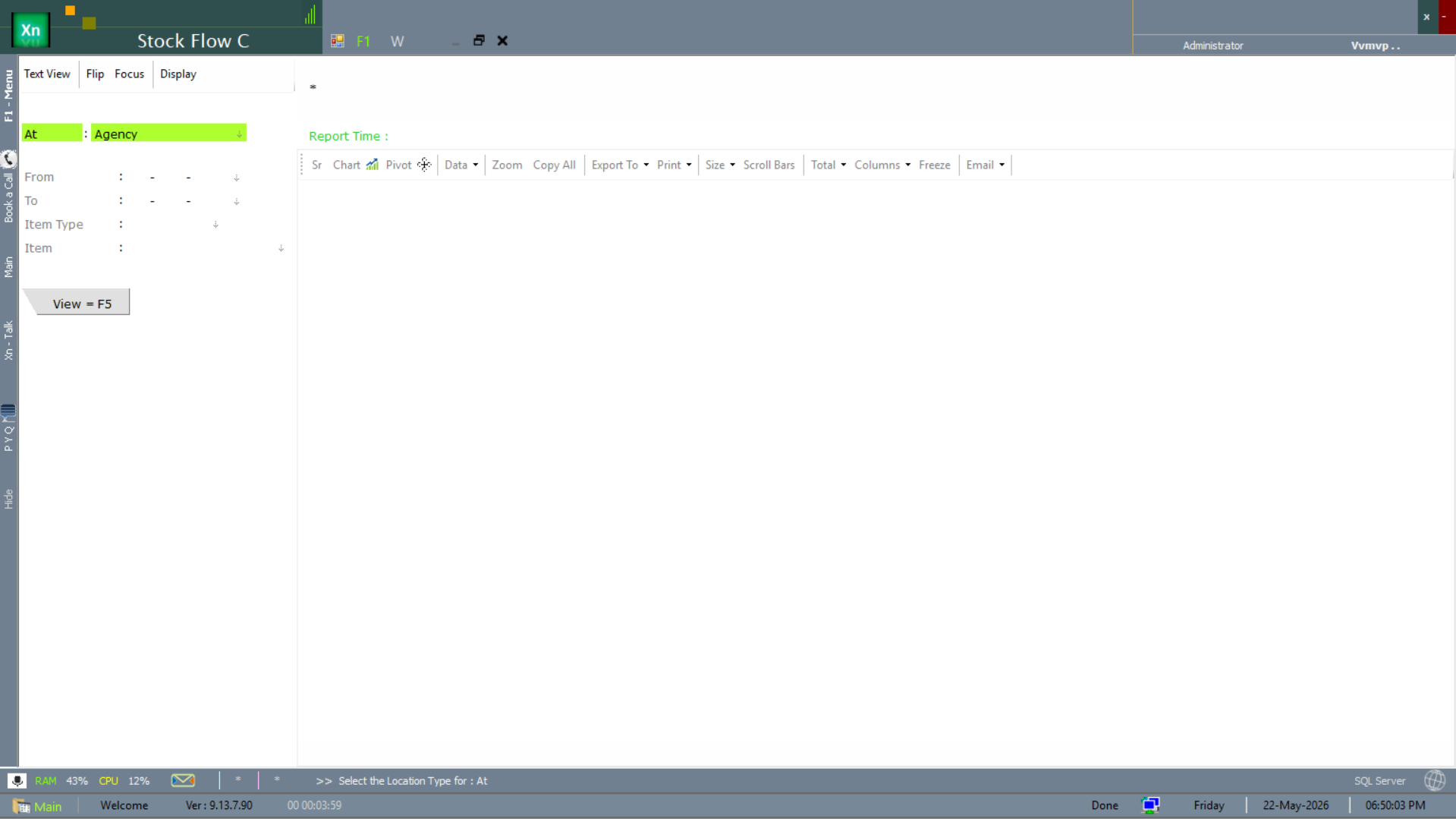
IO Cost
IO Cost (Inward / Outward Cost) compares the cost value of material flowing into a process or location against the value flowing out, so the planner can see consumption variance and the cost added at each stage. It is the costing companion to the Stock Flow report — Stock Flow shows the quantities, IO Cost values them. Screen details to be confirmed with the product team.
Req RO (Requirement / Re-Order)
Req RO lists the items whose projected stock has fallen below their re-order point and turns them into requisitions ready for the buyer. It is the bridge between the planning run and the Purchase Order screens: accept a requirement here and it flows through to a PO. Screen details to be confirmed with the product team.
Routing MQ Req
Routing MQ Req (routing / manufacturing-quantity requirement) explodes a planned manufacturing quantity down its routing so each work-centre and operation sees the material and capacity it must provide. It lets the planner confirm that every step in the route can meet the planned quantity before the plan is released. Screen details to be confirmed with the product team.
Tracing screens
The tracing screens follow a single item or batch through every movement — essential when investigating a planning anomaly or responding to a quality / recall query.
Location Item Tracing
Location Item Tracing shows every IN/OUT movement of an item at a chosen location, with the analytics toolbar (pivot / chart / export) attached. Use it when you suspect a stock anomaly is local to one branch.
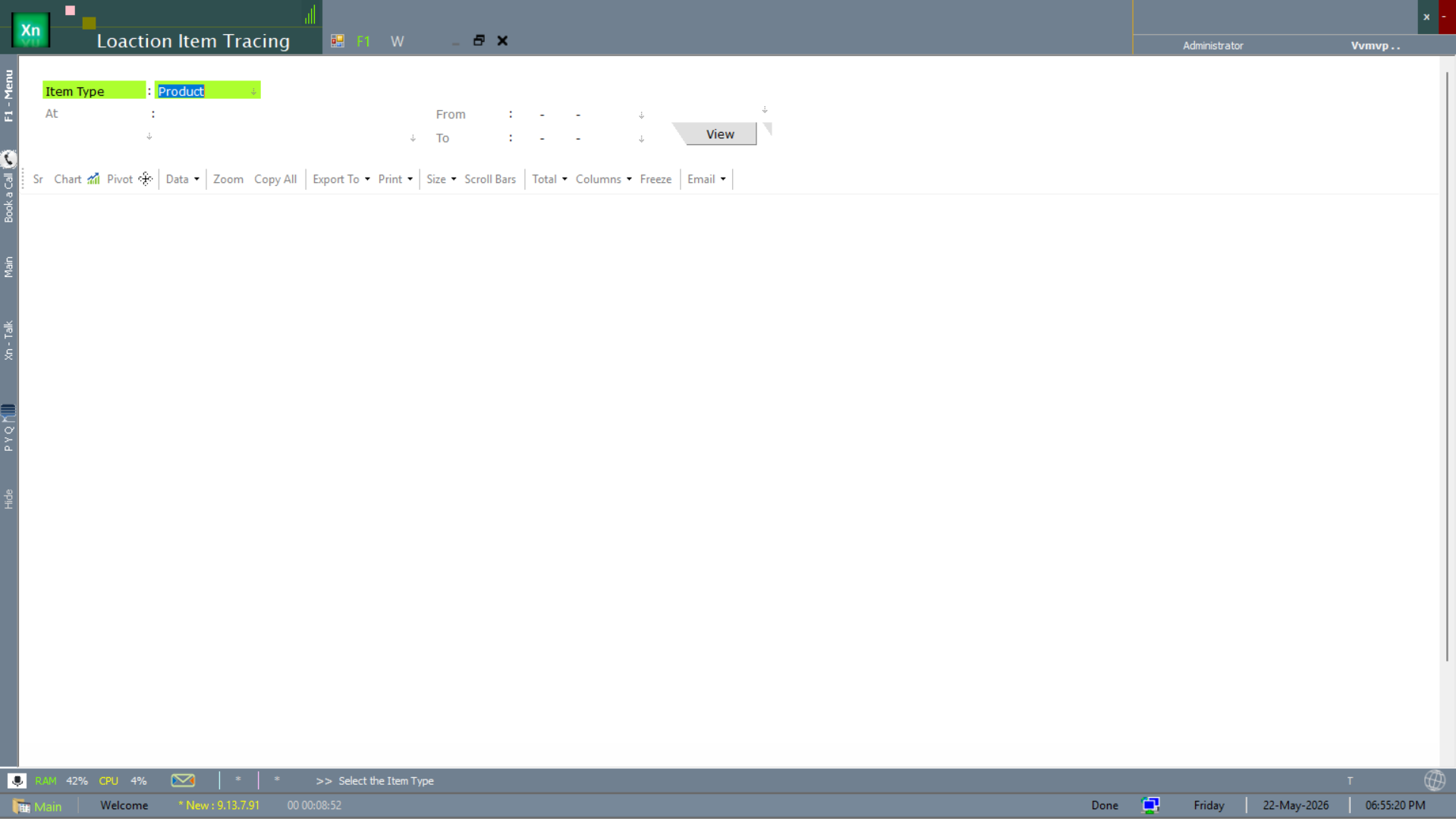
Item Tracing
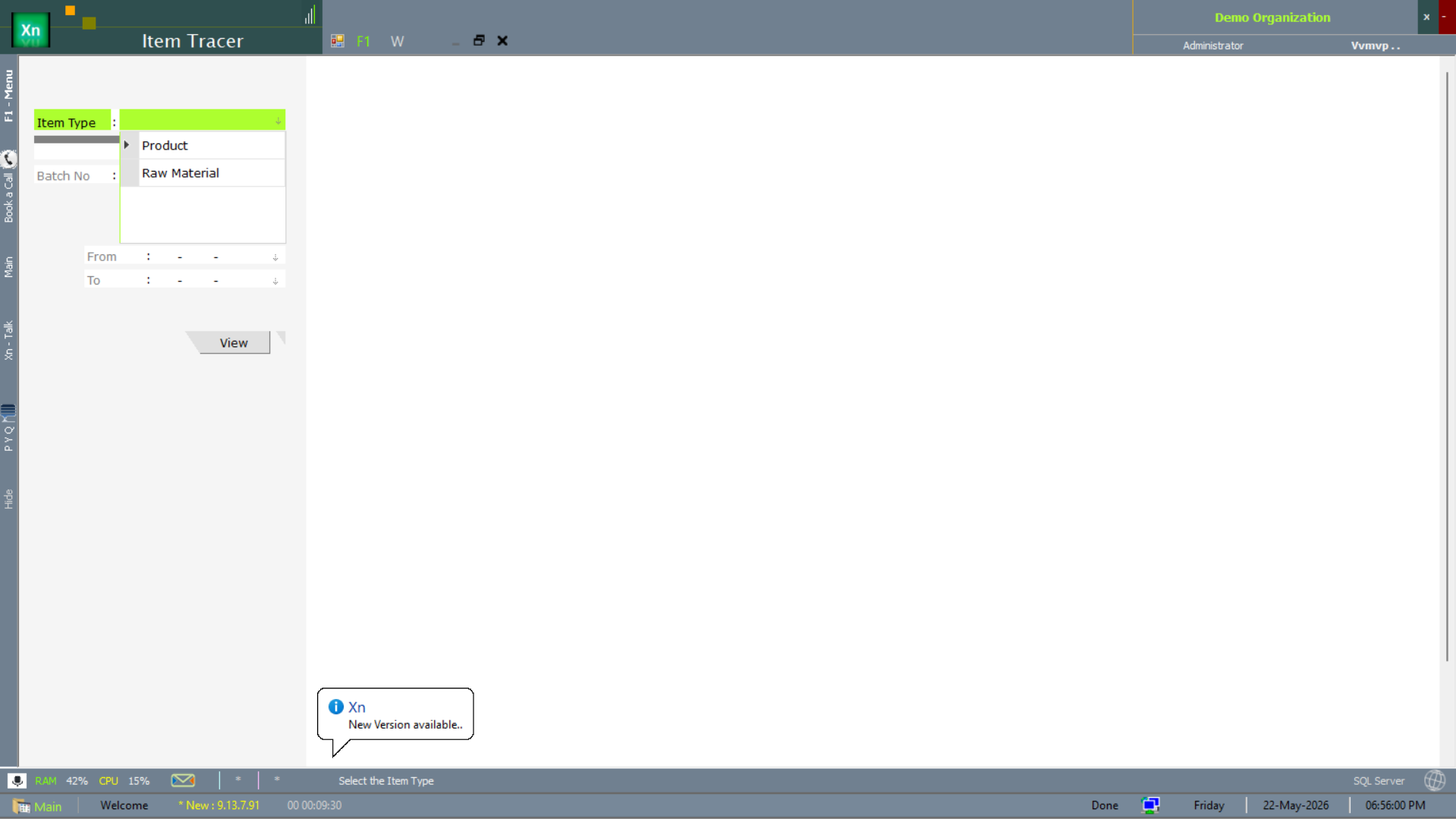
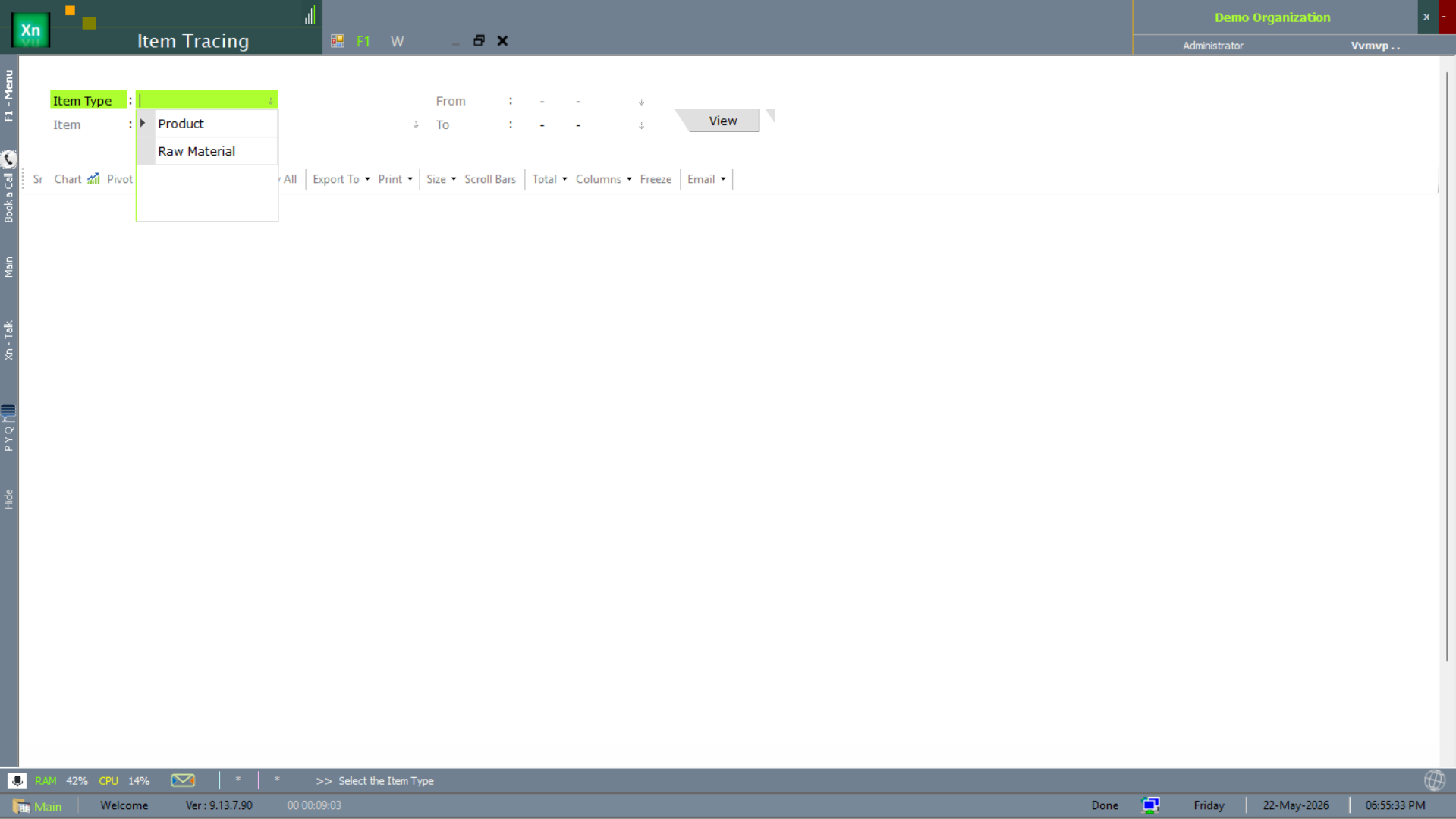
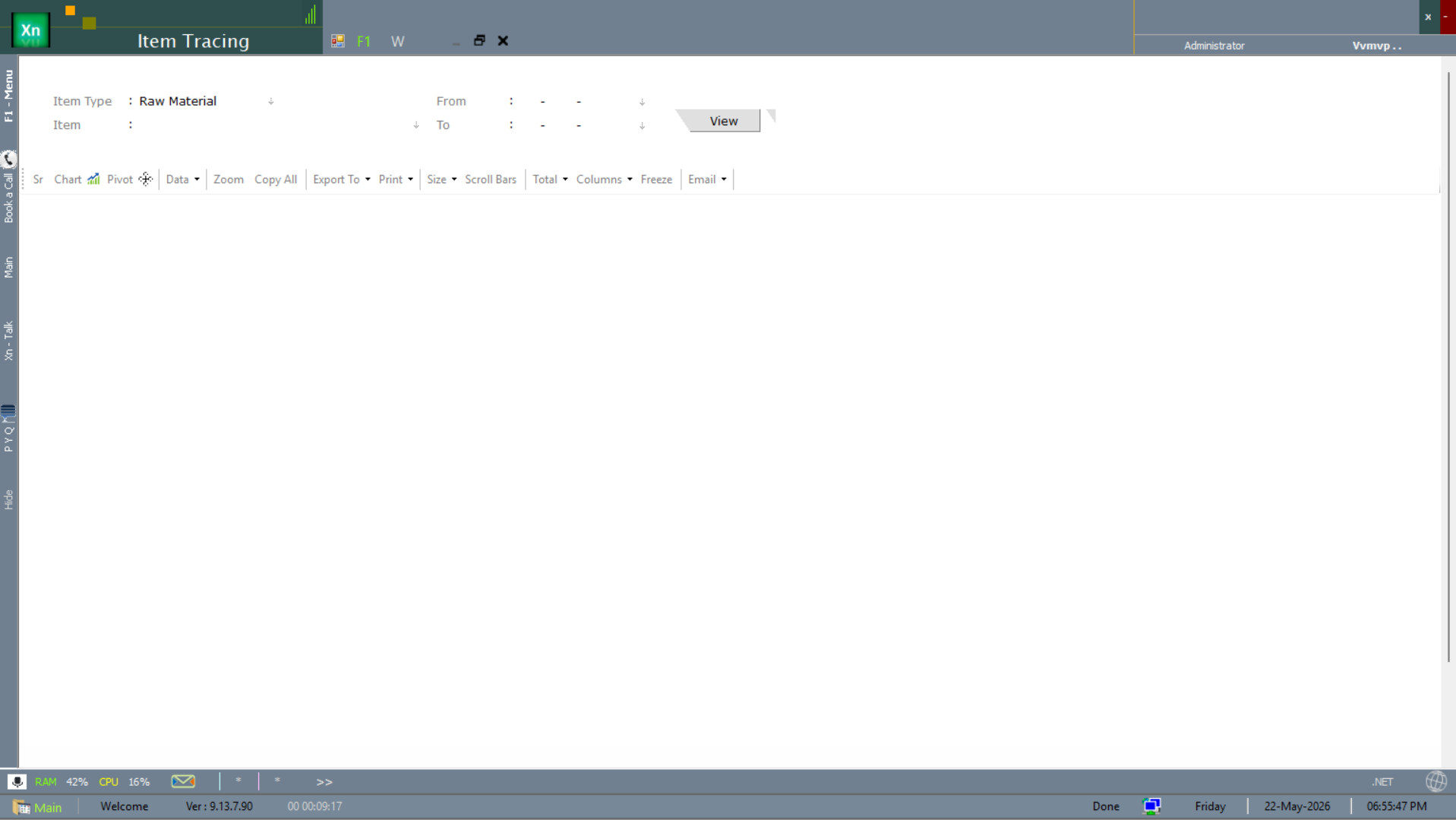
Item Tracing drops the location filter and follows the item everywhere — receipts, transfers, issues, conversions, production. The Item Type dropdown lets you scope to Product (finished goods) or Raw Material first.
Item Tracer (batch-level)
Item Tracer is the batch-level trace — same data as Item Tracing but at the batch granularity required for pharma / food recalls. Use it whenever a quality complaint references a specific batch number.