File Management
Users, roles, templates and document storage.
Overview
File Management is the access-control and document-management home for the application. Set up users, group them into roles, override individual rights where needed, and manage the templates and attached documents that everyone shares.
Standard Users
Add, edit and disable user logins. Each user is linked to a staff record (for accountability) and to a default location. Disabling rather than deleting is the standard practice — the user's historical activity remains traceable.
Roles
Named bundles of menu rights (Admin / Manager / Operator / Auditor / Read-Only are typical). Assigning a role to many users is much easier than per-user rights; use roles for the rule and individual access overrides for the exception.
Access Setting
Per-menu, per-user override of role rights — grant or deny one screen for one user without changing the role. The screen also controls action-level rights (view / add / edit / delete / approve) so you can give a user read-only access to a sensitive area.
Templates
Invoice, slip, label and report layouts. Designed with a visual drag-and-drop editor — no code. Each template is versioned; the previous version stays available so you can compare or roll back.
Document Storage
Where attachments (PDFs, images, scans) live on disk. Configurable per-document-type so different categories can go to different folders or storage tiers. Documents are encrypted at rest and indexed for full-text search where supported.
Audit Log
Searchable log of every login, every voucher save, every master change and every setup edit. The first place to look when something looks wrong; the answer is usually "user X did Y at time Z". The audit area surfaces a family of screens grouped by what is being tracked — menu activity, user logins and the raw log list.
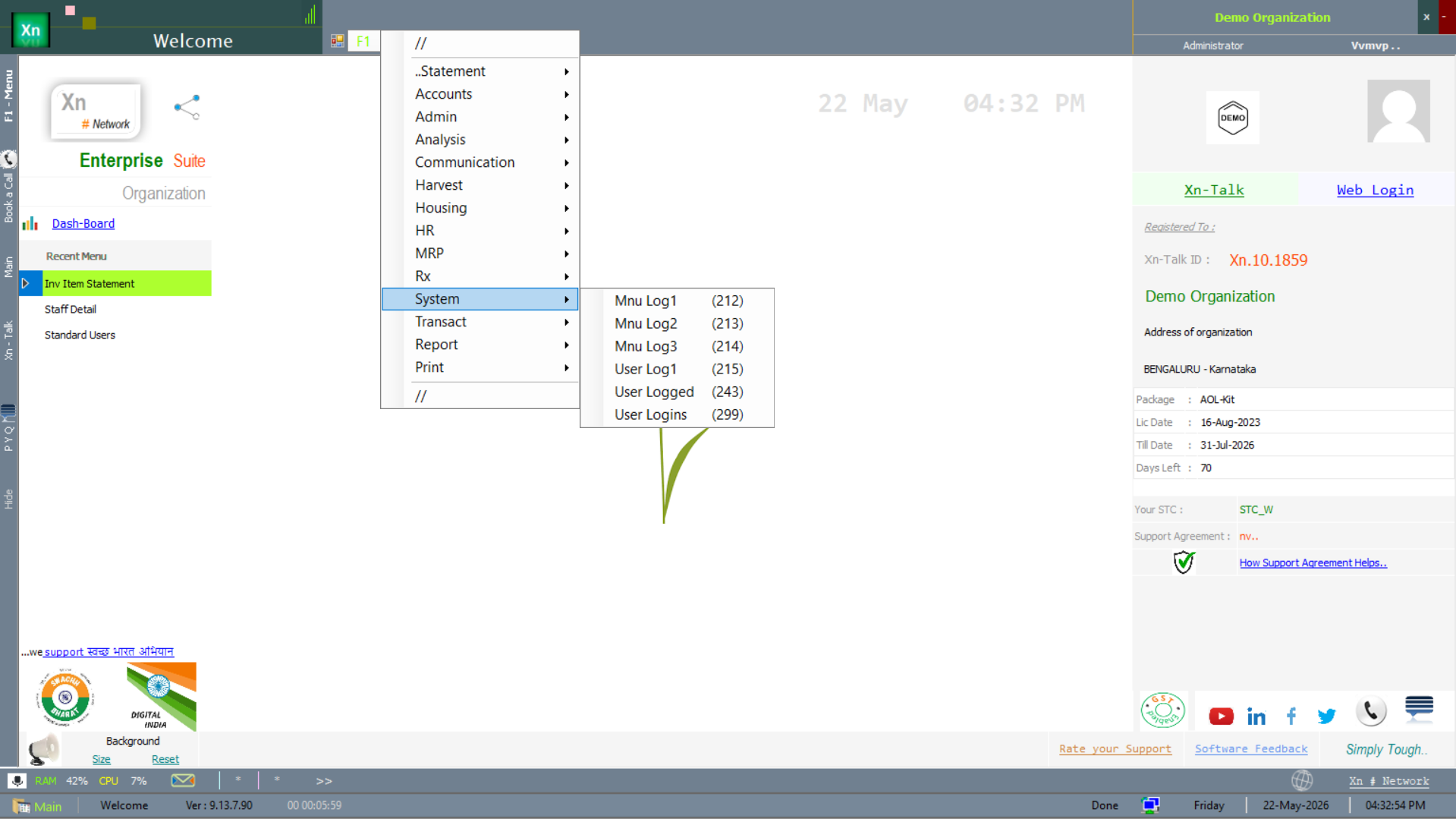
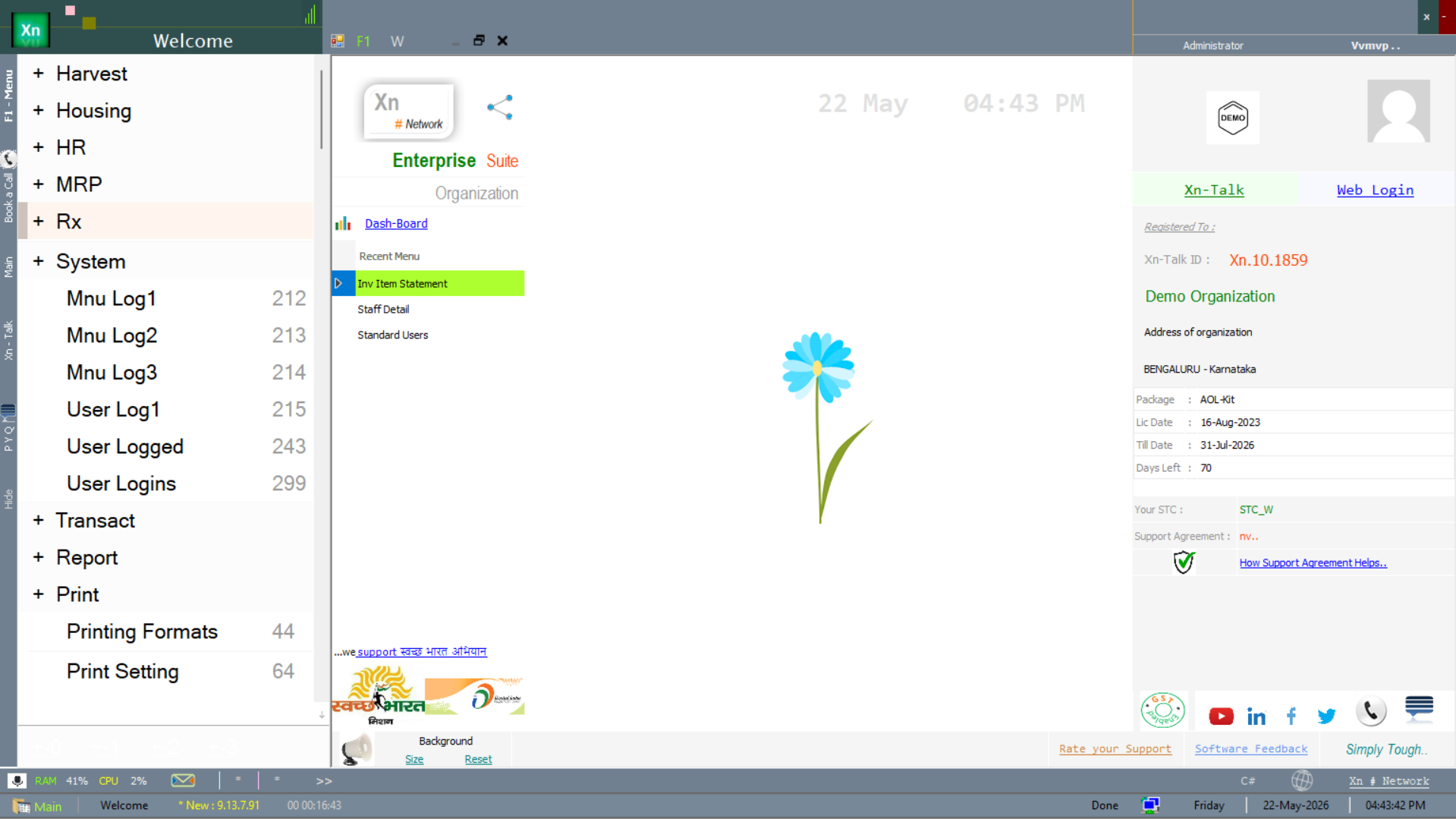
Audit / log menu
The audit screens live under the System branch — menu / user logging and audit entries are reached from there.
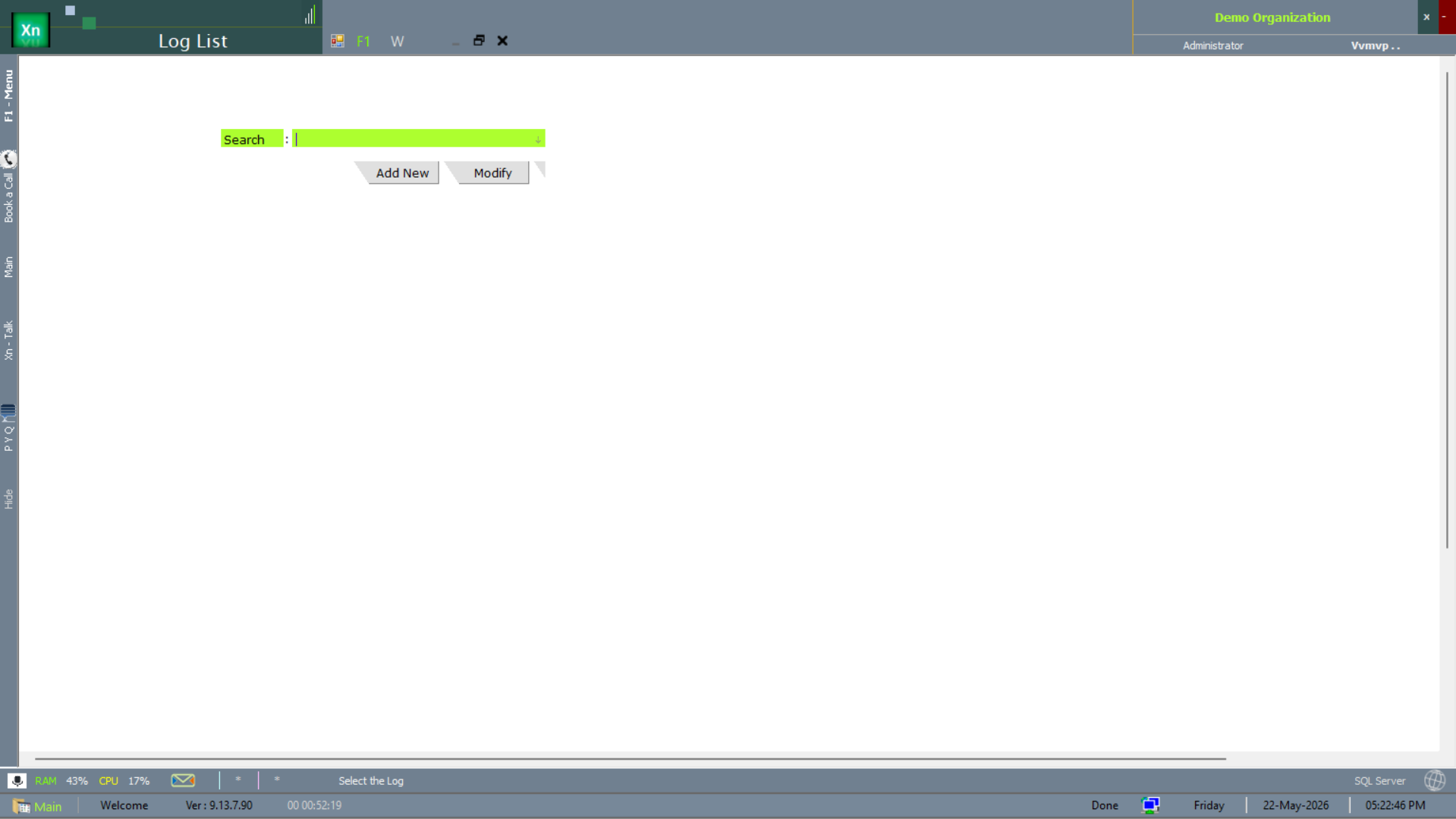
Log List
The Log List is the raw chronological event stream — every recorded event in order.
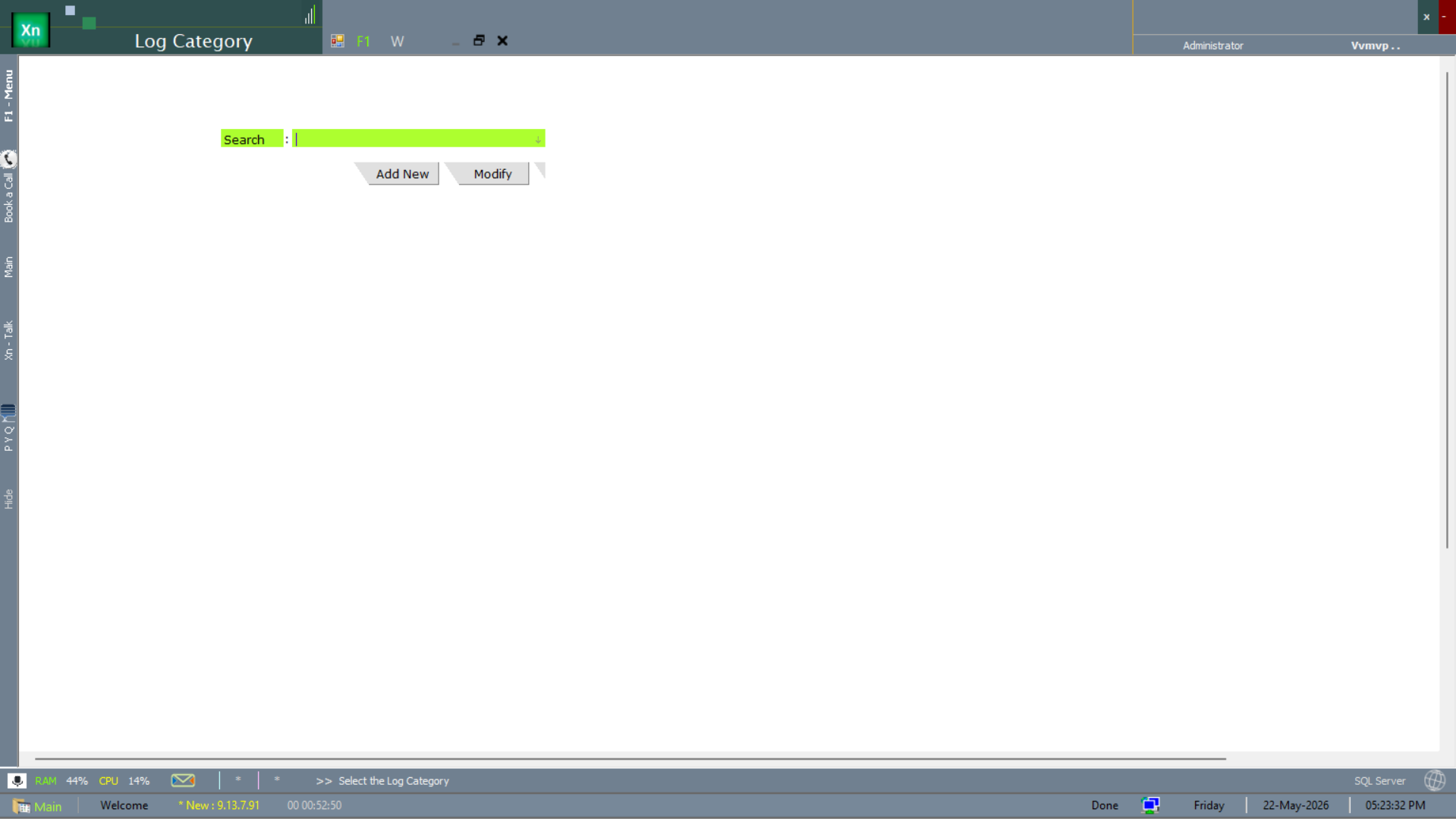
Log Category
The Log Category screen filters the same data by category (login, save, master-edit, setup) for narrower review.
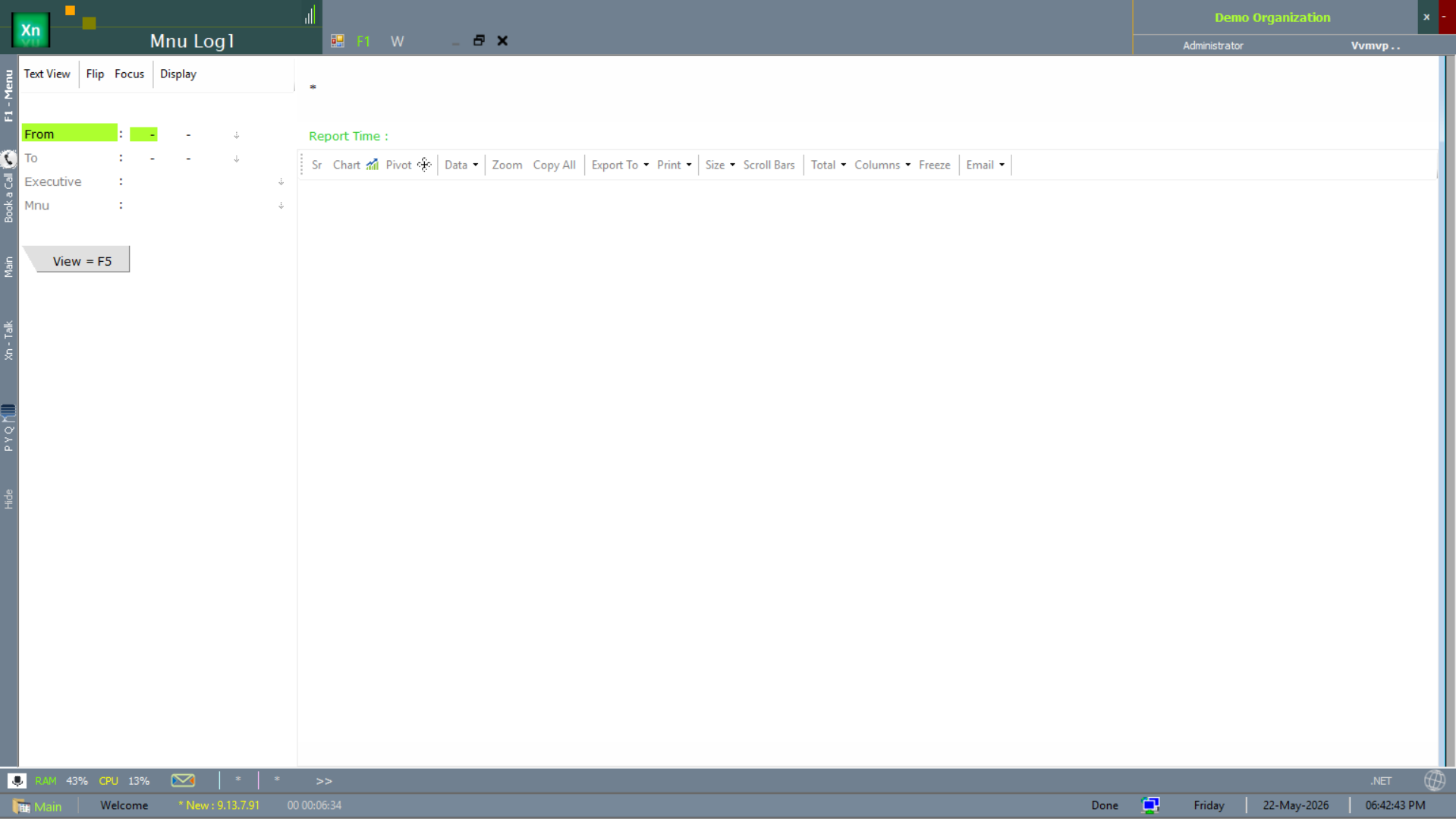
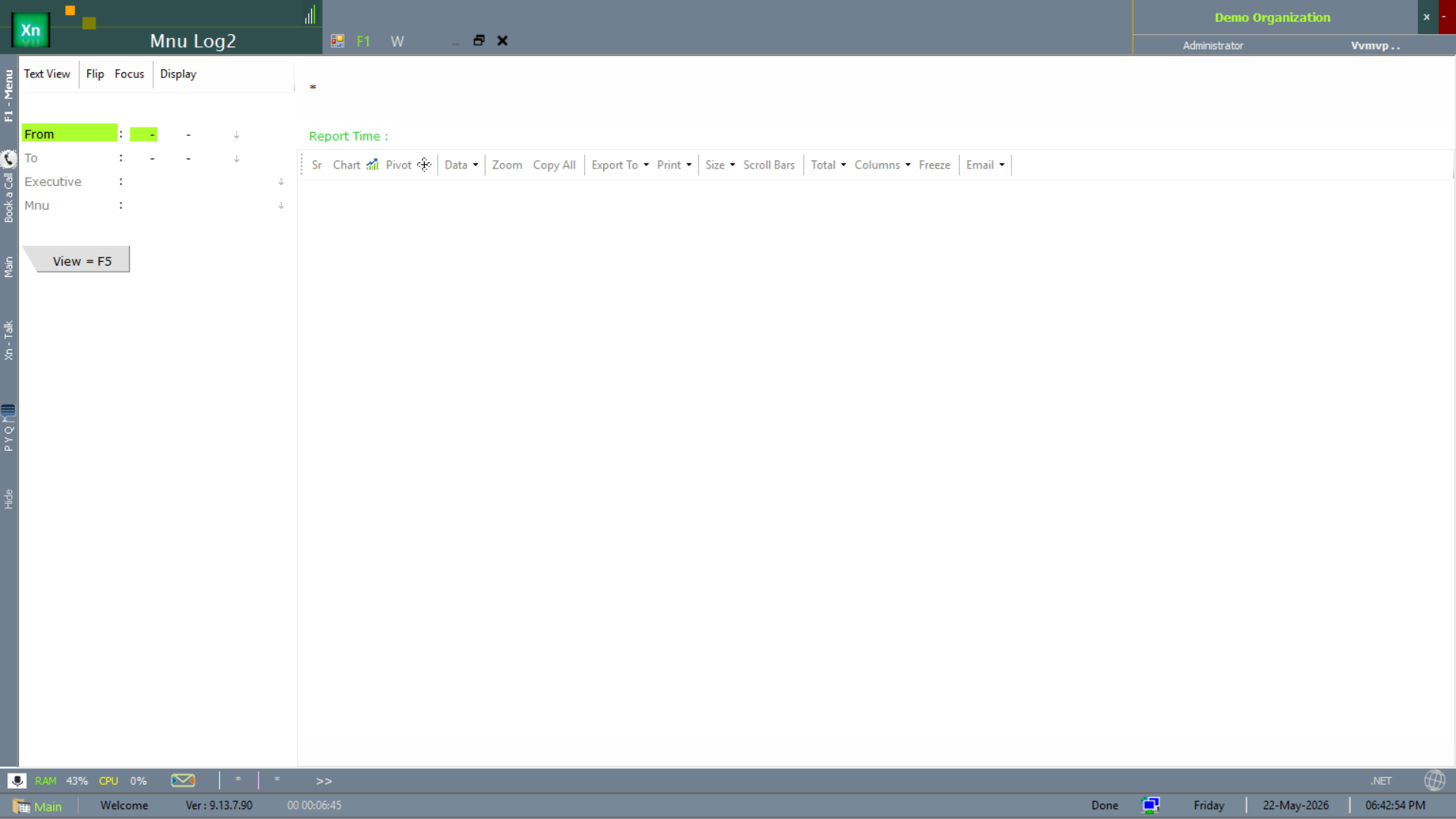
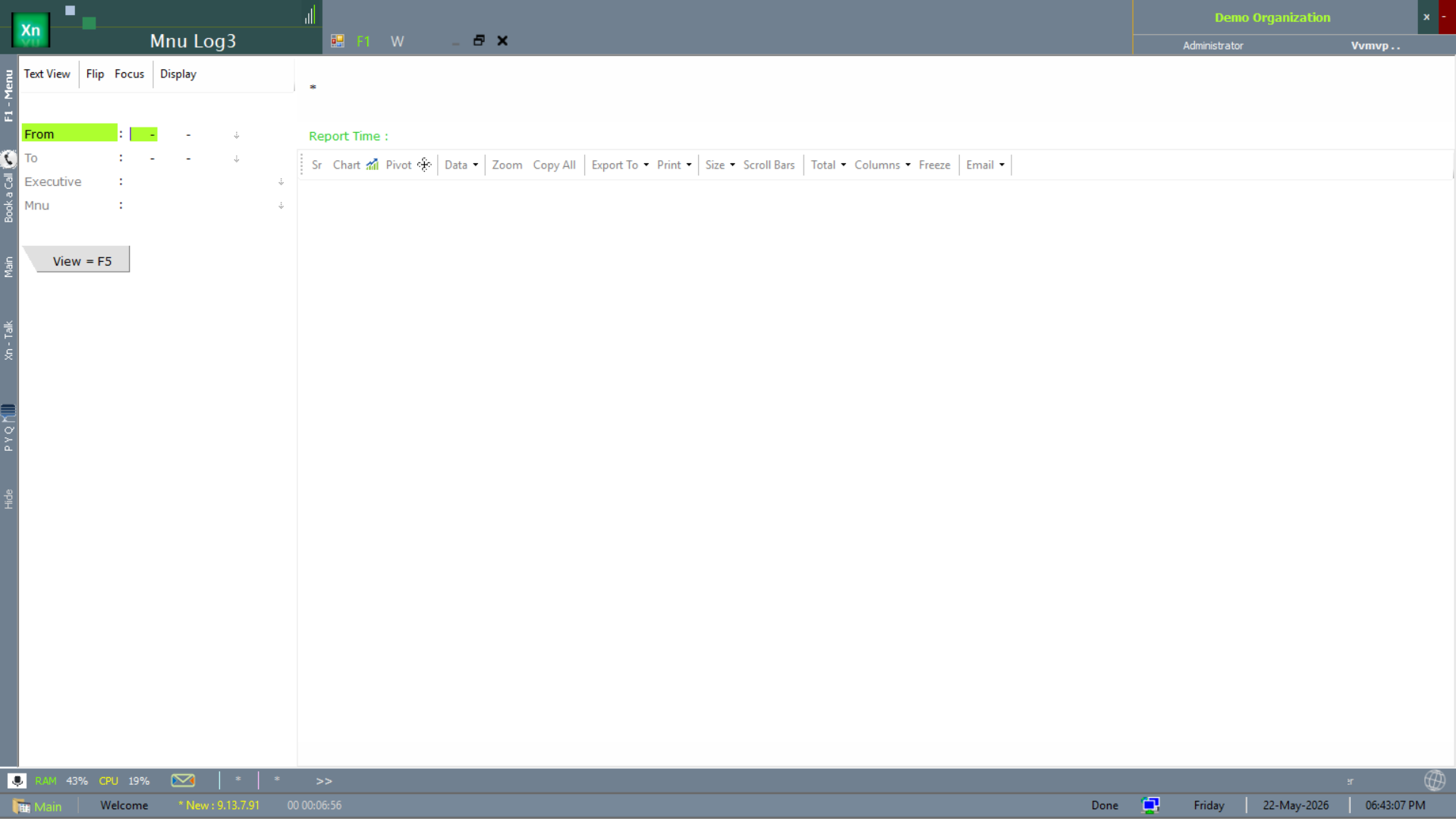
Menu activity logs (Mnu Log 1 / 2 / 3)
Three variants of the menu-activity log roll up which menus were opened by whom. Pick the variant whose column set fits your review.
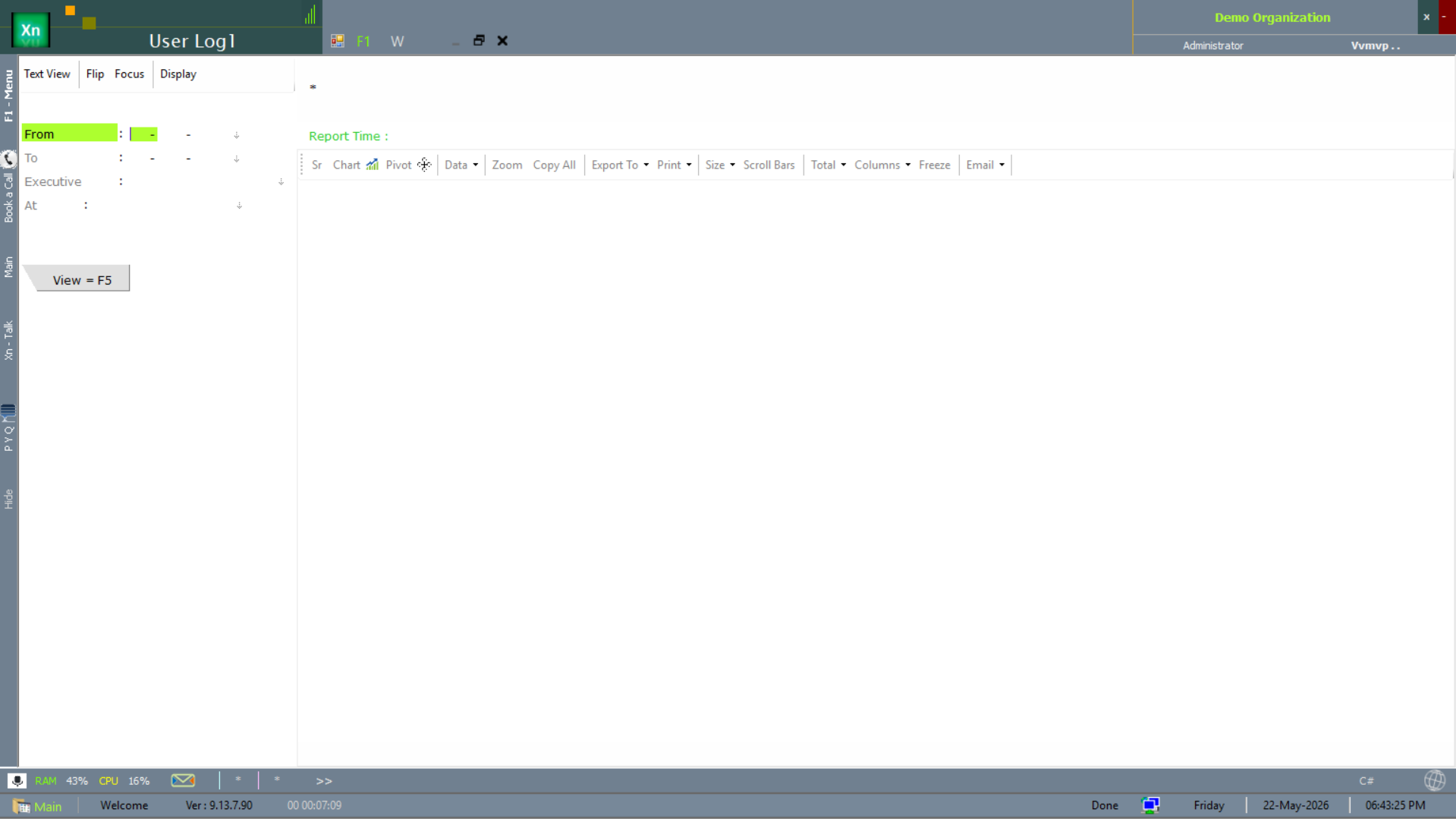
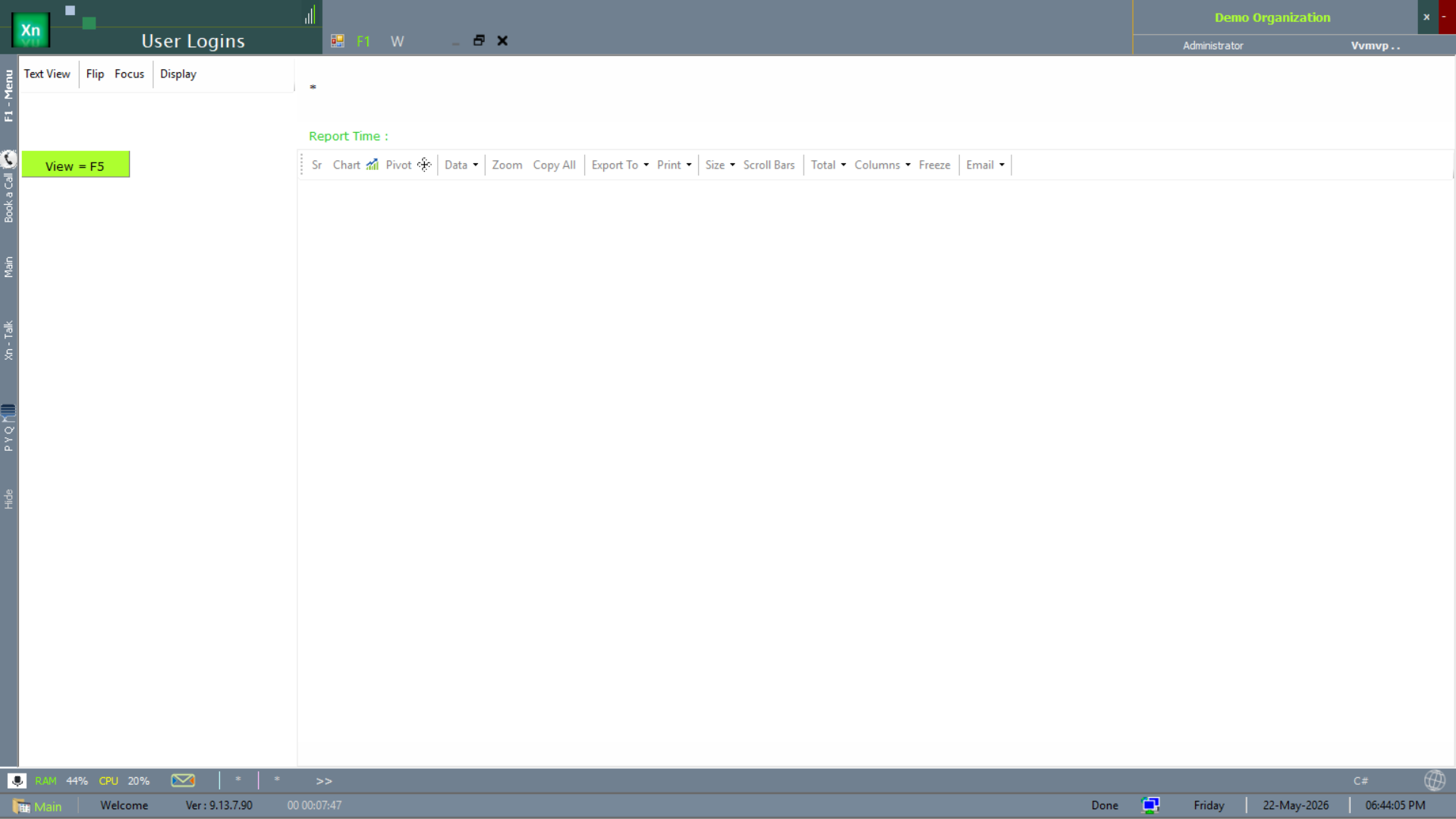
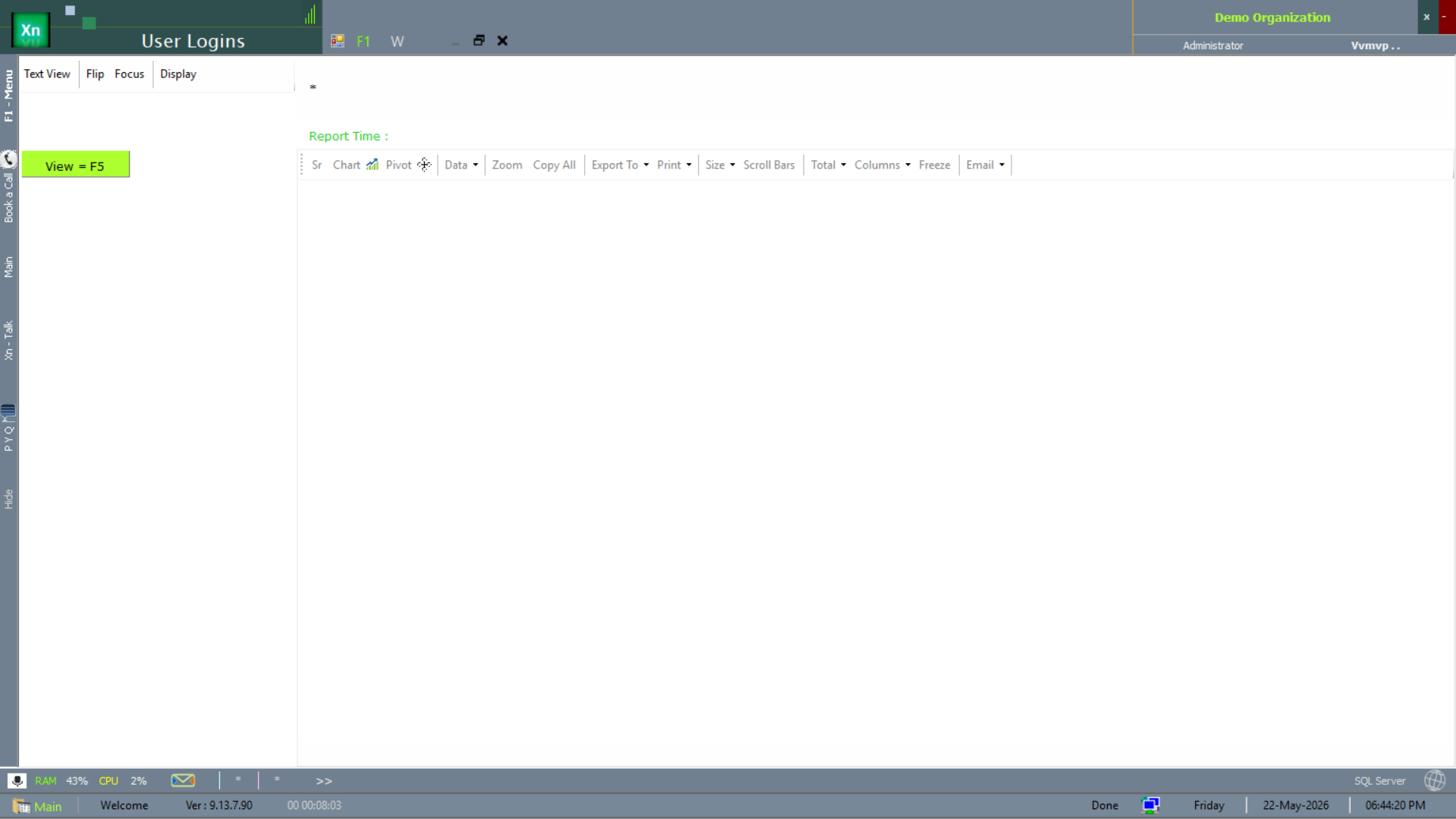
User-activity & login logs
User-side audit screens cover who logged in, who is currently logged in, and the historical login list.
Session Settings
Idle timeout, force-logout threshold, password-policy enforcement and concurrent-session limits. Tighten these for installations that handle financial data; relax for shop-floor terminals if they cause too many forced logouts.
Data exchange
The data-exchange tools move master and transaction data into and out of ZN ERP — for bulk go-live loads, for routine sync with web stores and supplier portals, and for handing data off to external auditors.
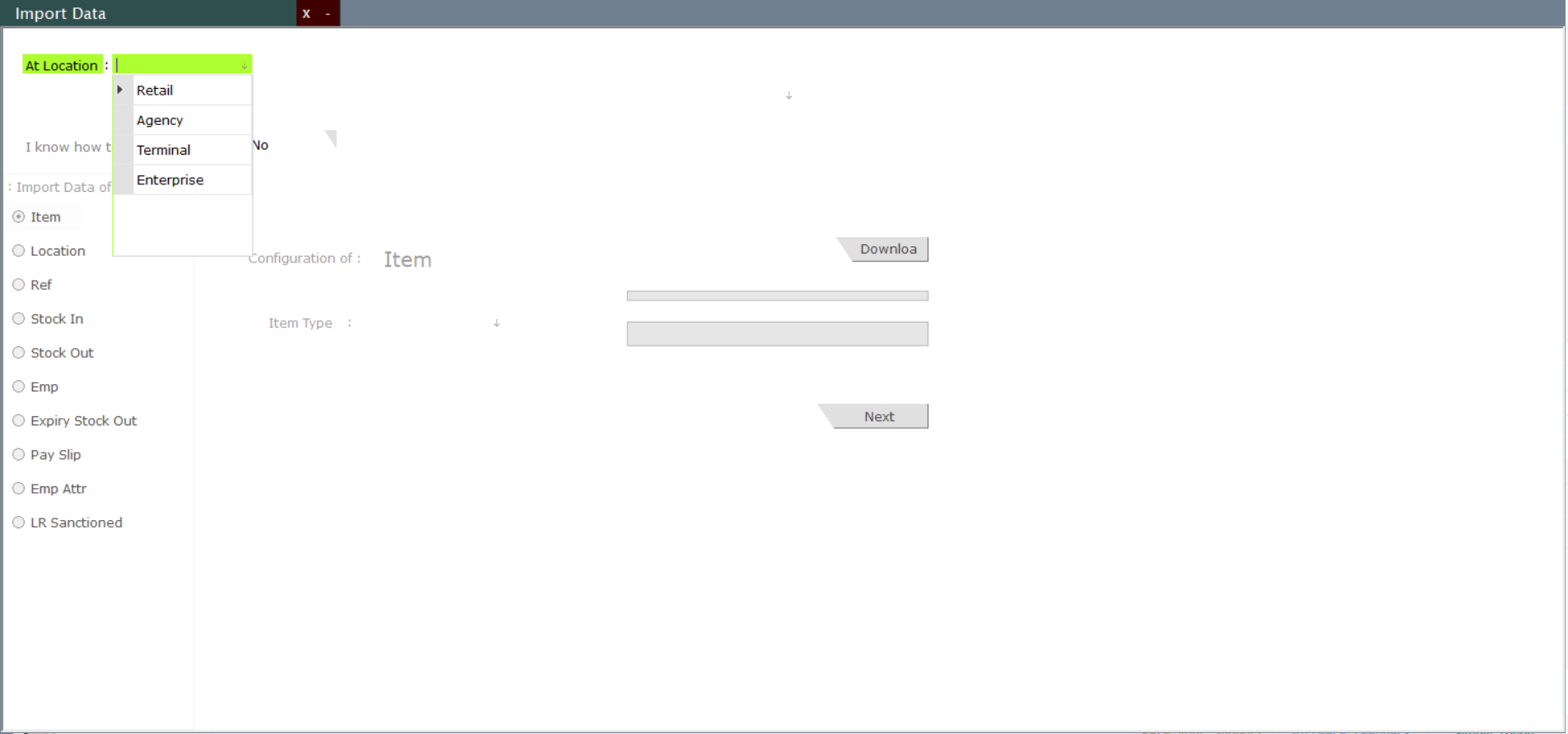
Import Data
The Import Data wizard accepts Excel / CSV payloads for the master tables — items, parties, opening stock, opening balances. The wizard validates each row before commit so bad data never reaches a live table.
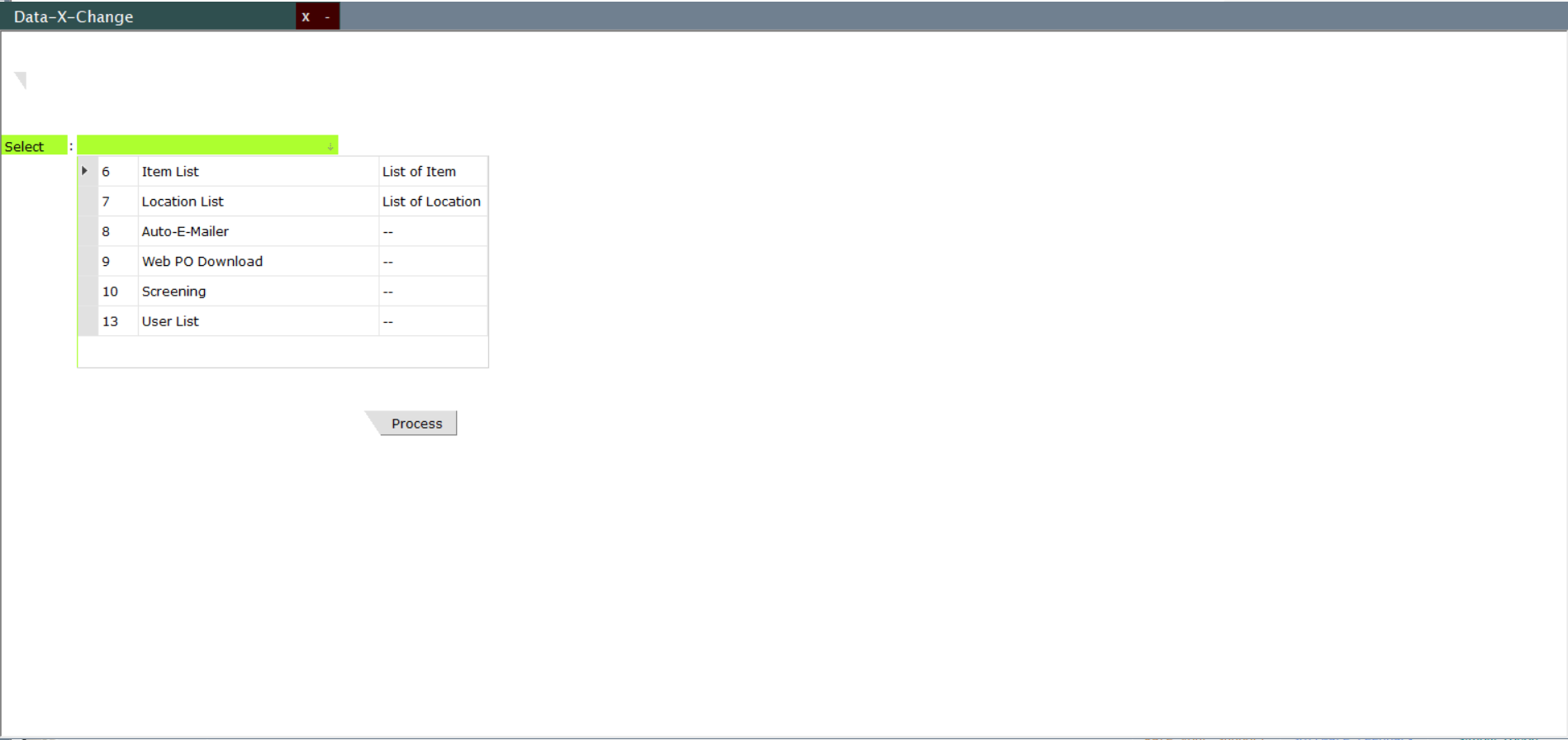
Data-X-Change
The Data-X-Change wizard handles the round-trip exchanges — Item List, Location List, Auto E-Mailer, Web PO Download, Screening, User List. Each option drives a different sync pattern with an external system.