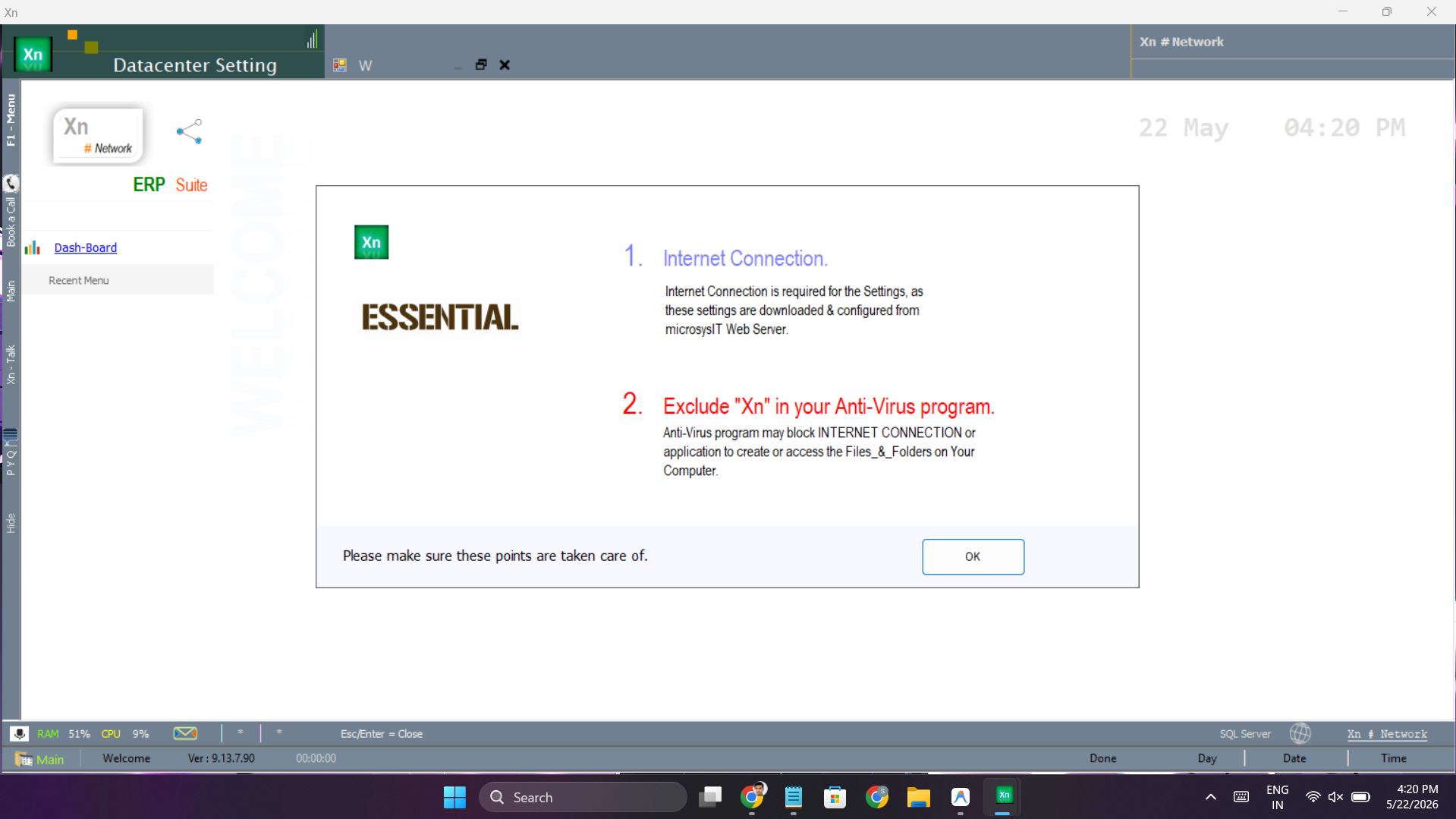
Datacenter Setting
Confirm internet connectivity and exclude the install folder from anti-virus.
Datacenter Setting
Once XnInstaller has finished, the next job is to make sure ZN ERP can talk to the licence server over the internet and that anti-virus software does not interfere with day-to-day operation. Both checks live under what we call Datacenter Setting.
Internet Connection Setup
ZN ERP needs the internet for two things: initial licence activation, and pulling new versions via Download New Version. Day-to-day billing and reports do not need internet, but you should still confirm connectivity once.
Steps
- From the server, open a browser and load xnservices.net — it should reach the homepage.
- If you are behind a proxy or content filter, whitelist
xnservices.netandznerp.net. - Confirm the system clock is correct — licence activation rejects machines with a clock that is hours out.
- Open Xn Licensing from inside ZN ERP and click Test Connection. You should see "Connection Successful".
Anti-Virus Exclusion
Real-time scanning of the ZN ERP install folder is the single biggest cause of slowness and "the application just closed" tickets. Configure exclusions before users start working.
What to exclude
- The full install folder (default
C:\Microsysit Apps\). - The SQL Server data folder (where the
.mdfand.ldflive). - The processes
xn.exeandssm.exe.
Windows Defender (typical setup)
- Open Windows Security → Virus & threat protection.
- Under Virus & threat protection settings, click Manage settings.
- Scroll down to Exclusions and click Add or remove exclusions.
- Add the install folder (type Folder) and then add each process (type Process).
Third-party anti-virus
Kaspersky / Quick Heal / Norton / Bitdefender all expose an equivalent "Exclusions" or "Trusted applications" list. The names of the menus differ, but the items to exclude are the same.
The Datacenter Setting dialog
The Datacenter Setting dialog is the first screen the installer presents on a fresh machine — it captures the datacenter name, the licence server URL and the local SQL connection string. Most of the time you accept the defaults; key it manually only when the installer cannot auto-detect the SQL instance.