Accounts
Ledgers, vouchers, day-book and final accounts.
Overview
The Accounts area covers the screens you actually post entries on. Most postings happen automatically from sales, purchase and payroll modules; this area is for the chart of accounts, the master ledgers, and the manual vouchers (receipts, payments, journals, contras) that handle the remaining edge cases.
Reaching the Accounts module
Every Accounts task starts from the Accounts submenu on the Welcome screen. Hovering the menu reveals the day-to-day postings — Payment - Bill wise, Ac List, Pymt Trans, Pay Slip, Ledger Total — and the Final Accounts branch that fans out into Trial Balance, Cash Book and Cash Book2.
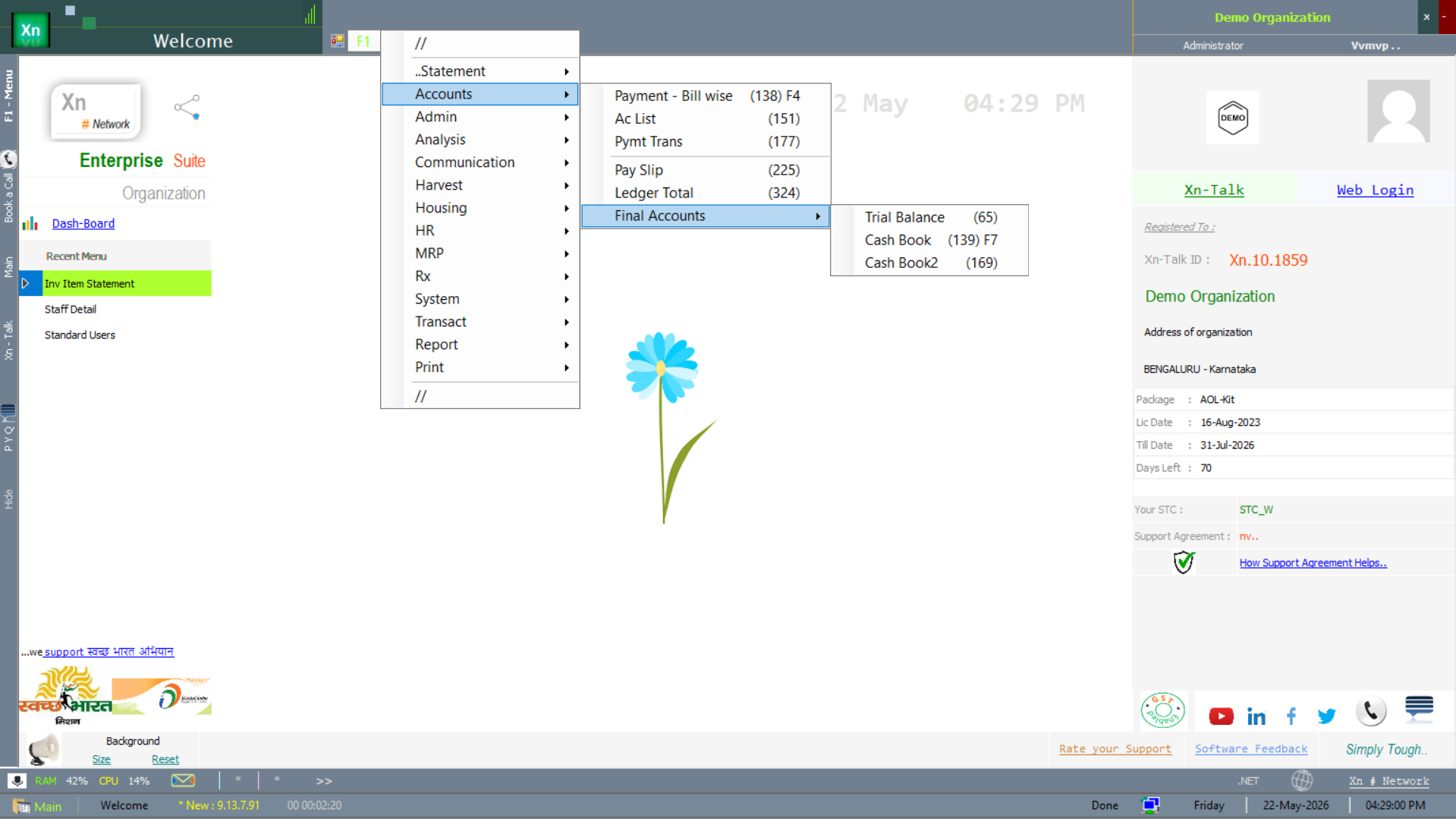
Chart of Accounts
The tree of ledger groups and ledger accounts. Groups follow the standard Indian accounting layout (Assets → Current Assets → Sundry Debtors, etc.) but can be customised. Defined once at go-live in Accounts Setup; this screen is the read-only navigator most users see day-to-day.
Account Group master
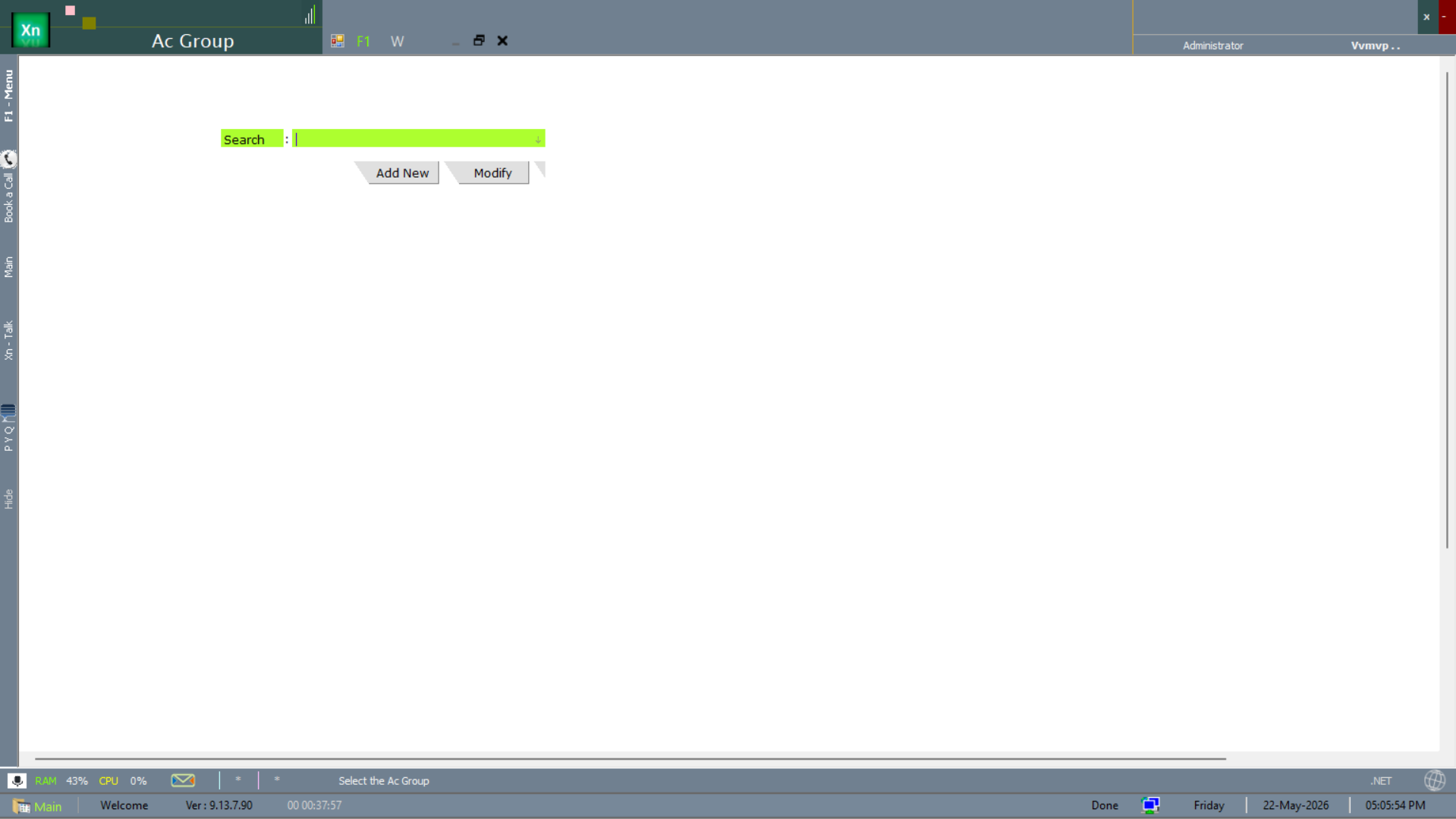
Use Ac Group to create or edit a node in the chart — for example a new sub-group under Indirect Expenses for a freshly opened branch. Type the existing group name in Search to load it for edit, or click Add New to create one from scratch.
Ledger Master
Individual ledger accounts — bank accounts, expense heads, customers, suppliers. Each ledger carries the group it belongs to and the default tax structure (for party ledgers). New ledgers can be created from any voucher screen via the "+" button next to the ledger field.
Add or modify a ledger
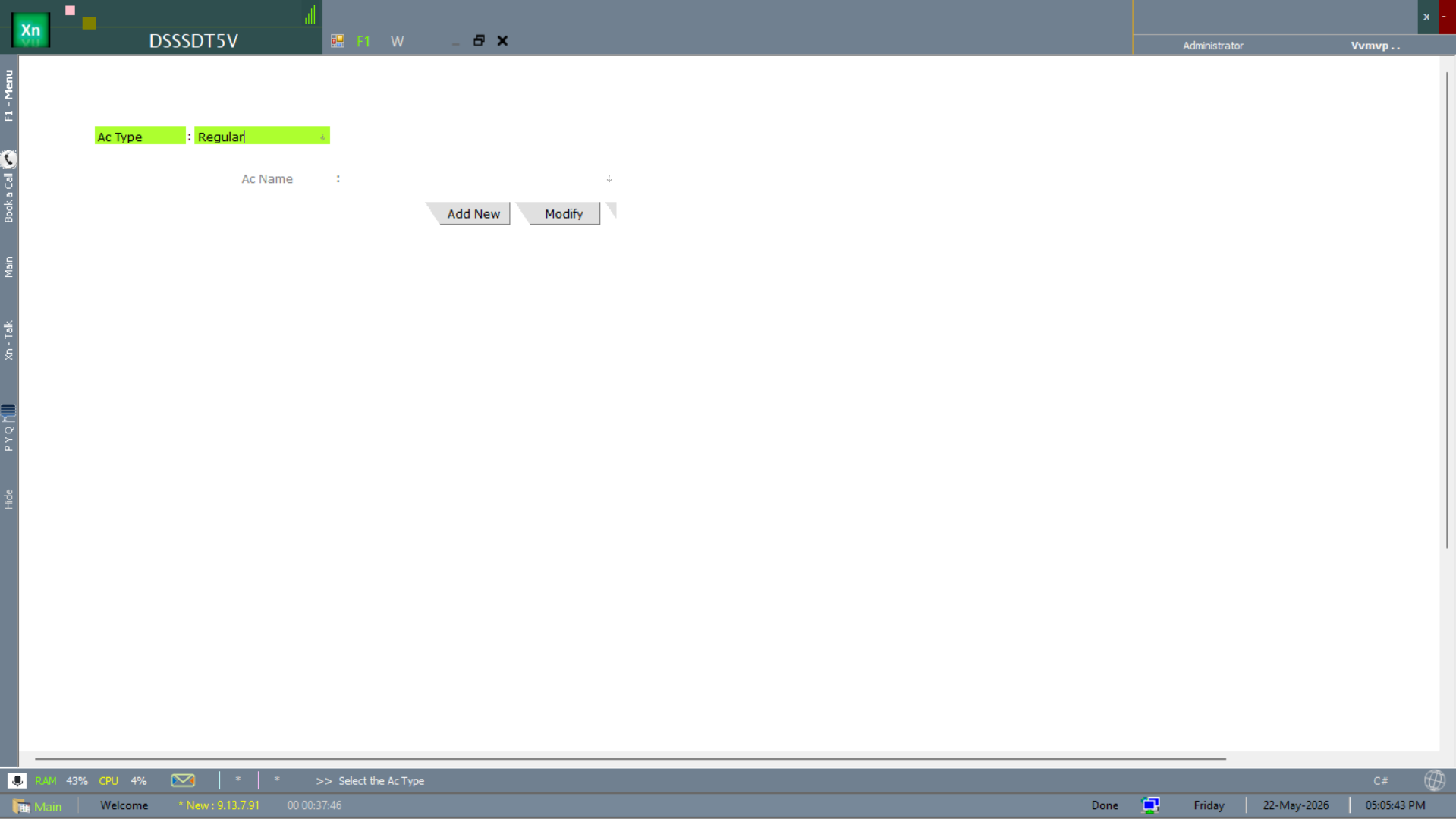
The Add / Modify Account form is the simplest entry point: pick the Ac Type (Regular for normal ledgers, or one of the specialised types — Bank, Cash, Party, etc.), enter the Ac Name, then Add New. The status bar prompts you for the next required field, so you can complete the form keyboard-only.
Account List
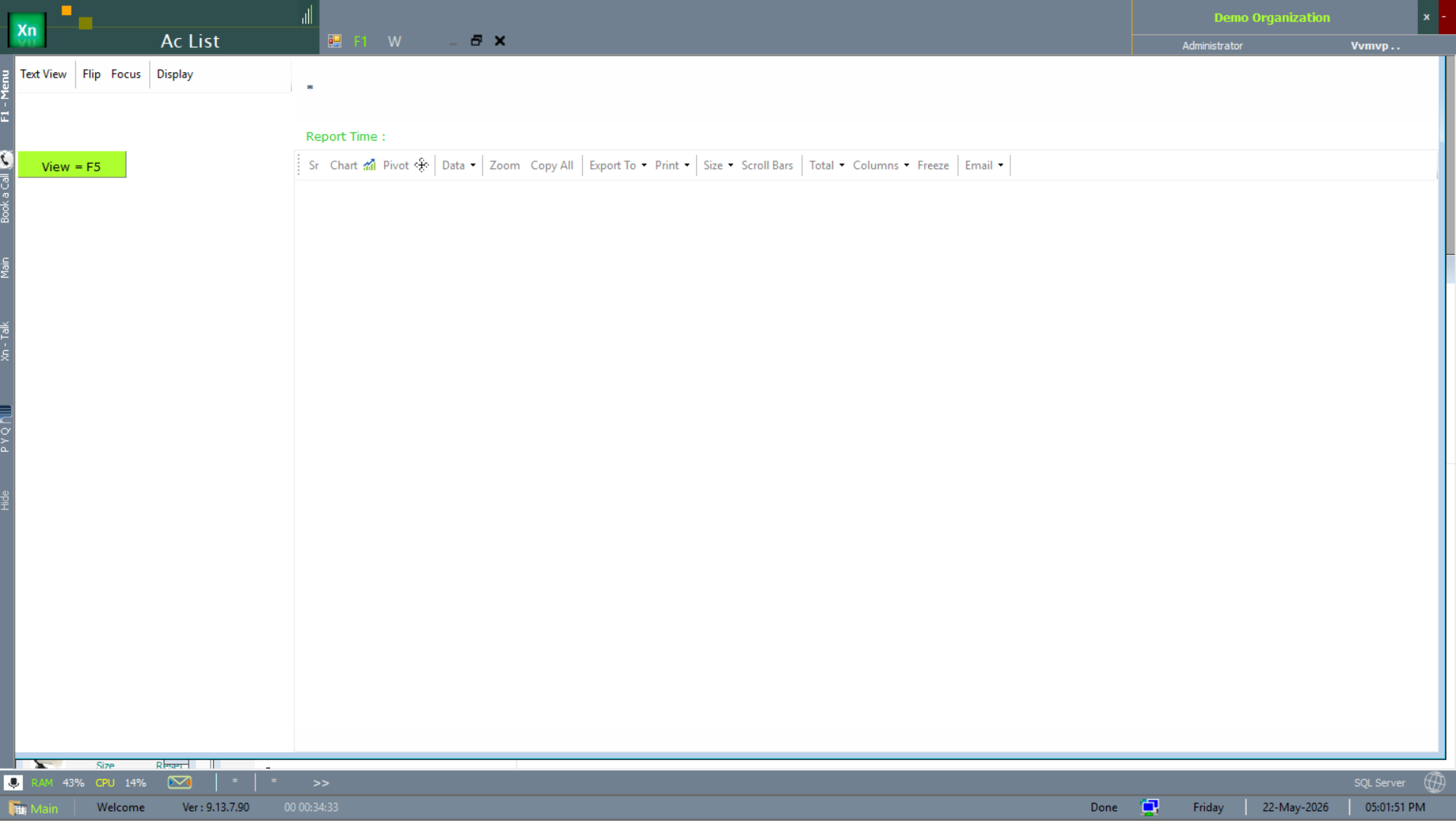
The Ac List report is the master view of every ledger in the chart. Open it to find a ledger, audit who owns which group, or export the chart to Excel via Export To. Use View = F5 after changing any filter.
Currency Master
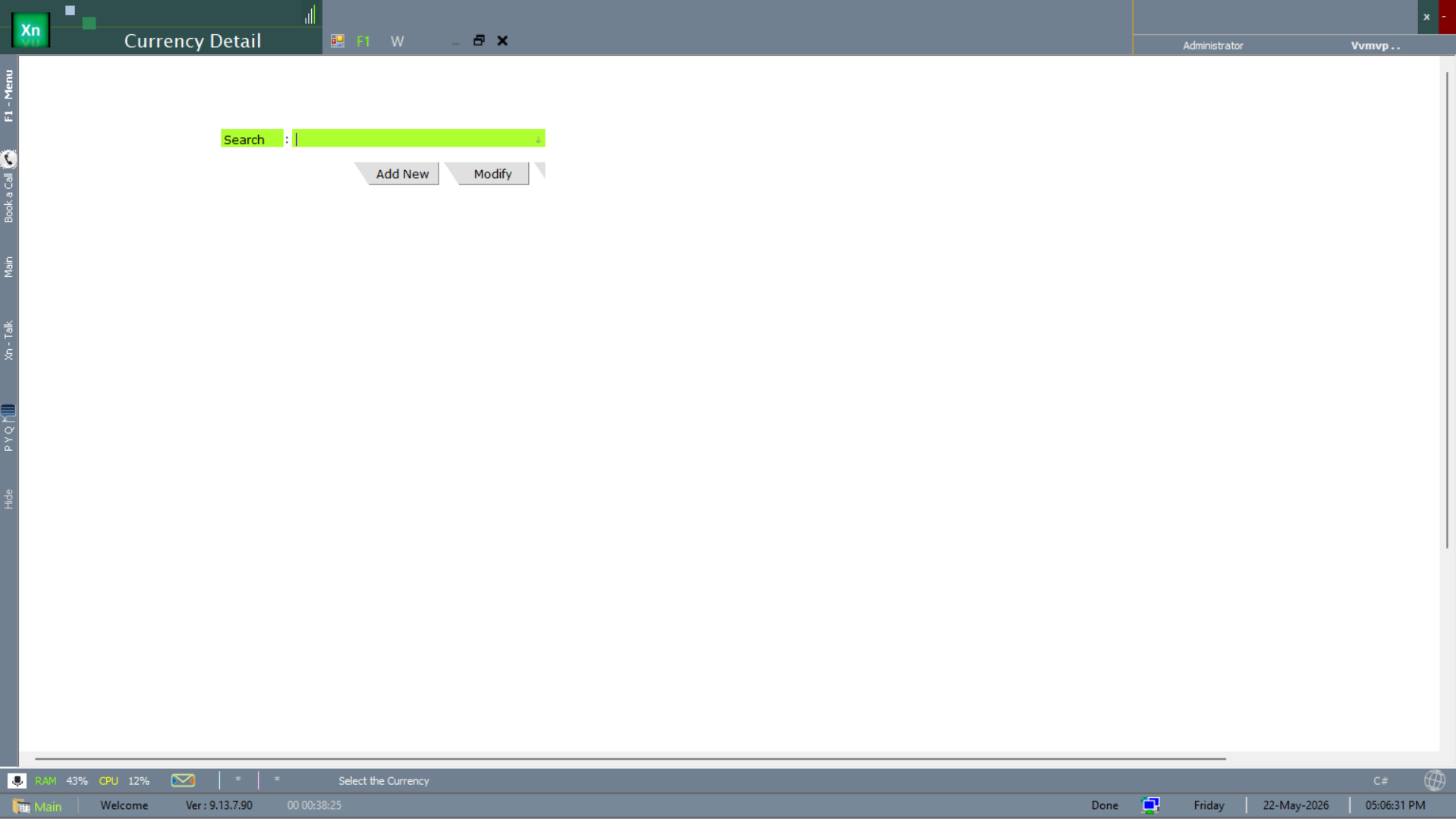
If the business deals in more than one currency, define each one here before it can appear on a voucher. The form mirrors the other master forms — Search to edit, Add New to create. Once defined, currencies show up in the currency dropdown on sales, purchase and bank vouchers.
Voucher Types
Receipt, Payment, Journal, Contra, Debit Note, Credit Note. Each type has its own numbering series, default printing template and approval rules. Custom voucher types can be added for specialised flows — for example a separate "Cash Sales Receipt" series for the front counter.
Journal Voucher
Manual adjustment entry. Most postings are auto-generated by other modules; you key a JV only for corrections, depreciation, provisions, year-end transfers and similar. The screen enforces balanced entry — you cannot save until debits equal credits.
Receipt Voucher
Records cash or bank receipts from customers, with automatic application to outstanding invoices. The right pane shows pending invoices for the selected customer; tick the ones being paid and the system handles short-payments, advances and partial settlements.
Payment Voucher
Records cash or bank payments to suppliers, mirroring the Receipt Voucher. Supports cheque generation in the same flow — pick the bank, the system suggests the next cheque number from the cheque book master, and the cheque prints on a pre-printed leaf via the Cheque Print template.
Contra Voucher
Transfer between cash and bank or between two bank accounts. The most common use is cash deposits into the bank at end of day. Posts no income or expense; both legs are balance-sheet movements.
Ledger reports
Two reports drive almost every accounting question that does not need the full final-accounts run. Both share the standard report toolbar (export, pivot, print) so the output goes wherever you need it.
Ledger
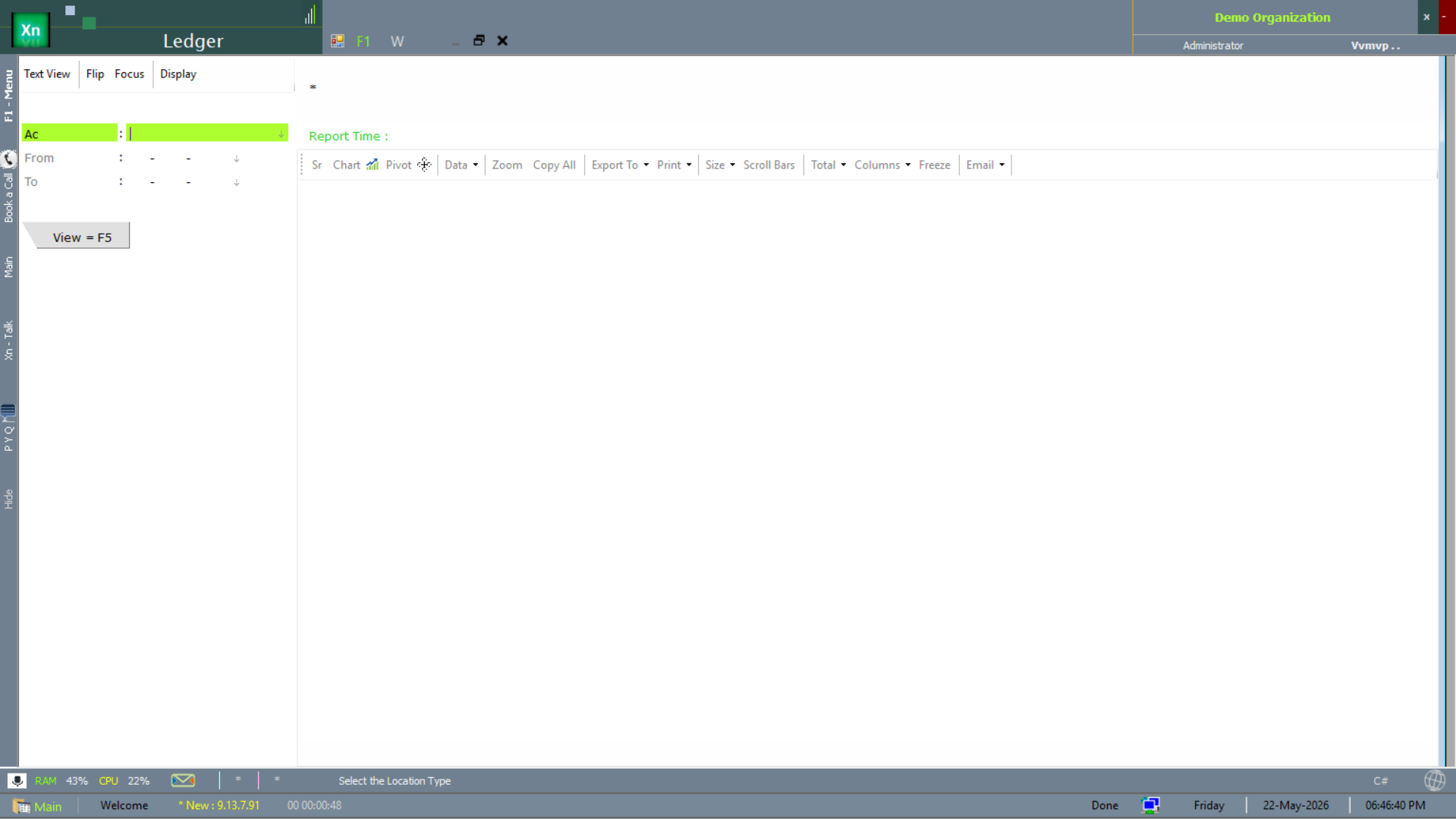
The Ledger report shows every voucher posted to a chosen account over a date range — the day-book view of a single ledger. Pick the Ac, set From / To, hit View = F5.
Ledger Total
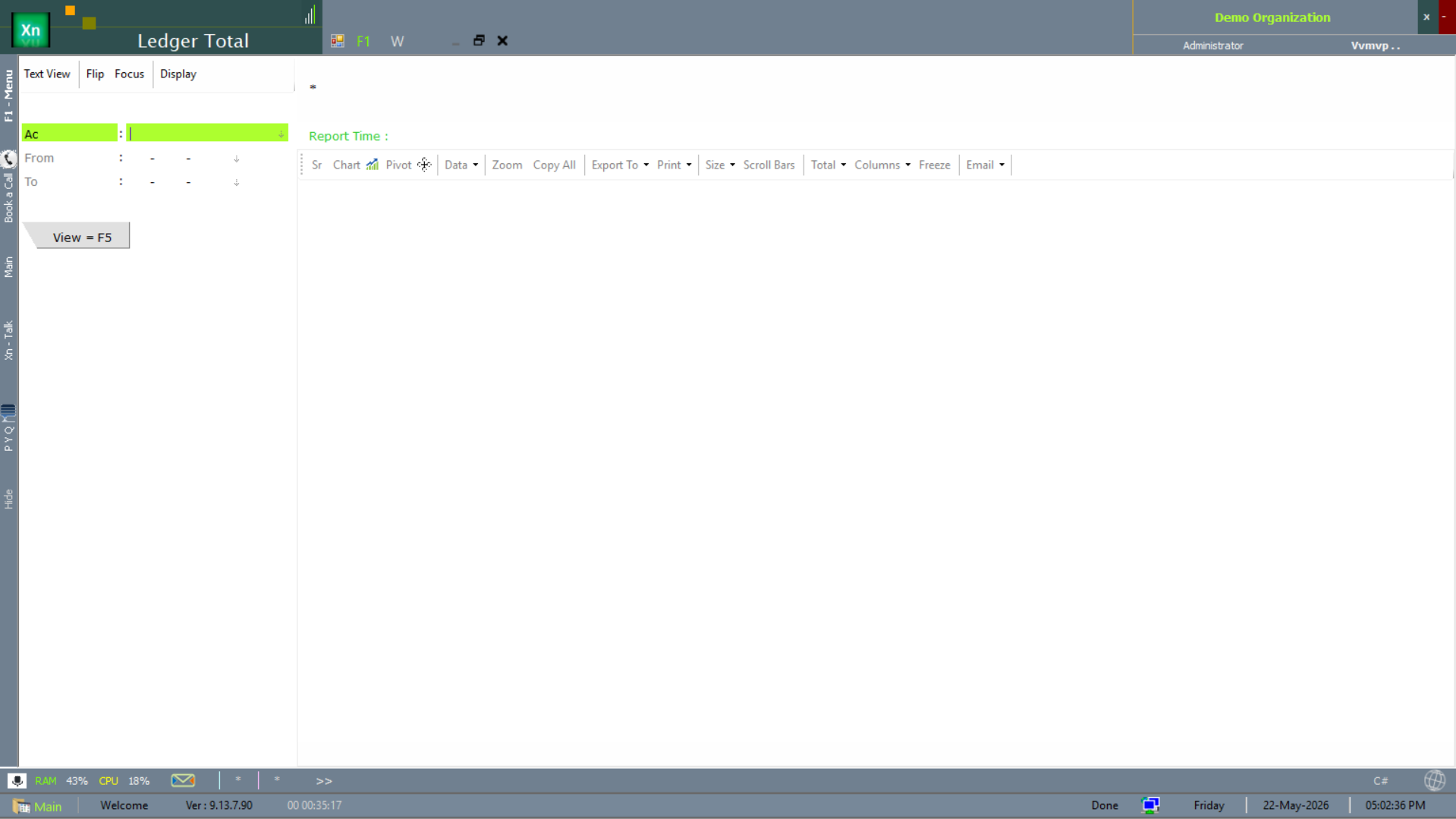
The Ledger Total report condenses the same data into one row per account — opening balance, total debits, total credits, closing balance. Use it when you want the trial-balance shape without filtering down through groups.
Final Accounts
Trading account, Profit & Loss and Balance Sheet generated from the trial balance on the fly. Drill into any total to see the constituent ledgers; drill again to see the constituent vouchers. No regeneration step — the numbers update the moment a voucher is saved.
Trial Balance
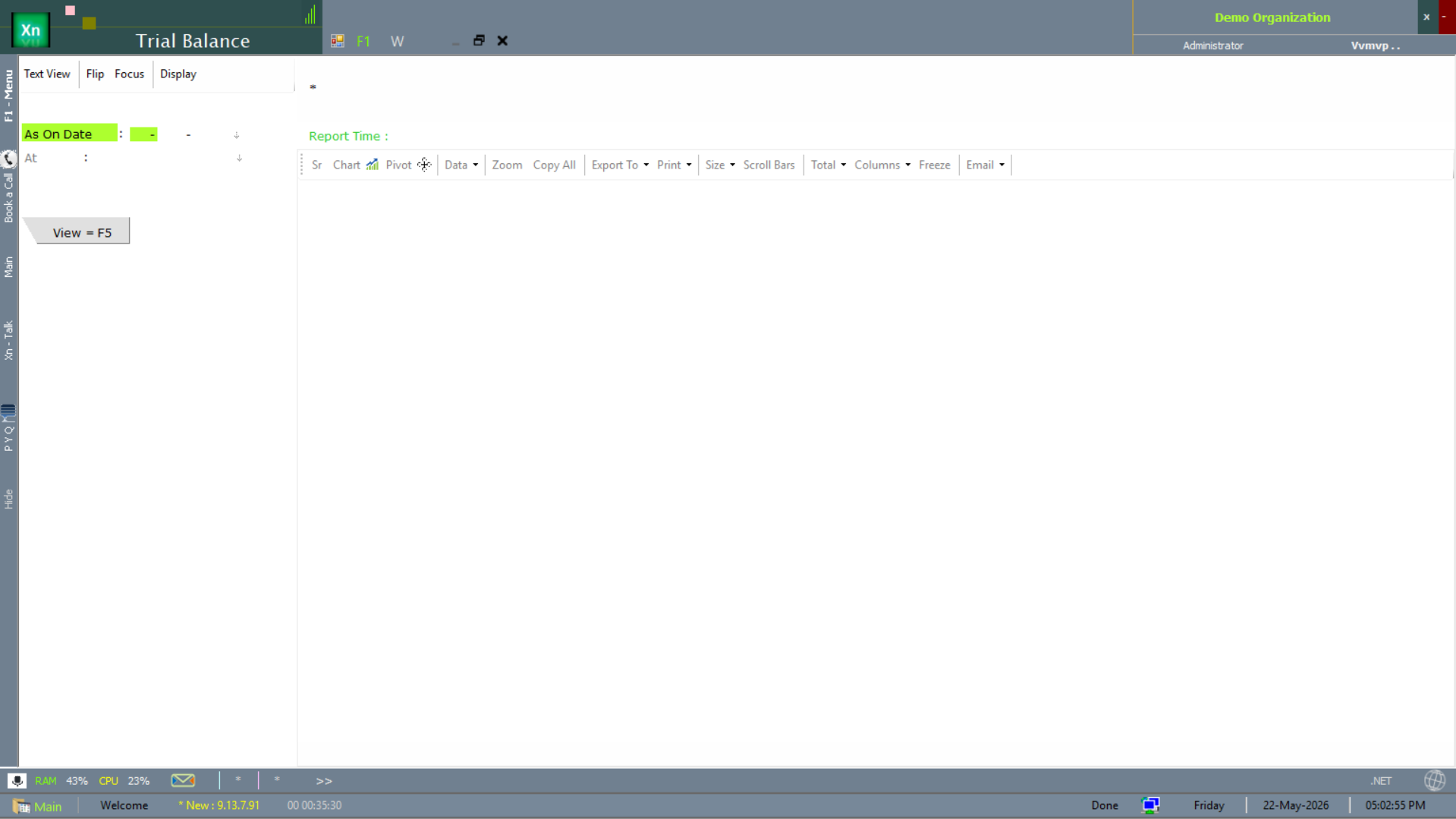
The Trial Balance is the first stop before signing off any period. Set As On Date and the At location (leave blank for the whole organisation), then View = F5. Drill from any total straight to the source voucher.
Trading Account
Gross profit calculation — opening stock, purchases and direct expenses against sales and closing stock. The closing-stock value is pulled live from Stock Valuation, so it always agrees with the inventory module.
Profit & Loss
Net profit calculation — gross profit / loss carried down from the Trading Account, adjusted for indirect income (other income) and indirect expenses (admin, selling, finance). The bottom line transfers to Reserves & Surplus on the Balance Sheet at year-end closure.
Balance Sheet
Assets, liabilities and equity as on the chosen date, vertical or horizontal layout. The sheet must balance to zero; if it does not the system flags the difference and points at the unposted voucher that caused it.
Cash Book
Two cash-book views are available depending on the scope you want. Both list every cash-affecting voucher chronologically; pick the variant that matches whether you want the whole organisation or a single till.
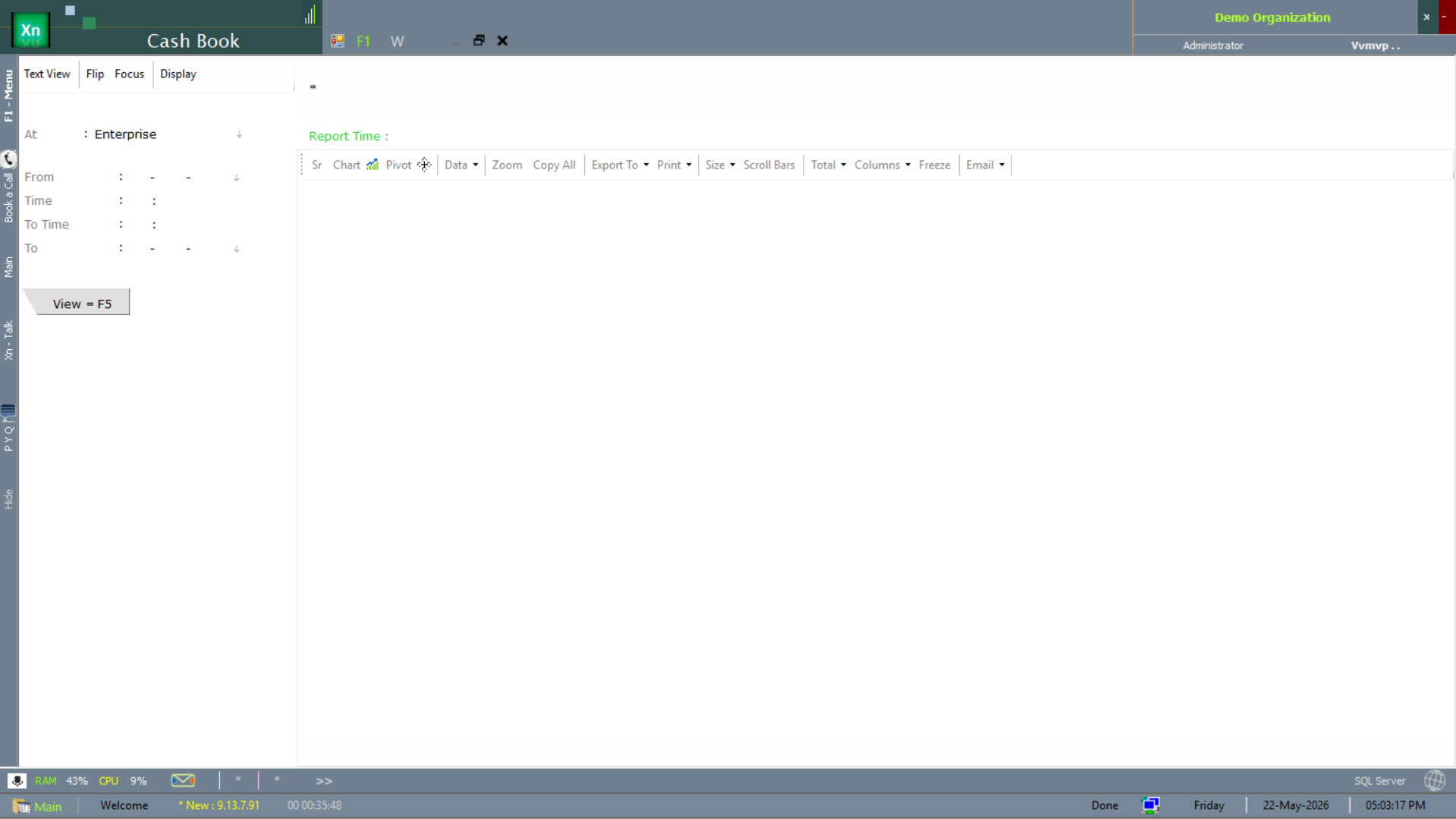
Cash Book — by location
The standard Cash Book is scoped by At (location/branch) and an optional time window. Use it for end-of-day reconciliation at a branch.
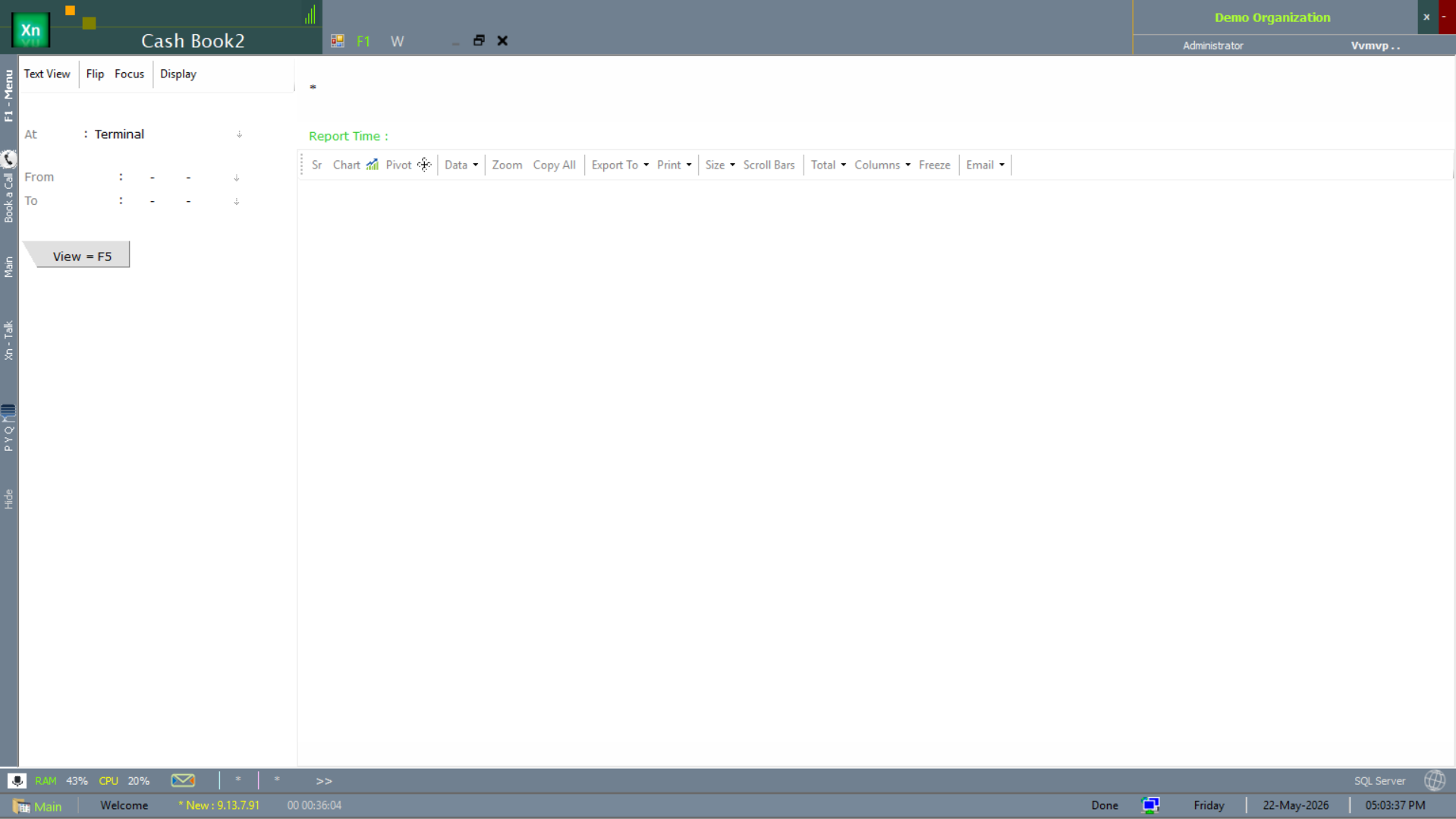
Cash Book — by terminal
Cash Book2 swaps the location scope for a per-terminal scope — useful in multi-counter retail where each till closes its own cash drawer.
Day Closure
End-of-day routine that locks the date so no further postings can change yesterday's figures. Run by the accounts head after they have reviewed the day book and bank reconciliation. Reopening a closed day requires admin rights and is logged for audit.
Cheque Print
Prints cheques against payment vouchers using a per-bank template. The template editor is visual (drag fields onto an outline of the cheque leaf), so each bank's layout can be tuned without code. Cheque numbers come from the cheque book master so duplicates are impossible.
Bank Reconciliation
Matches book entries against the bank statement (CSV / Excel import) and flags differences. Auto-match by amount + date + reference catches the bulk of entries; the remainder is reviewed manually. Once reconciled, the BRS print-out is the standard month-end deliverable for the auditor.