Item Setup
Item categories, UOMs, attributes and the item master.
Overview
Item Setup is the foundation of inventory, sales, purchase and reporting. Get this right at go-live — bad item data is the single most common source of bad reports. This page walks the masters in the order you would configure them: categories & classifying masters first, then the item master itself, then the per-item supporting masters (batch, contents, image, references) and finally the item list.
Item Setup menu
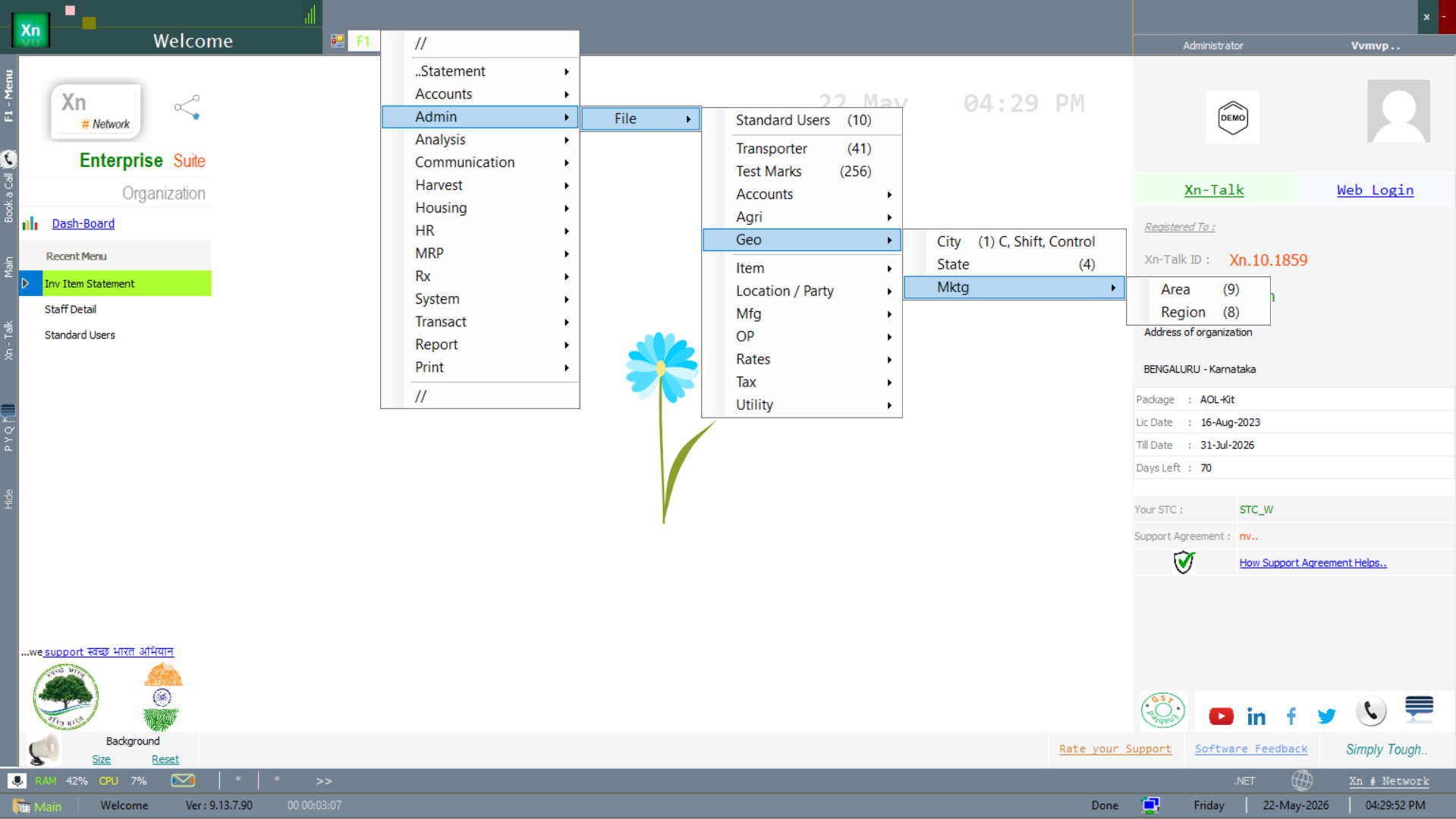
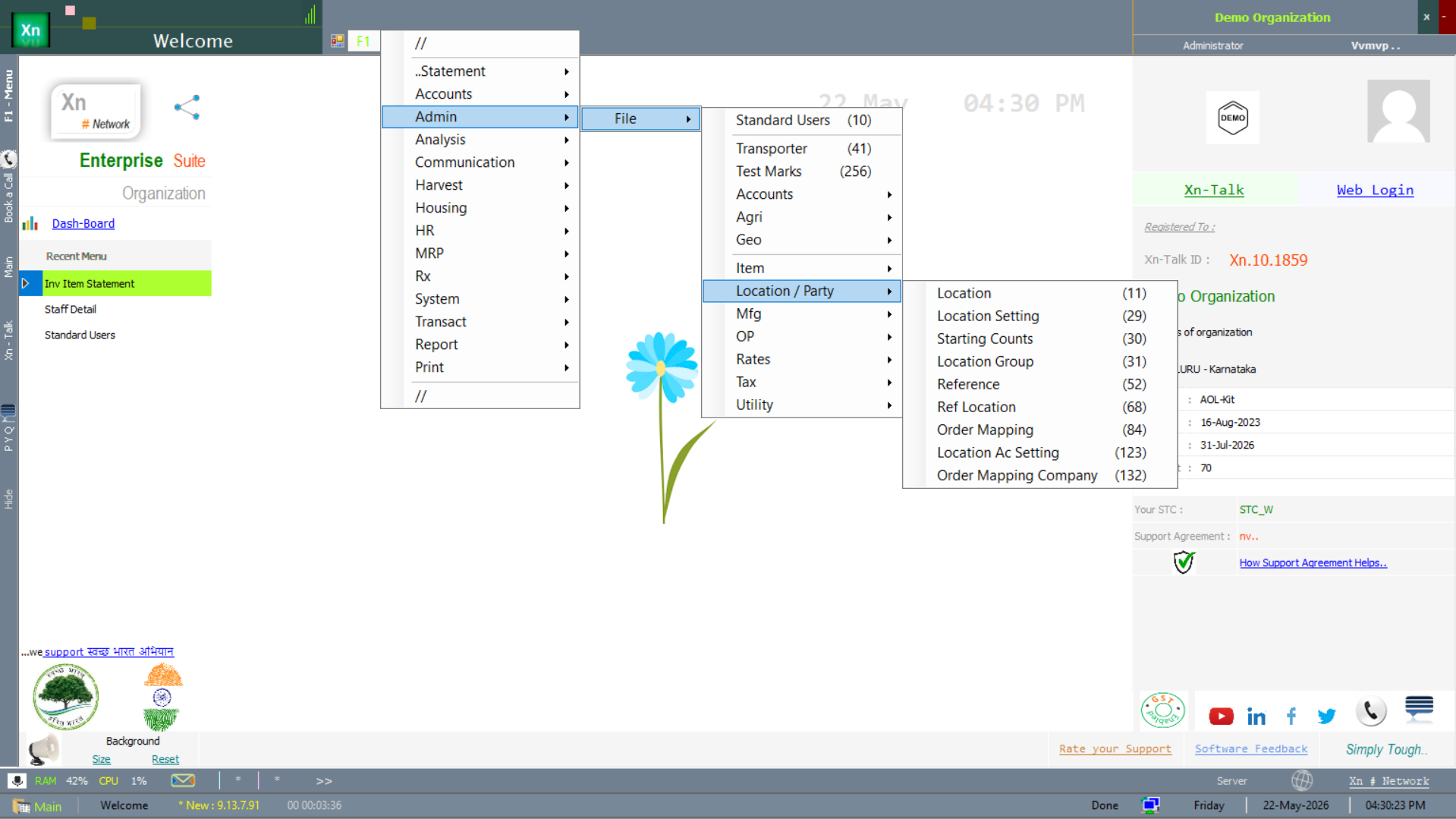
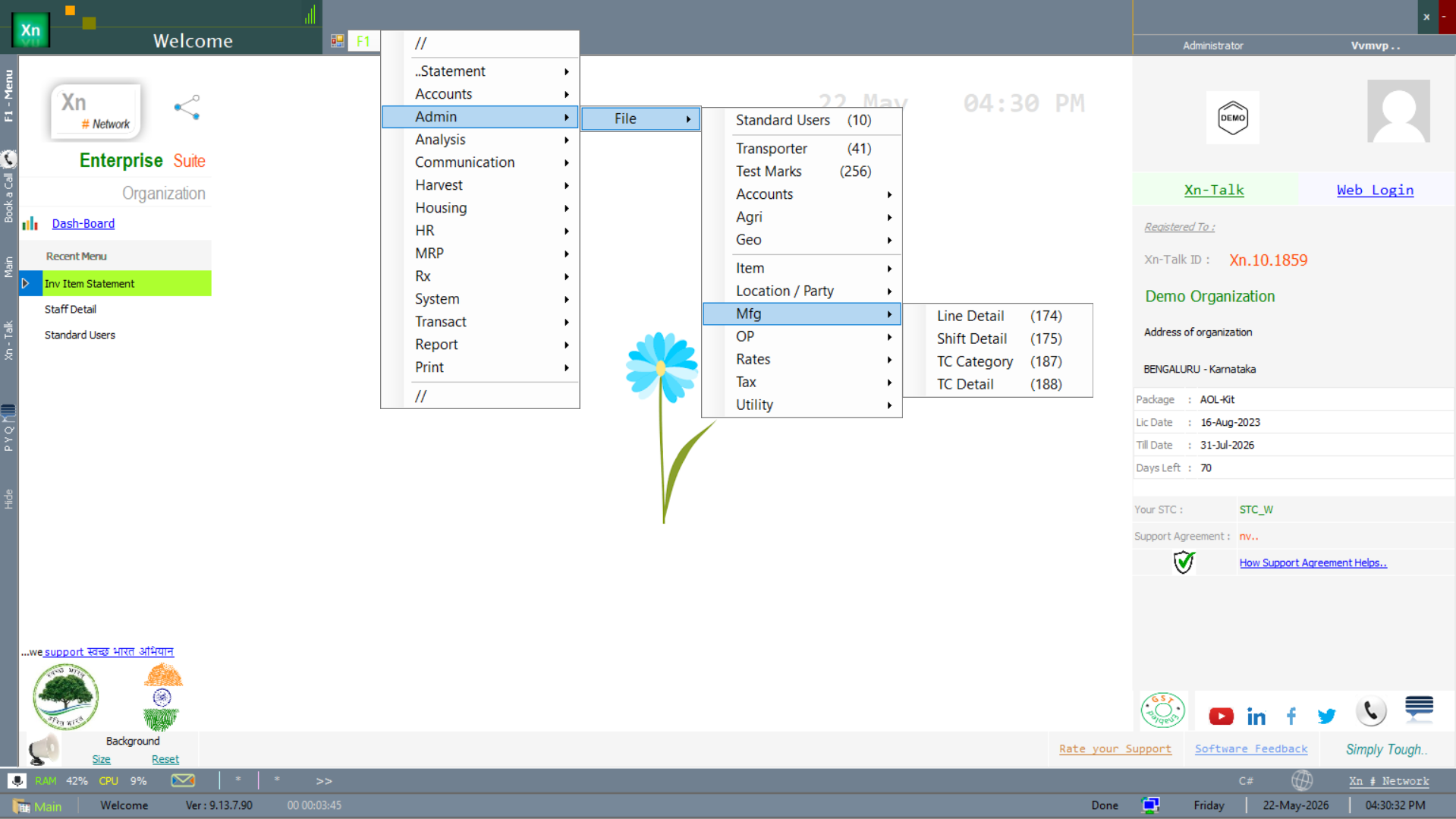
Item-related masters live under the File Setup → Item branch of the Welcome screen. The submenu trees below show the navigation — primary item masters, manufacturing-side classifying masters and the supporting reference masters.
Classifying masters
The masters below classify items into hierarchies and reporting buckets. Define them before the item master so each item can inherit category, brand and segment defaults at creation time.
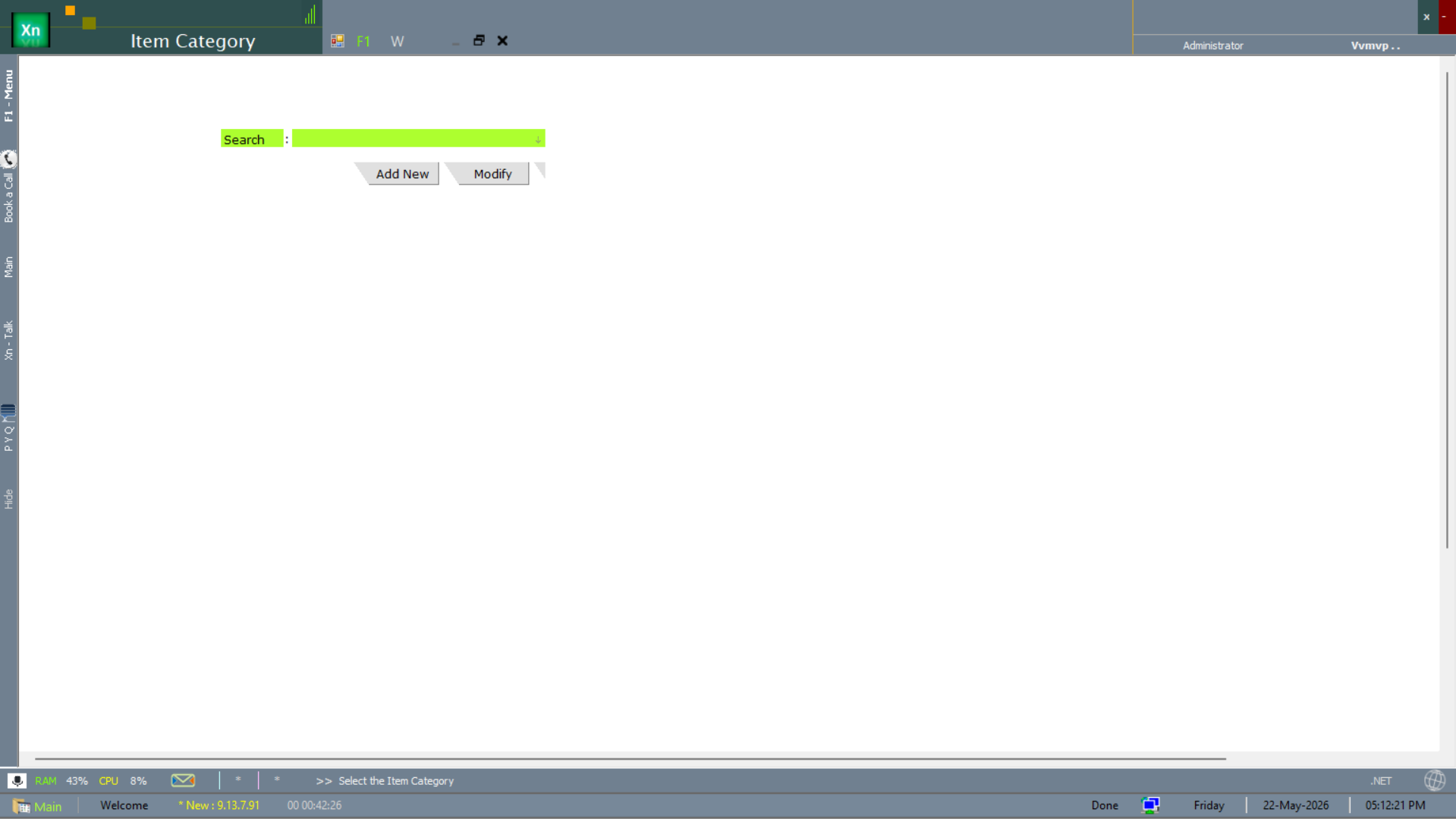
Item Category
Tree of categories — Food > Beverages > Soft Drinks, etc. Drives most reports (category-wise sales, margin by category) and the default tax structure inheritance.
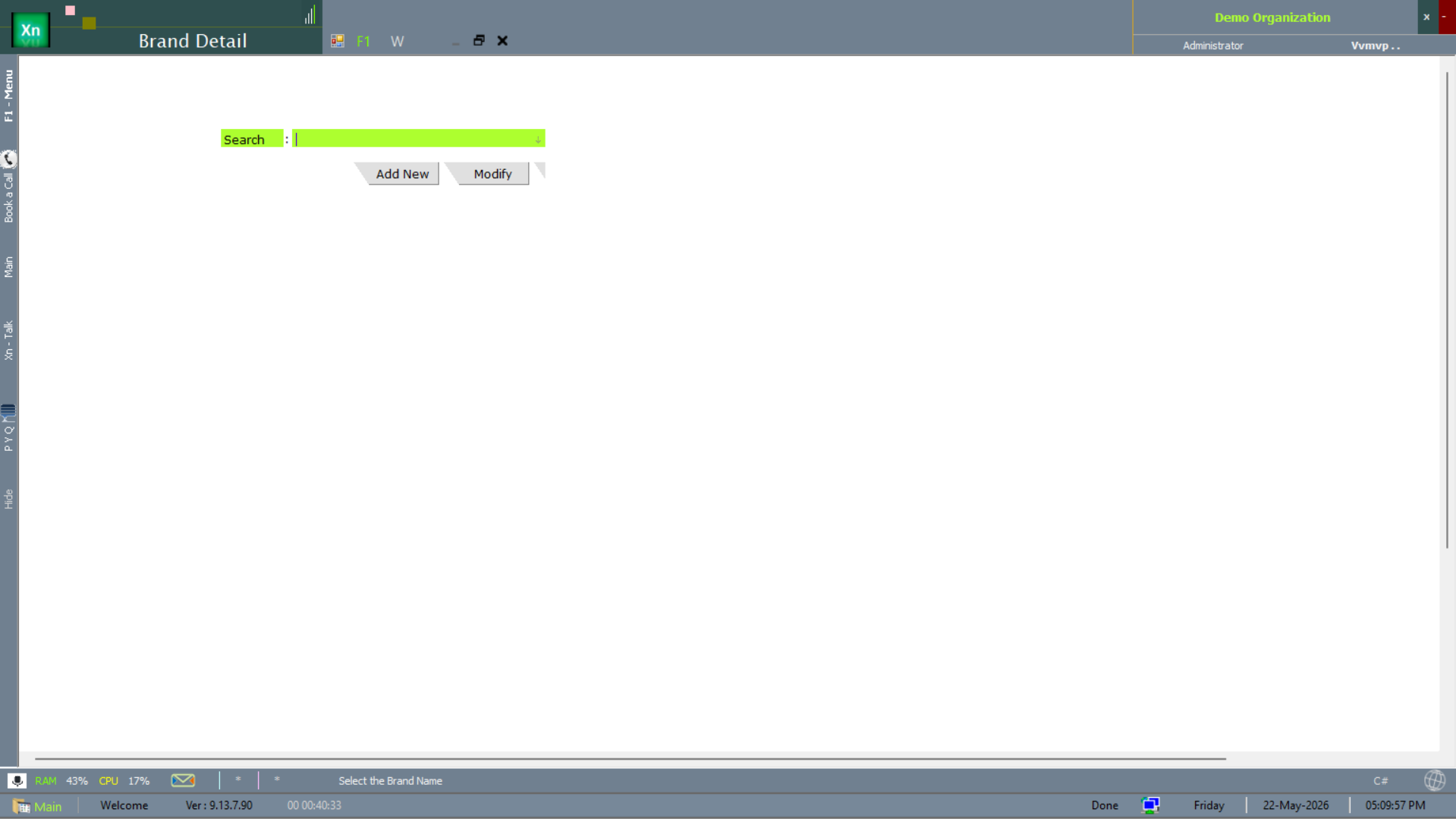
Brand Detail
The Brand master is the second-axis classification — one item belongs to one category and one brand. Used by brand-wise analytics and by brand-level pricing.
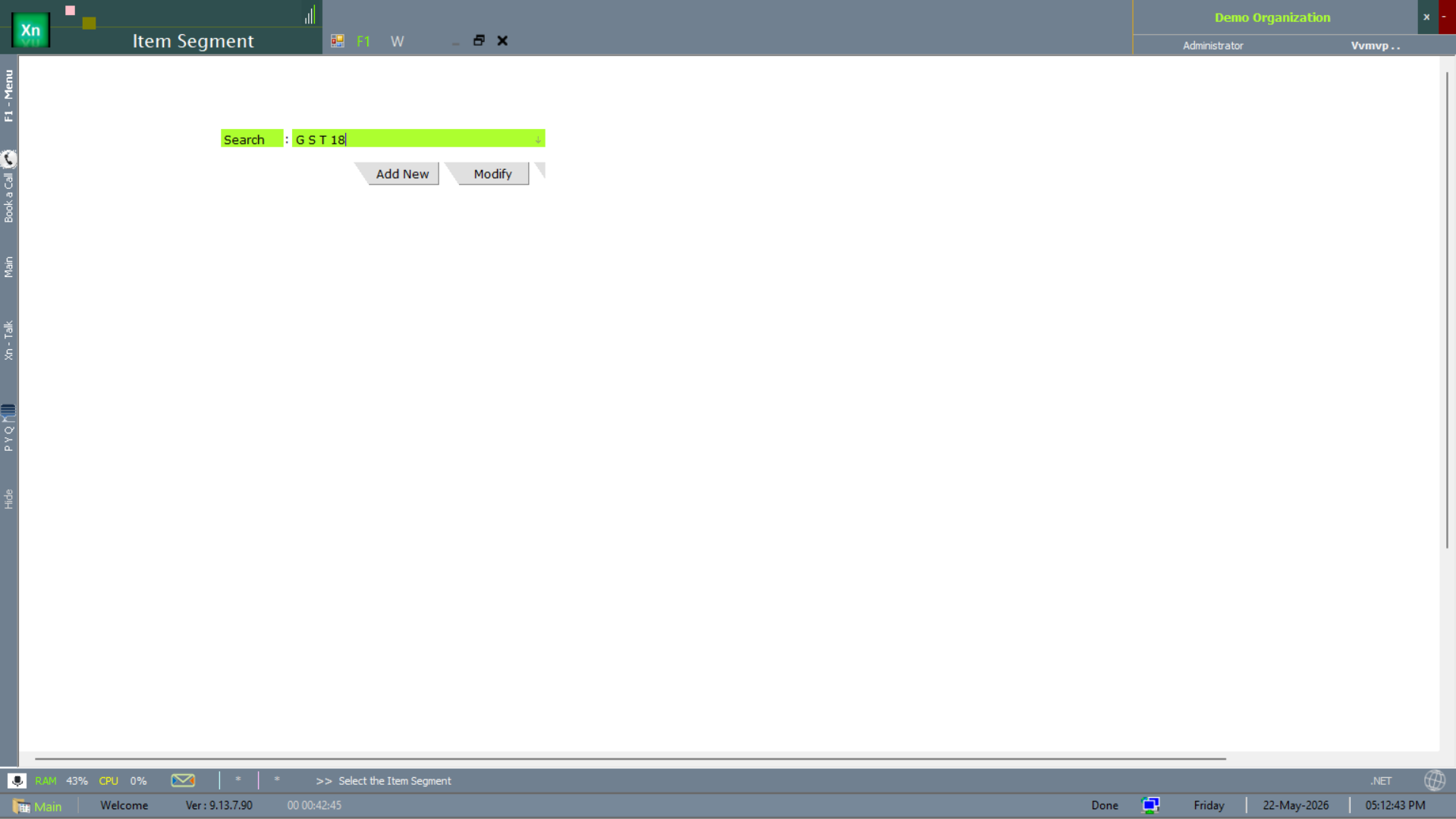
Item Segment
Item Segment groups items by go-to-market dimension (premium / mass / private label, for example). Useful when category and brand are not enough to capture the marketing cut.
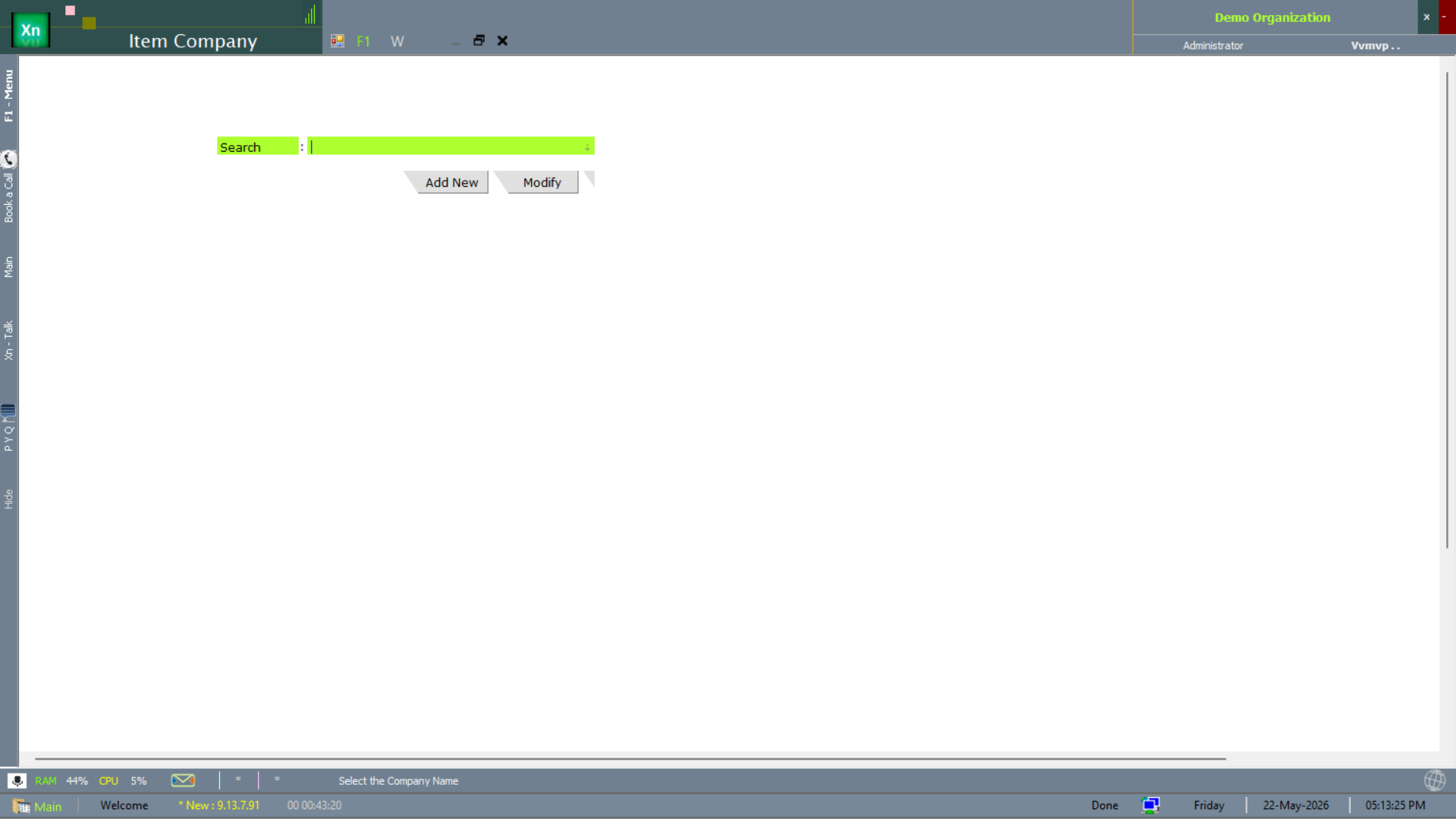
Item Company
Item Company records the manufacturer / source company per item. The label that appears on the product, irrespective of which warehouse stocks it.
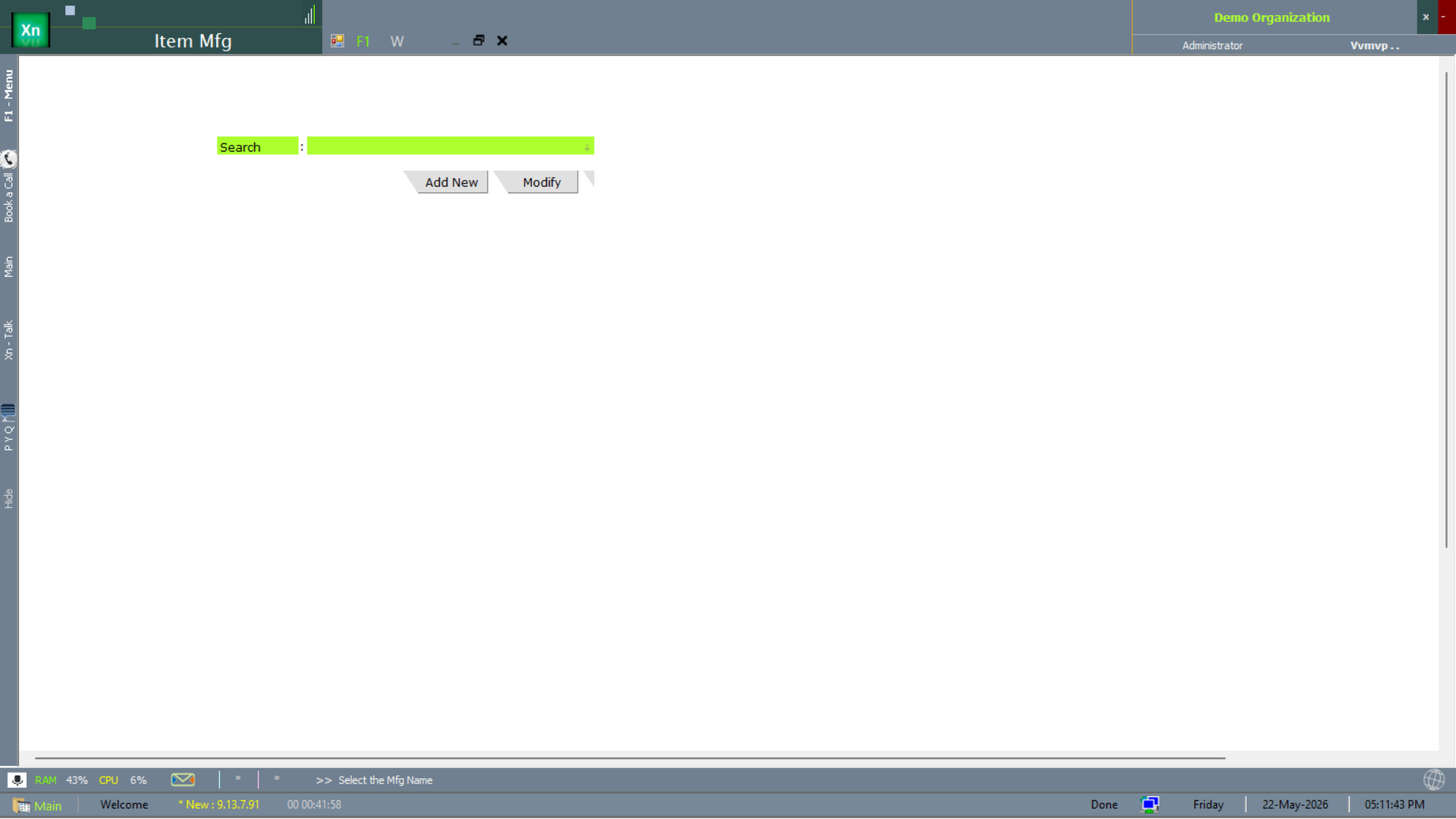
Item Mfg (manufacturer)
The Item Mfg master extends Item Company with the regulatory side — manufacturing licence number, address, contact — required on pharma / food labels.
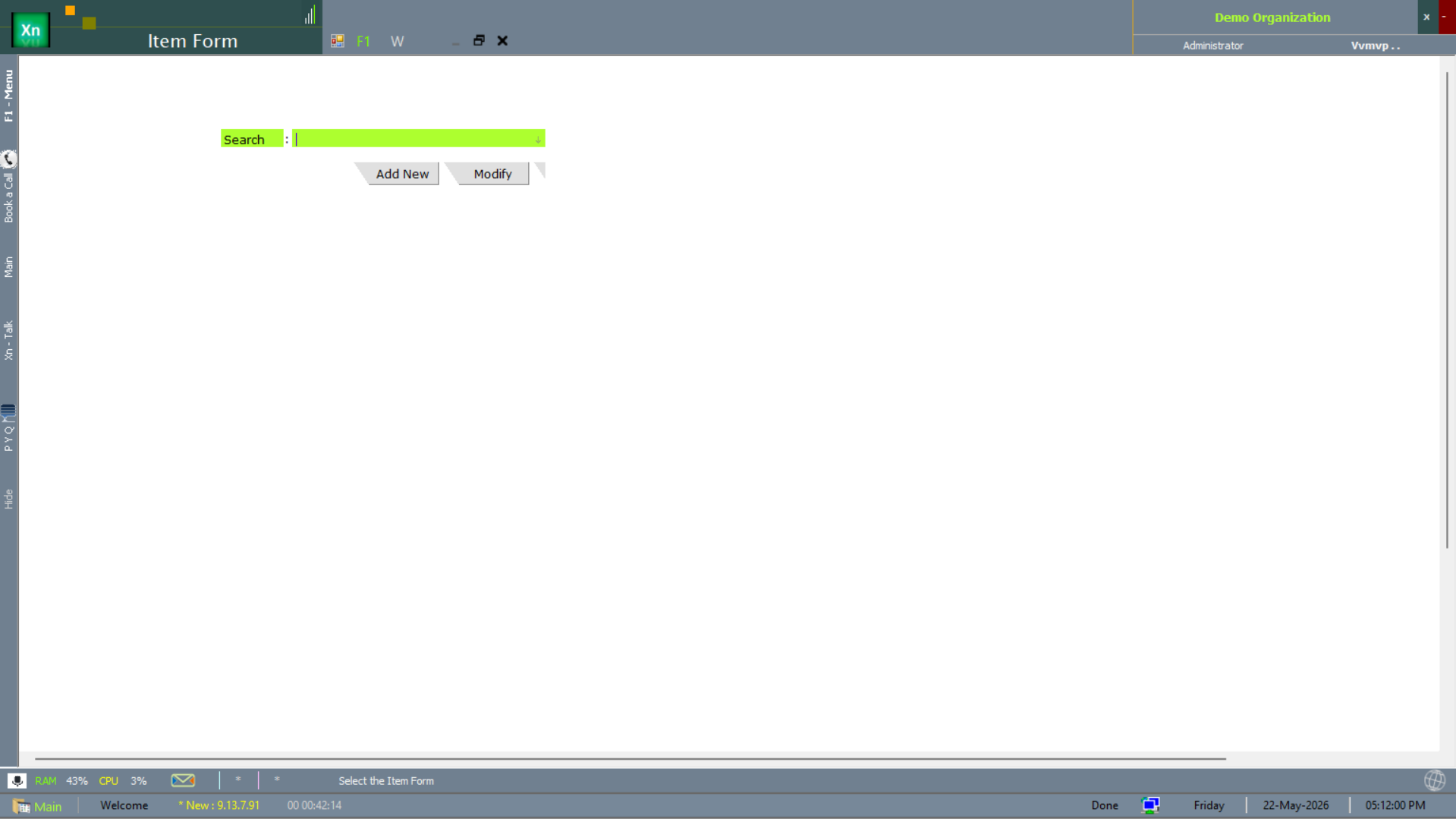
Item Form
The Item Form master captures the physical form of the item — tablet, syrup, injection, powder, liquid — used as an attribute on the item master and as a filter on reports.
UOM
Units of measure and conversion ratios (1 case = 24 bottles, 1 kg = 1000 g). The item master picks a base UOM; conversions enable purchase in one UOM and sale in another.
Item Attributes
Optional structured fields per item — form, pack size, manufacturer, colour, size. Filters in reports use these. Most are configured via the form / segment / company masters above, but custom attributes can be added inline on the item master.
Item master & supporting masters
The item master itself is the centre of this area. The supporting masters (Batch, Contents, Image, References) attach extra data per item without bloating the main form.
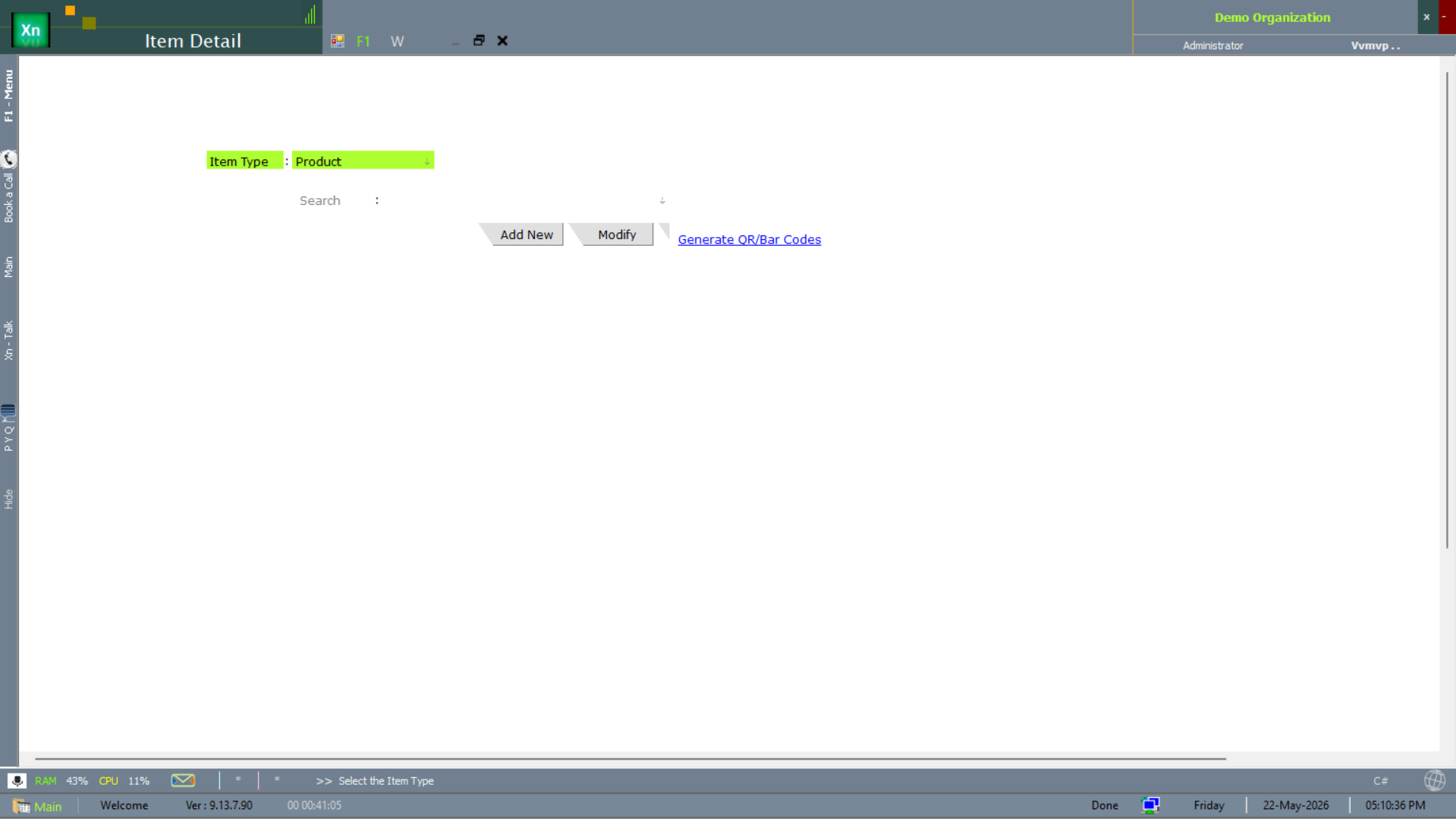
Item Master (Item Detail)
The main item record — code, name, category, brand, base UOM, default tax structure, default rate, batched flag, expiry-tracked flag, MRP. Per-location overrides are supported where needed. The screen also drives QR / barcode generation directly via Generate QR/Bar Codes.
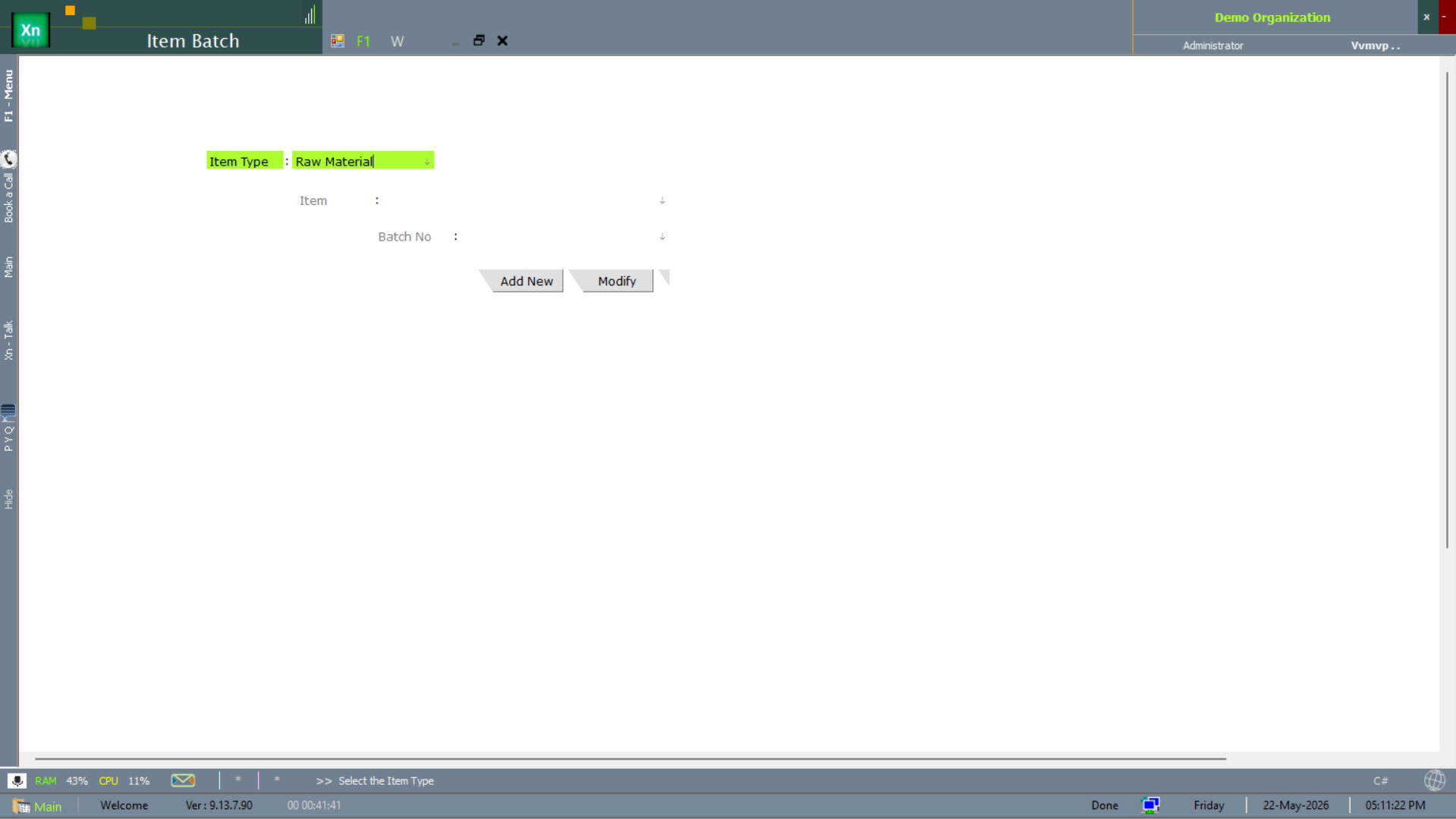
Item Batch
The Item Batch master pre-creates known batches (number + expiry + MRP) for items that arrive batched. Most batches get created on GRN; this screen is for opening stock, samples and returns without a source batch.
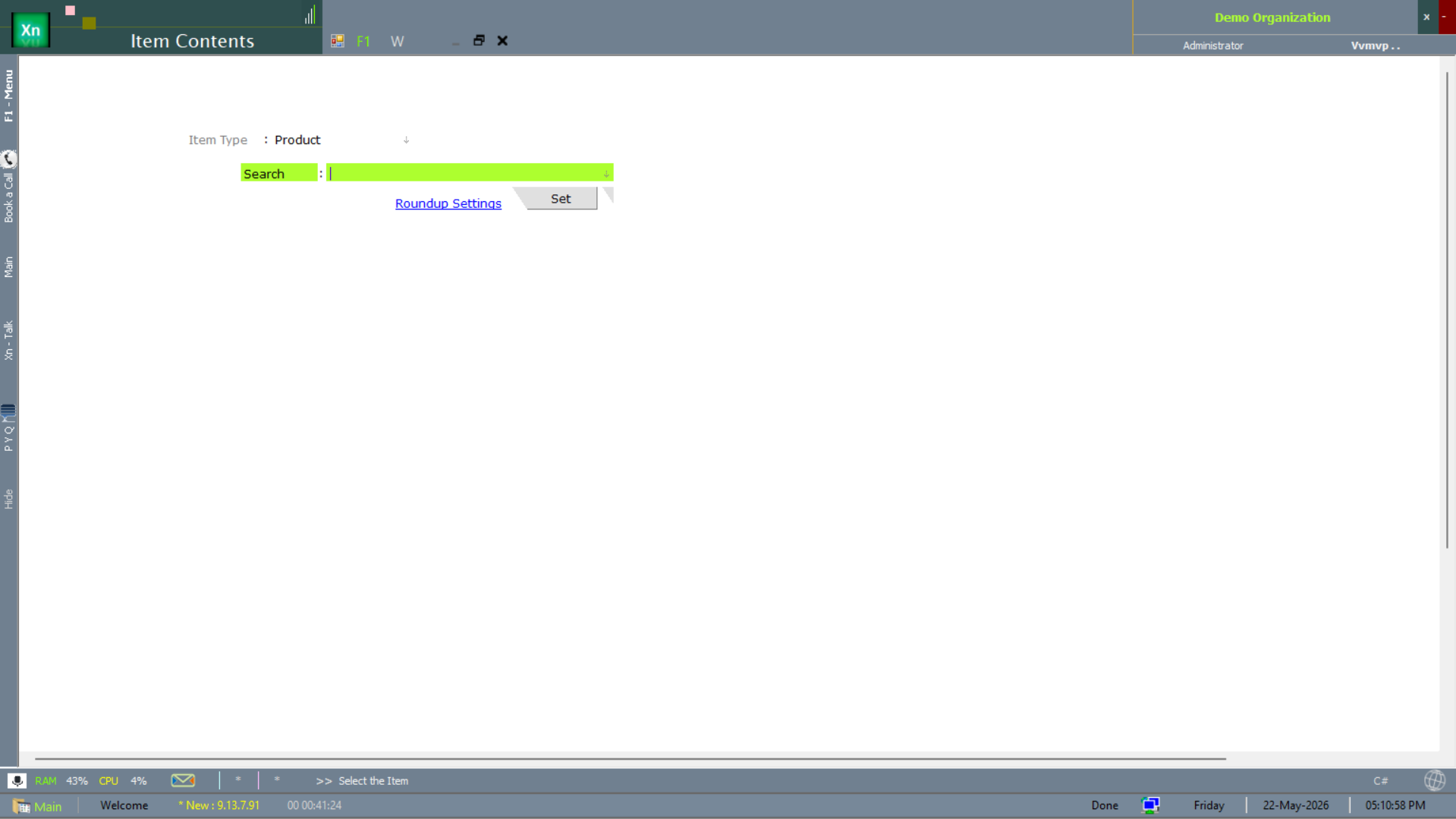
Item Contents
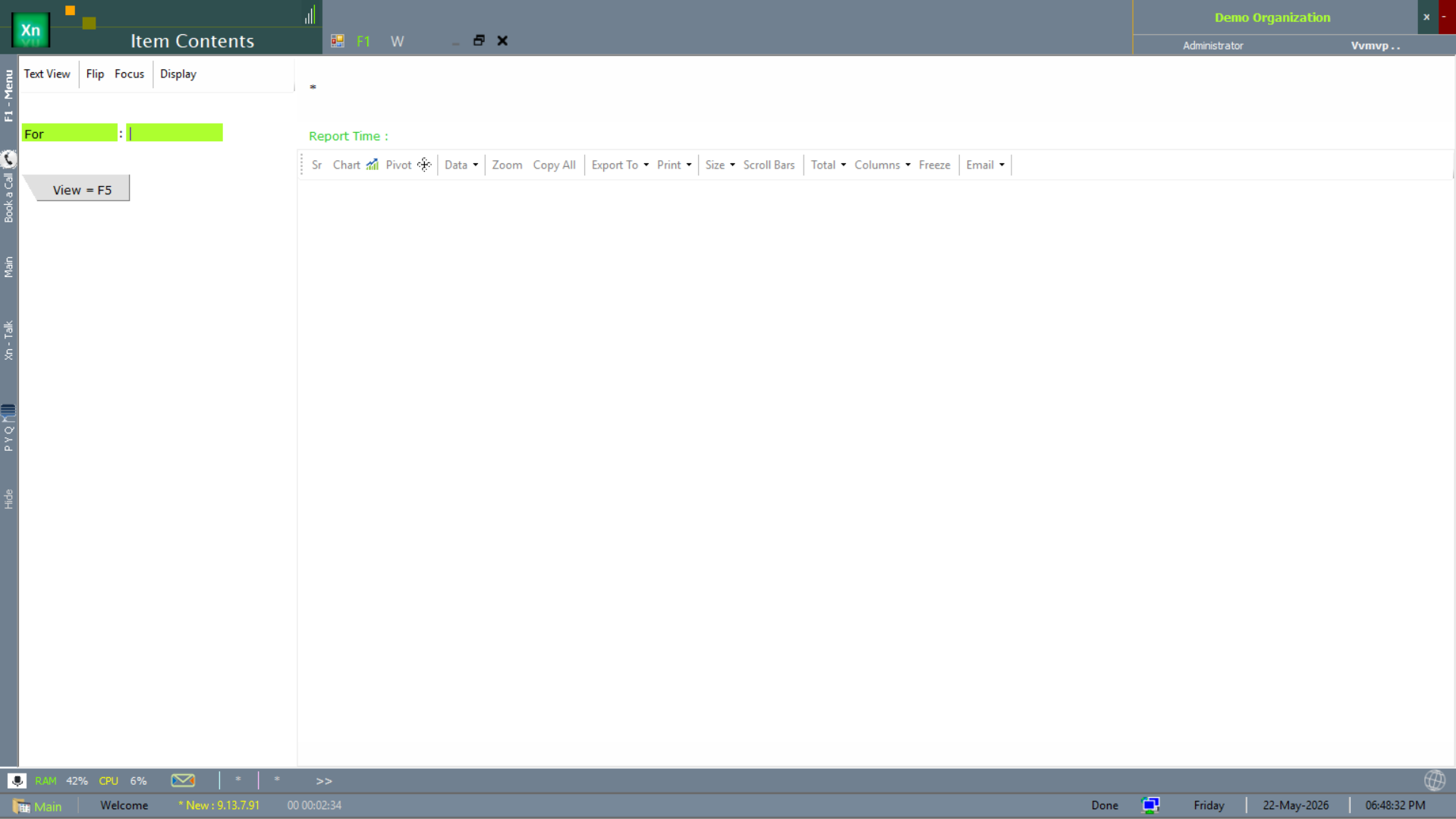
The Item Contents master records the constituent components per item — salts in pharma, ingredients in food, materials in apparel — with the rounding rules applied when contents drive label printing.
Item Contents Detail
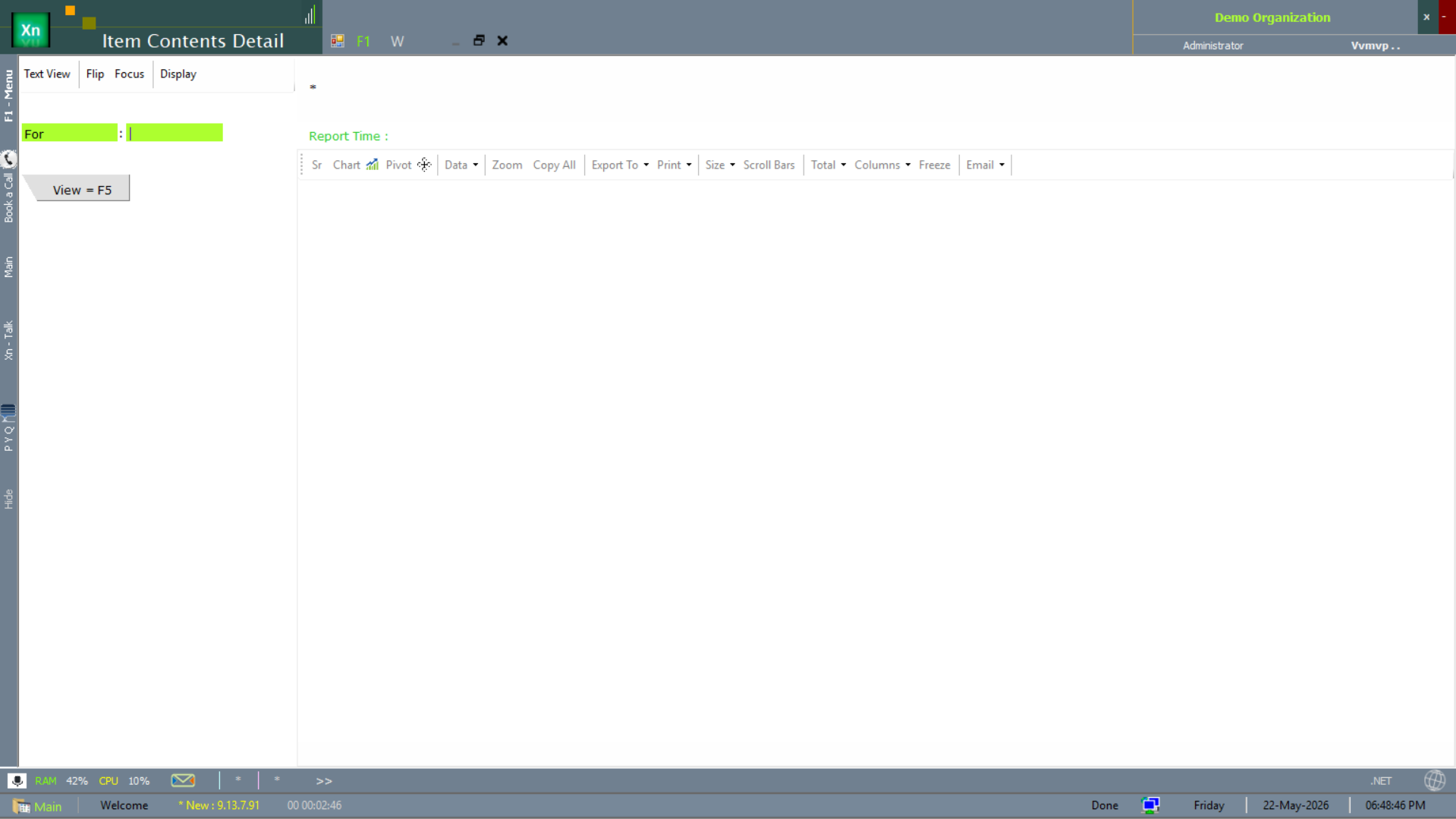
The Item Contents Detail screen is the per-component drill-down — quantity, UOM, strength — for items whose contents need detailed labelling.
Item Image
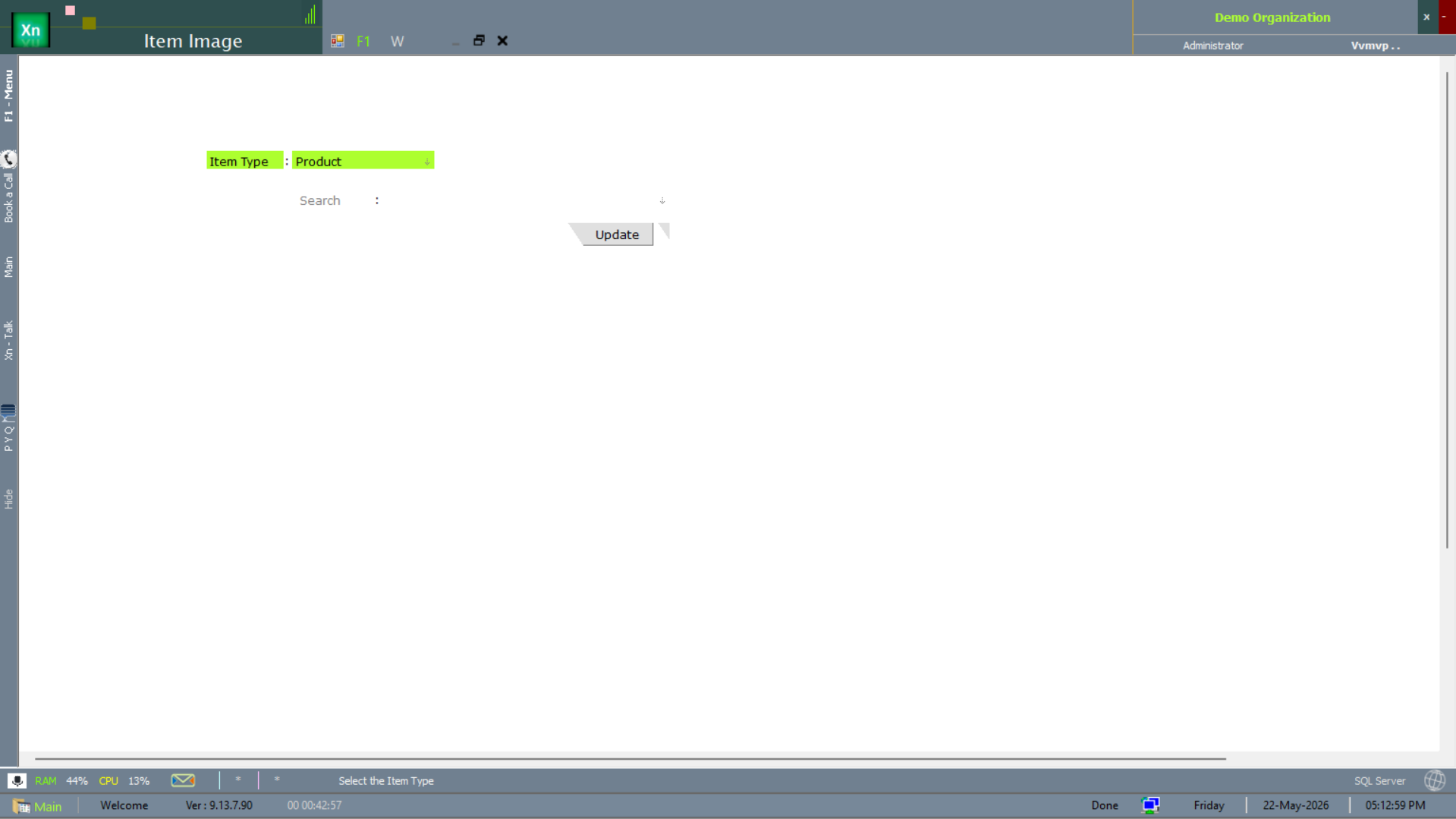
The Item Image master attaches product images to an item — used in catalogues, e-commerce sync and the visual item picker on POS screens.
Item references
The reference masters let you tag items with external identifiers — supplier-side codes, customer-side codes, barcode prefixes — so the same SKU is recognised under each party's own naming.
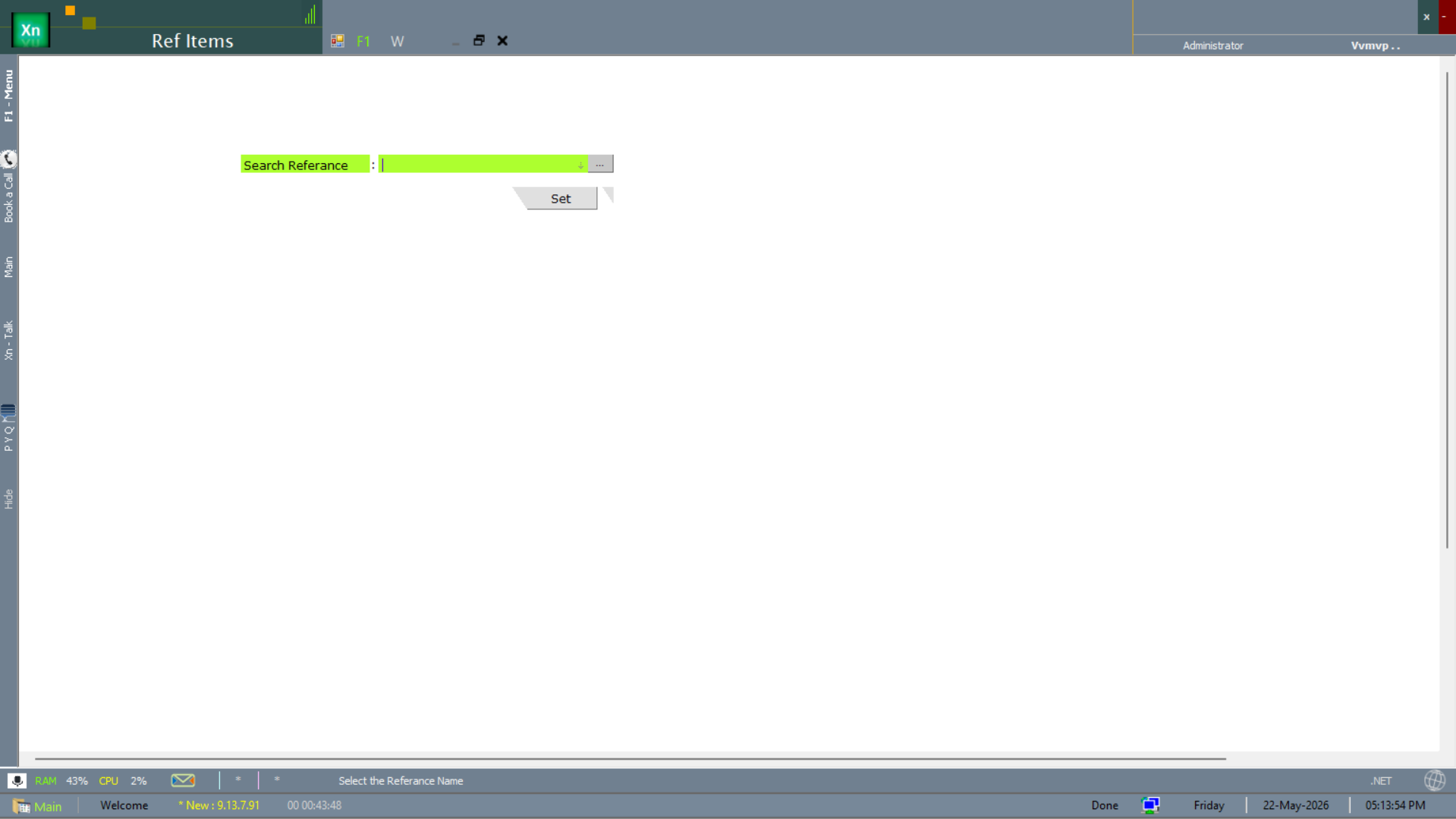
Ref Items
The Ref Items master is the bulk picker — assign an external reference to many items at once.
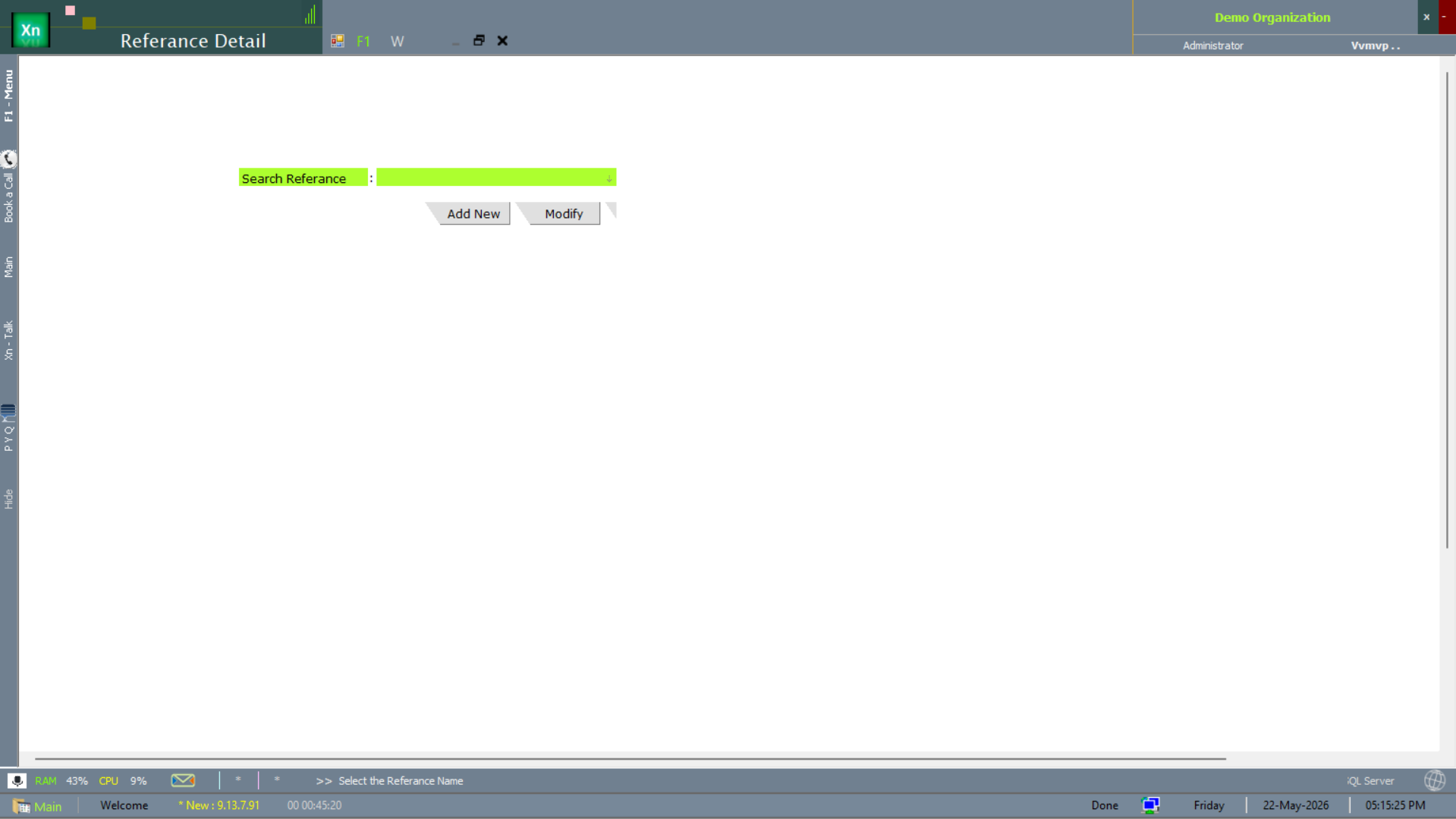
Reference Detail
The Reference Detail master records each external-reference type (supplier code, EAN, CIN, etc.) with its format rules.
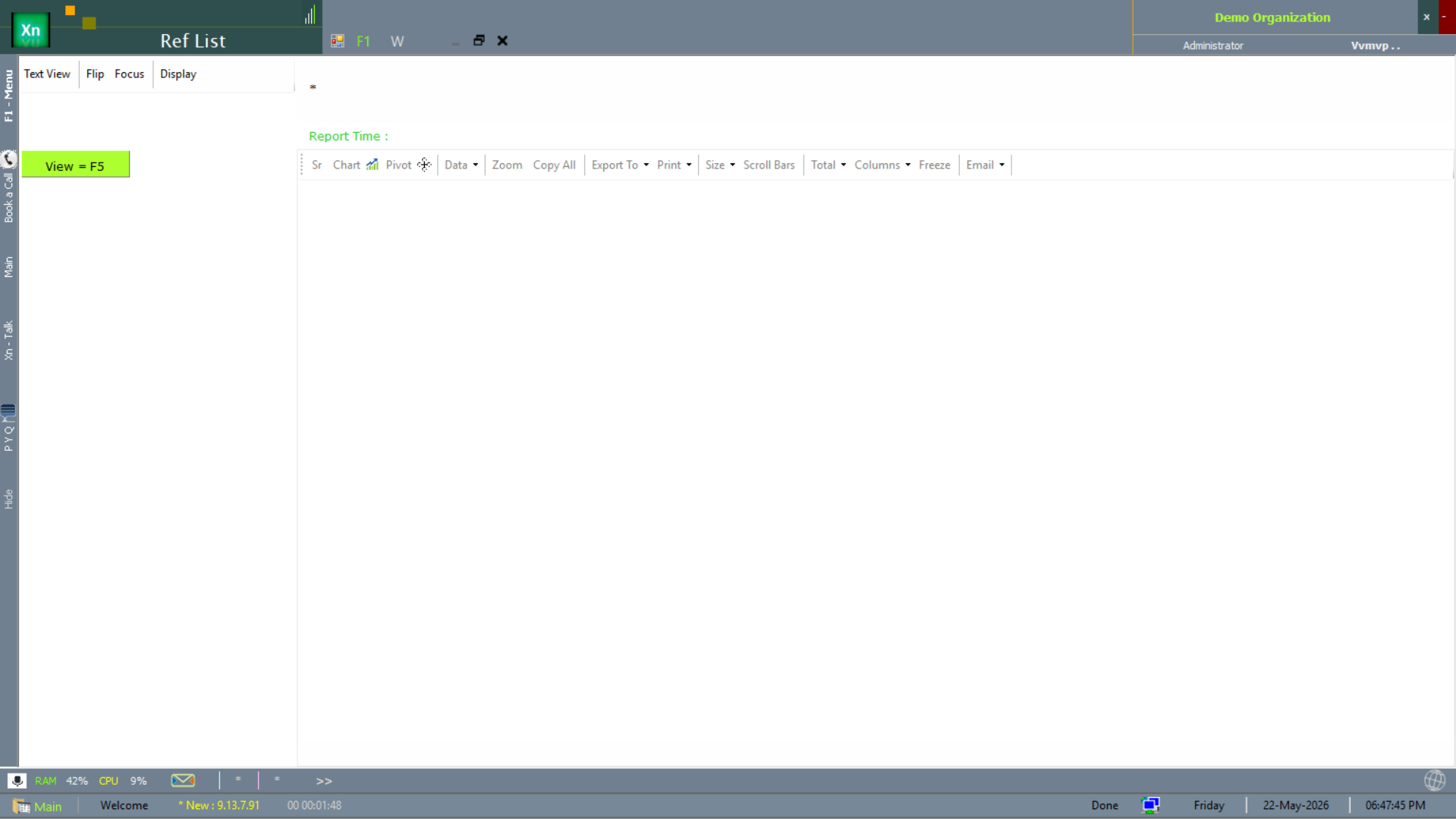
Ref List
The Ref List screen is the read-only report — every item with every external reference attached. Use it to verify e-commerce uploads or supplier-side code mappings.
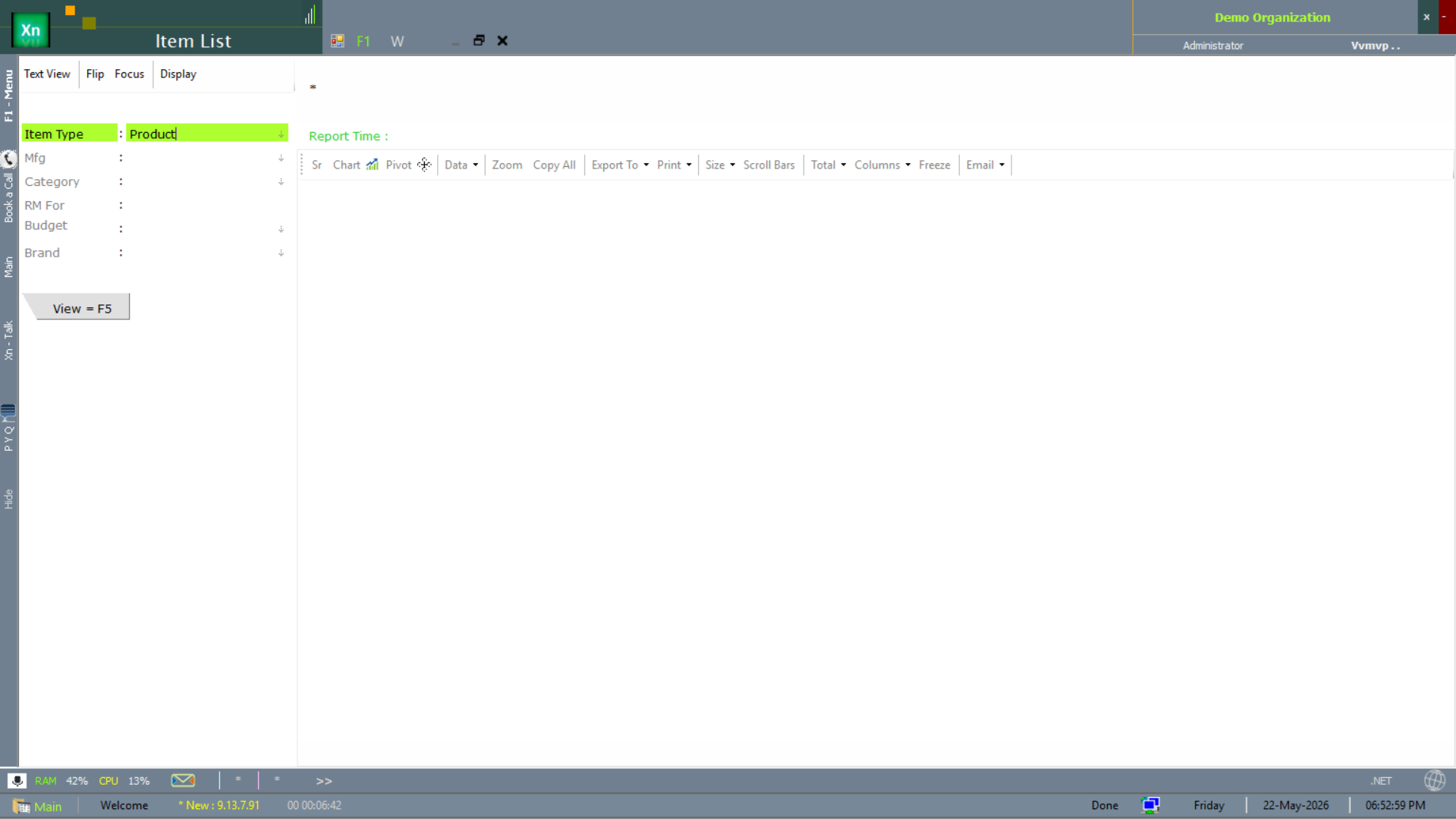
Item List (catalogue)
The Item List is the catalogue report — one row per item with type, category, brand and manufacturer filters. The standard look-up when you want a list view rather than the per-item master.