Start Menu (Xn Button)
The Xn button in the top-left and every command it opens.
The Xn button
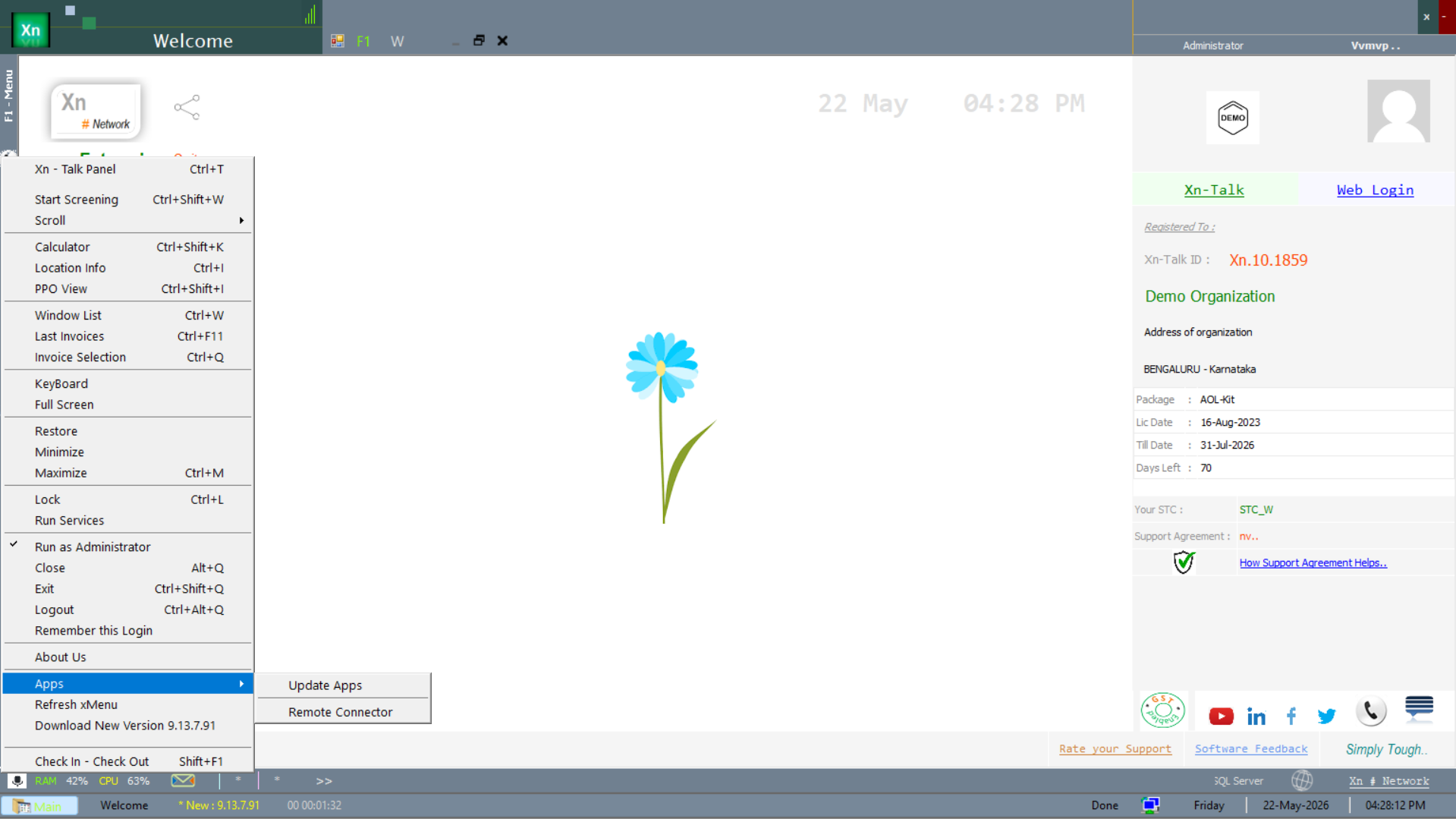
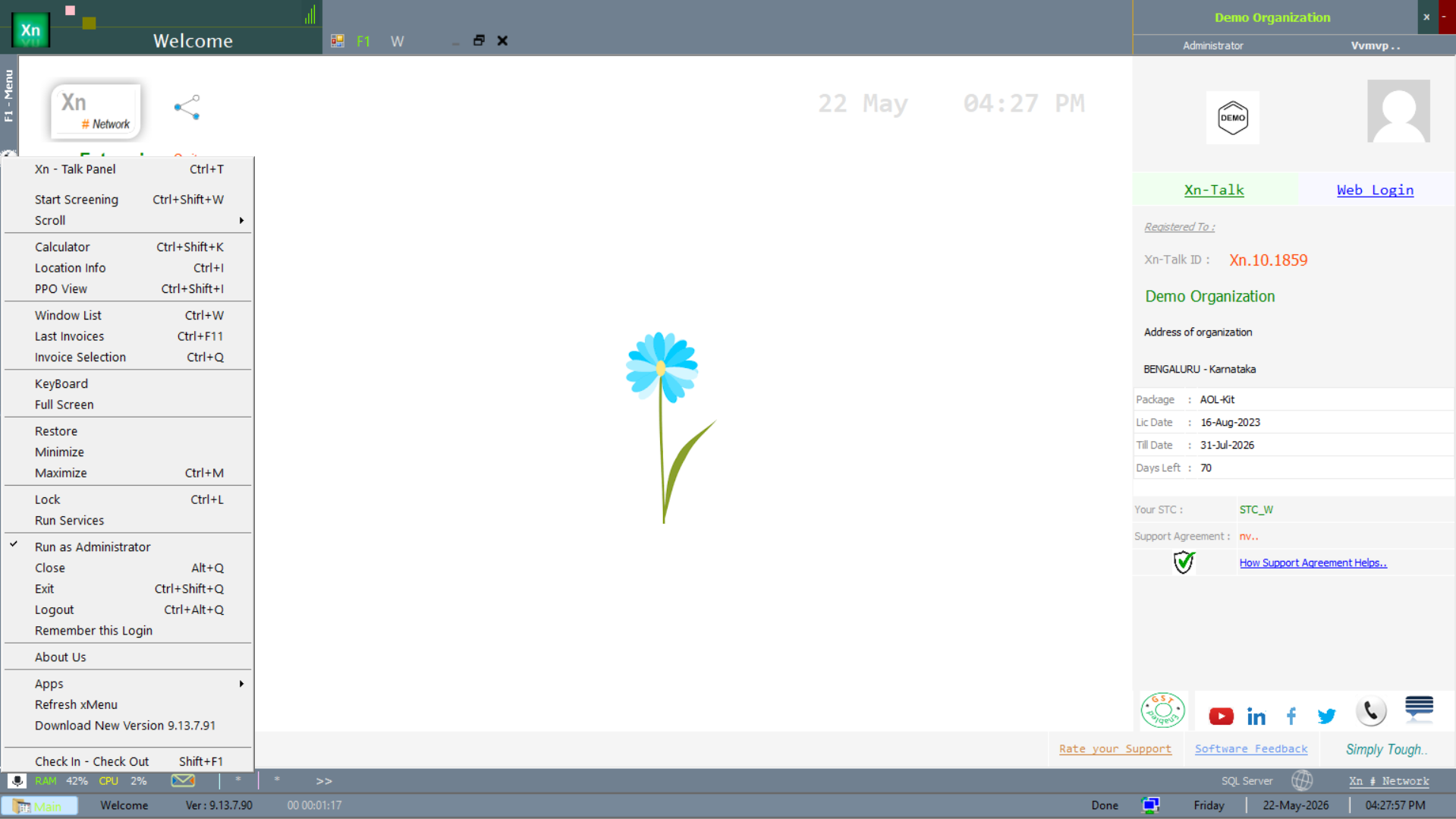
The Xn button in the top-left is your launch pad — it opens the Start Menu, which is a vertical list of every screen and utility you have access to. The items below appear above the module groups; what is enabled for you depends on your user type and role.
Xn-Talk Panel
Slide-out panel showing unread messages, broadcast threads and the network status. Click any message to open the full Xn-Talk window.
Start Screening
Begins the in-app onboarding tour highlighting key menus for first-time users. Stop any time with Esc.
Scroll
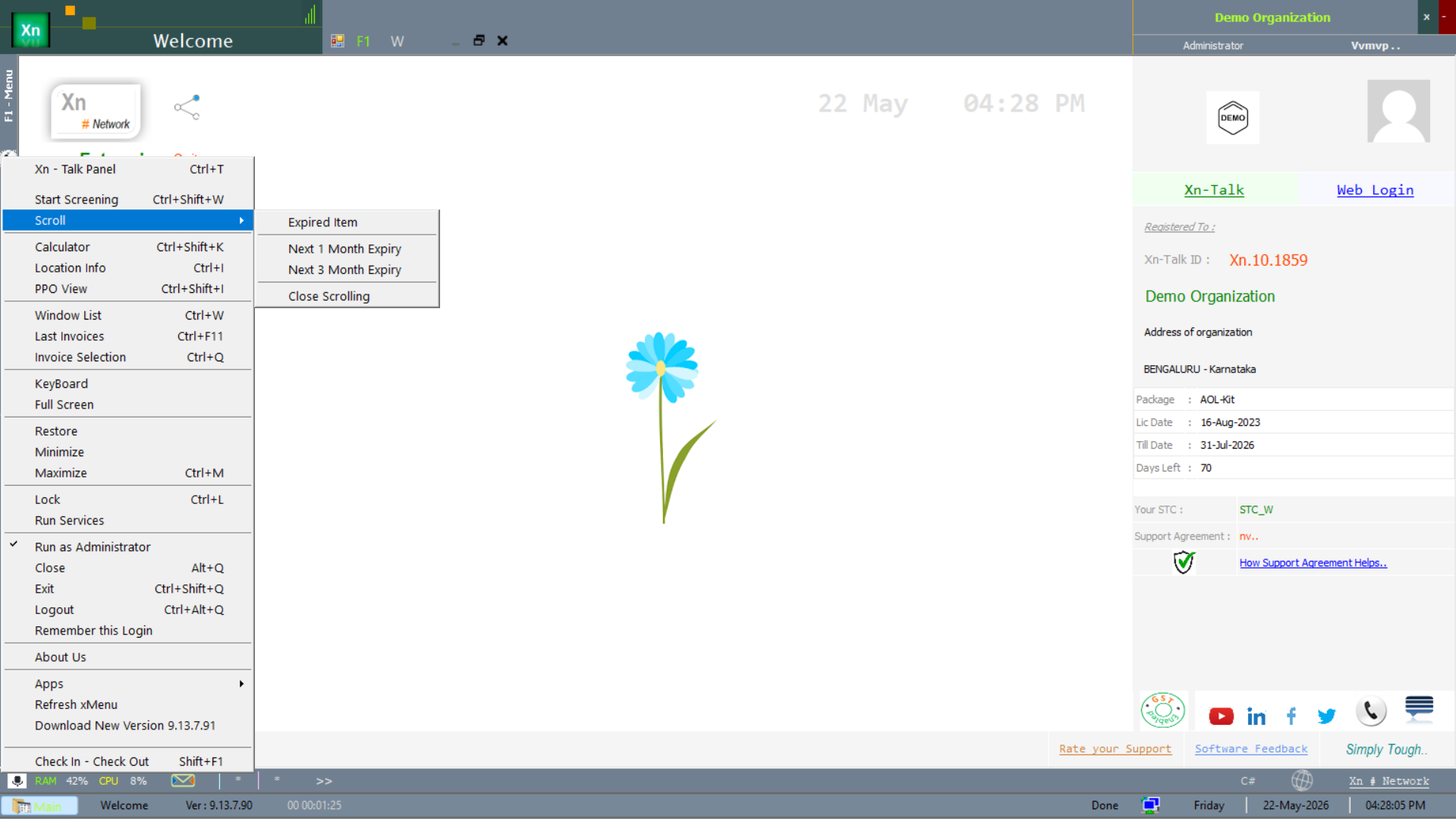
Toggles a marquee at the top of the screen with critical alerts — expired items, items expiring this month or in two months. Includes a Close Scrolling option to hide it again.
Expired Item
Highlights items whose batches have already expired and are still in stock.
Next 1 Month Expiry
Items whose batches expire within 30 days.
Next 2 Month Expiry
Items whose batches expire within 60 days.
Close Scrolling
Hides the marquee until next login.
Calculator
Opens a built-in calculator without leaving ZN ERP. Useful for quick sanity-checks on totals.
Location Info
Shows the address, GSTIN, drug-licence and contact details of the currently selected Location.
PPO View
Pending Purchase Order viewer — lists PO lines not yet fully received, with supplier and ageing.
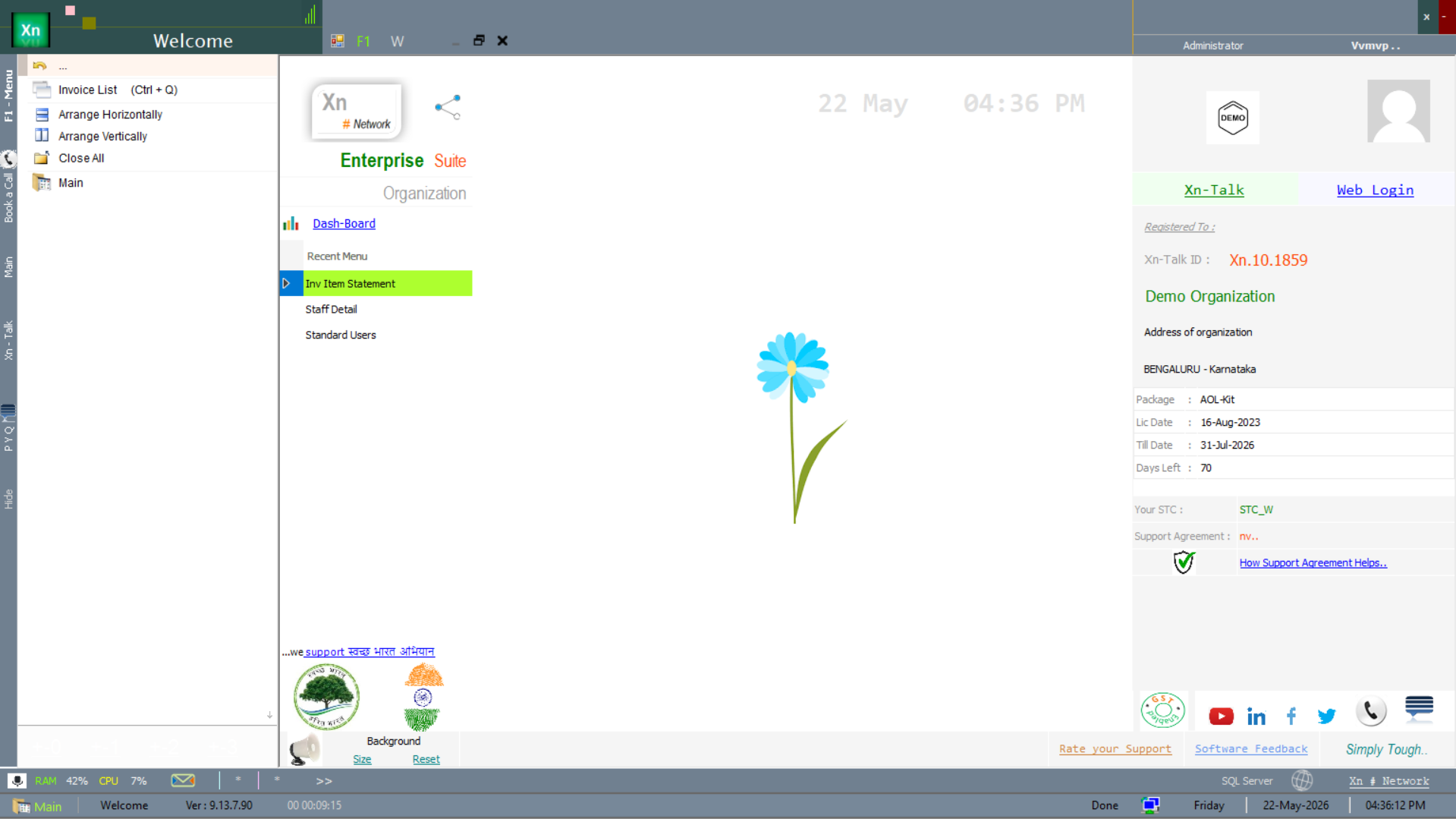
Window List
Lists every sub-window currently open inside ZN ERP. Click any item to bring it to the front; right-click to close.
Last Invoices
The last few invoices raised at this counter. Click any one to reopen, reprint or reverse.
Invoice Selection
Filter / search across all invoices — by inv no, date range, customer or amount.
KeyBoard
On-screen keyboard for touch-only POS hardware that has no physical keys.
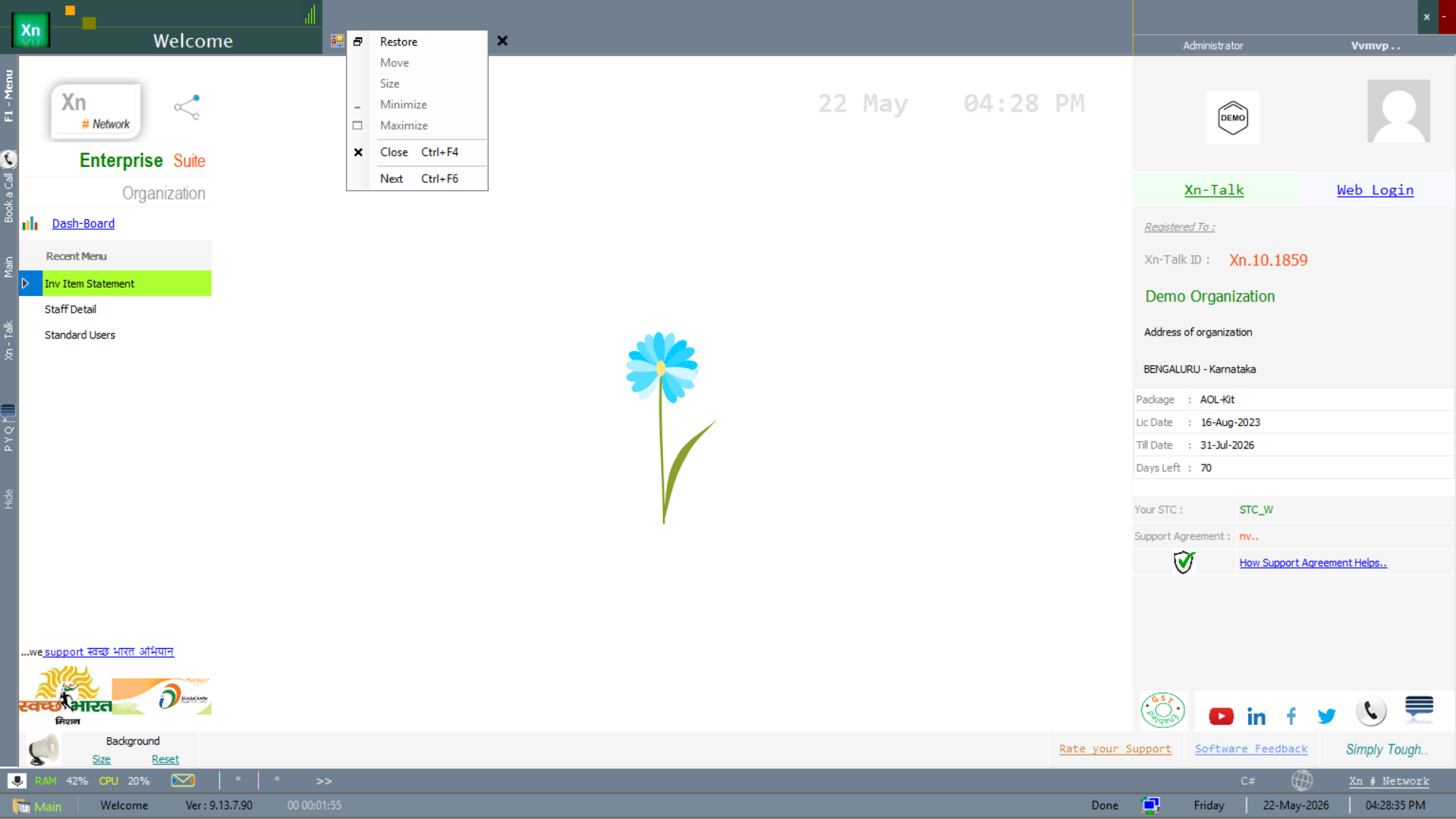
Full Screen / Restore / Minimize / Maximize
Standard window controls. Full-screen mode is a popular setup for POS counters — F11 toggles it.
Lock
Locks the session, leaving sub-windows open. The same user can unlock with their password; switching user requires a full logout.
Run Services
Starts the background services (notifications, schedulers). Normally automatic; the menu item is for support troubleshooting.
Run as Administrator
Relaunches the application with Windows admin rights — needed for some maintenance tasks like reattaching a database.
Close / Exit / Logout
Close closes the current sub-window. Logout ends your session but keeps the application open at the login screen. Exit closes ZN ERP completely.
Remember this Login
Stores the LoginID for the current Windows user, so the field is pre-filled next time. Never stores the password.
About Us
Shows build version, licence summary, and contact details. Useful when filing a support ticket.
Apps
Sub-menu of bundled utilities — updaters, remote-connector, etc.
Update Apps
Checks the Microsysit Apps repository for updates to the bundled utilities and offers to install.
Remote Connector
Launches the remote-desktop bridge that support engineers use to connect to your machine when you authorise a session.
Download New Version
Checks the licensing server for a newer build. If found, downloads and installs it on the next restart. Internet required.
Check In - Check Out
Time-clock entry for staff — logs the start and end of a shift to the attendance system.
Welcome screen — visual tour
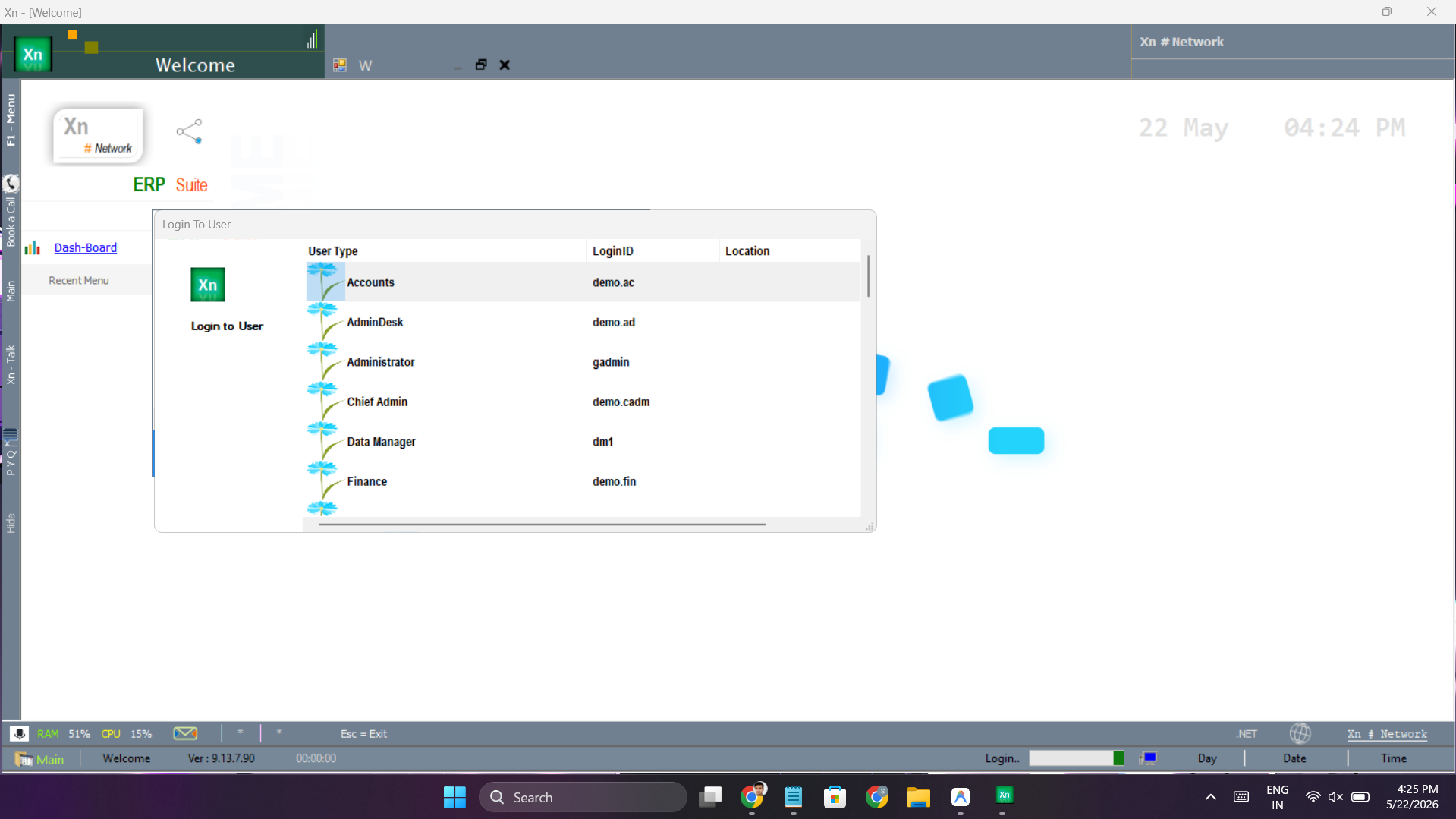
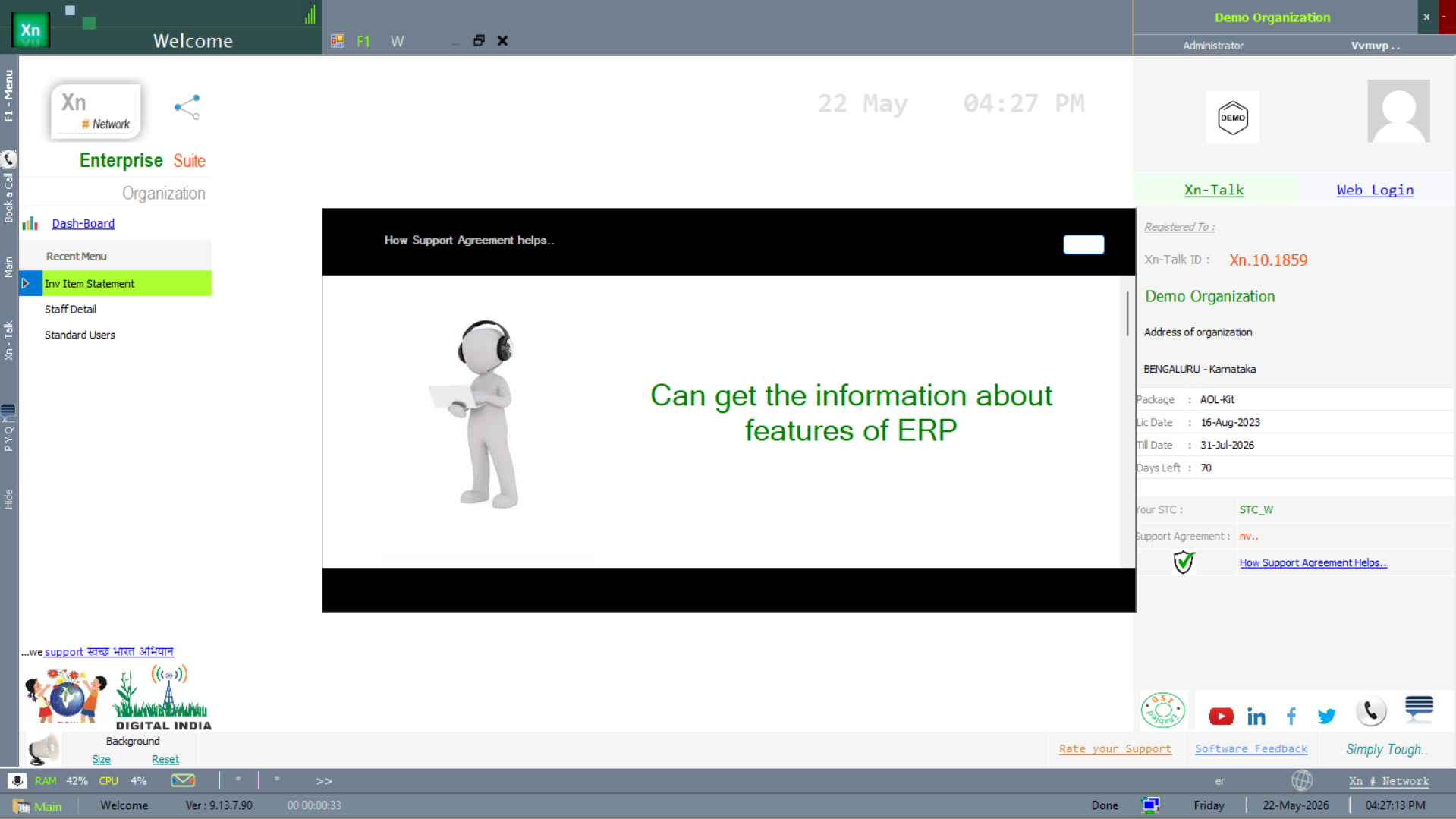
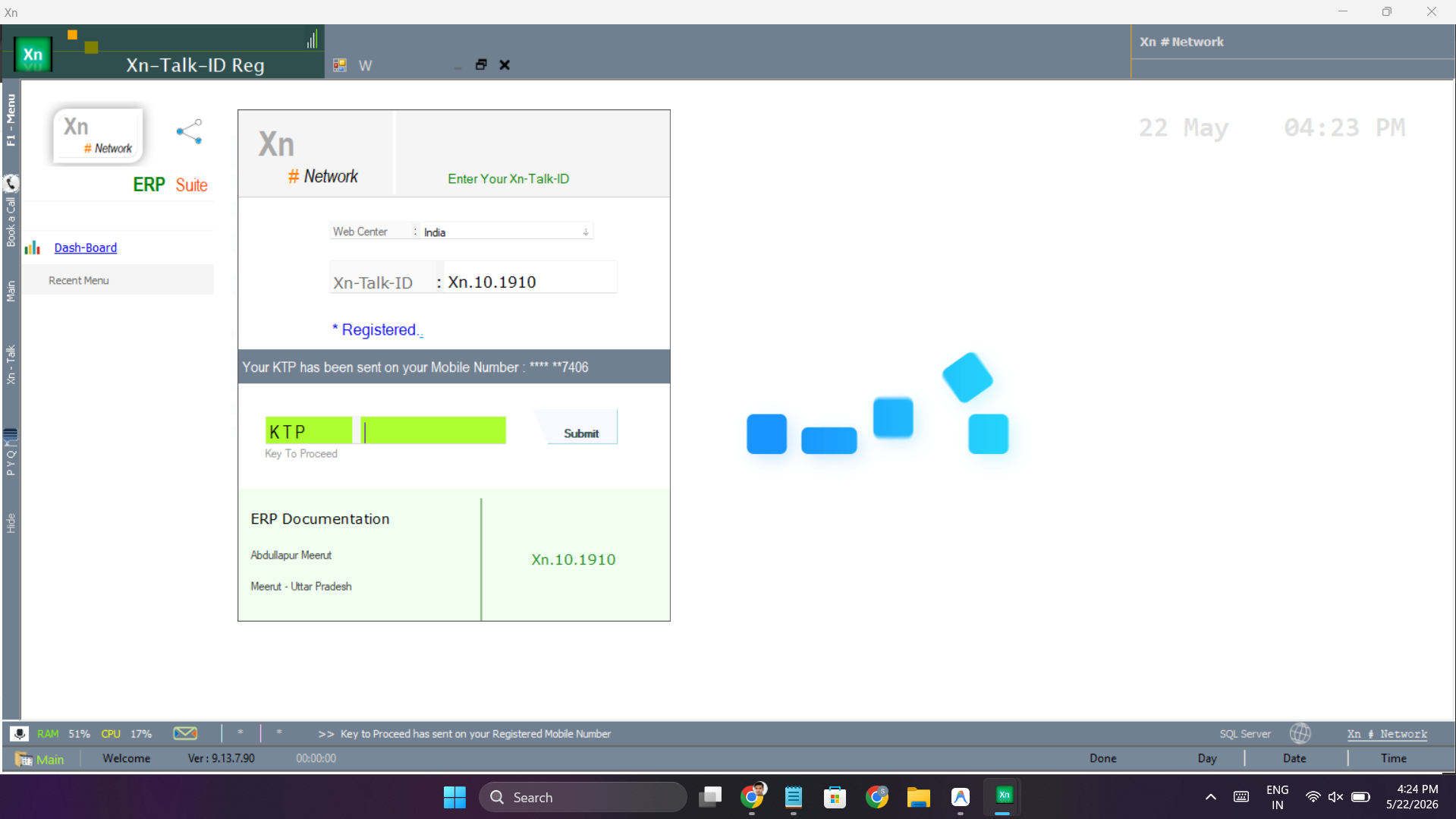
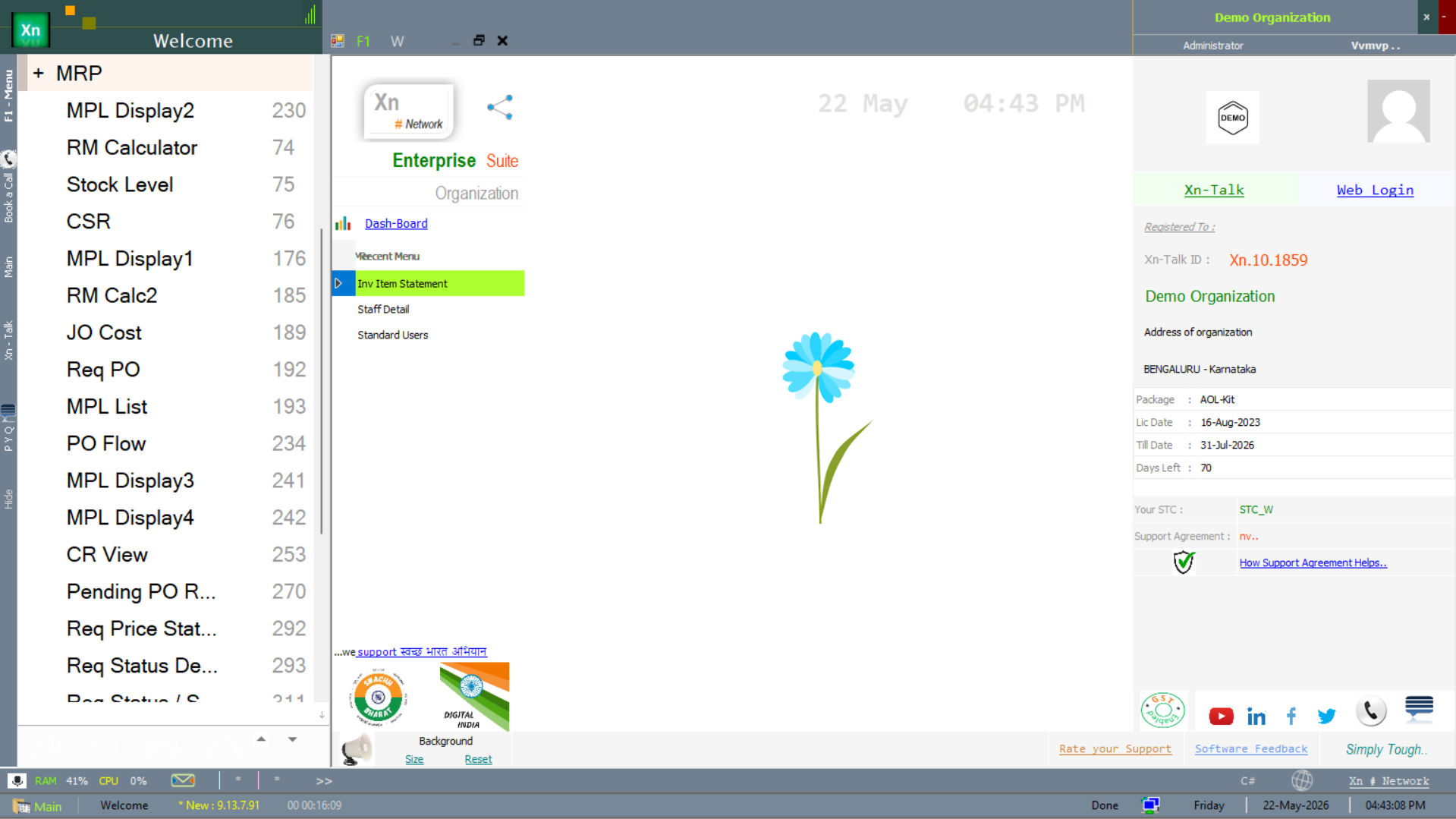
The screens below walk the Welcome / Start Menu surface from first sign-in through to every sub-menu the Xn button opens. New users can scan them once to get a feel for the application's shape before diving into any module.
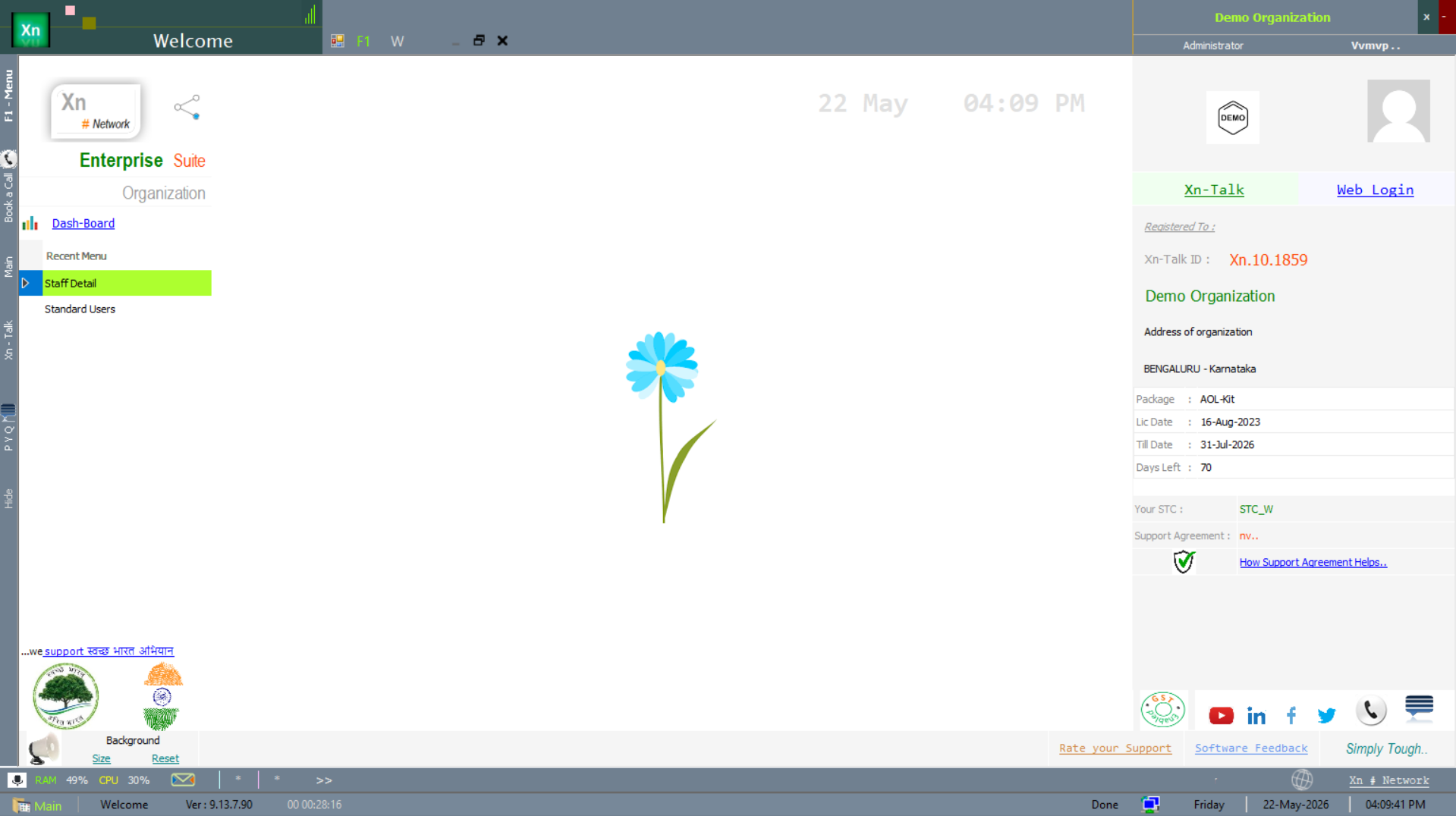
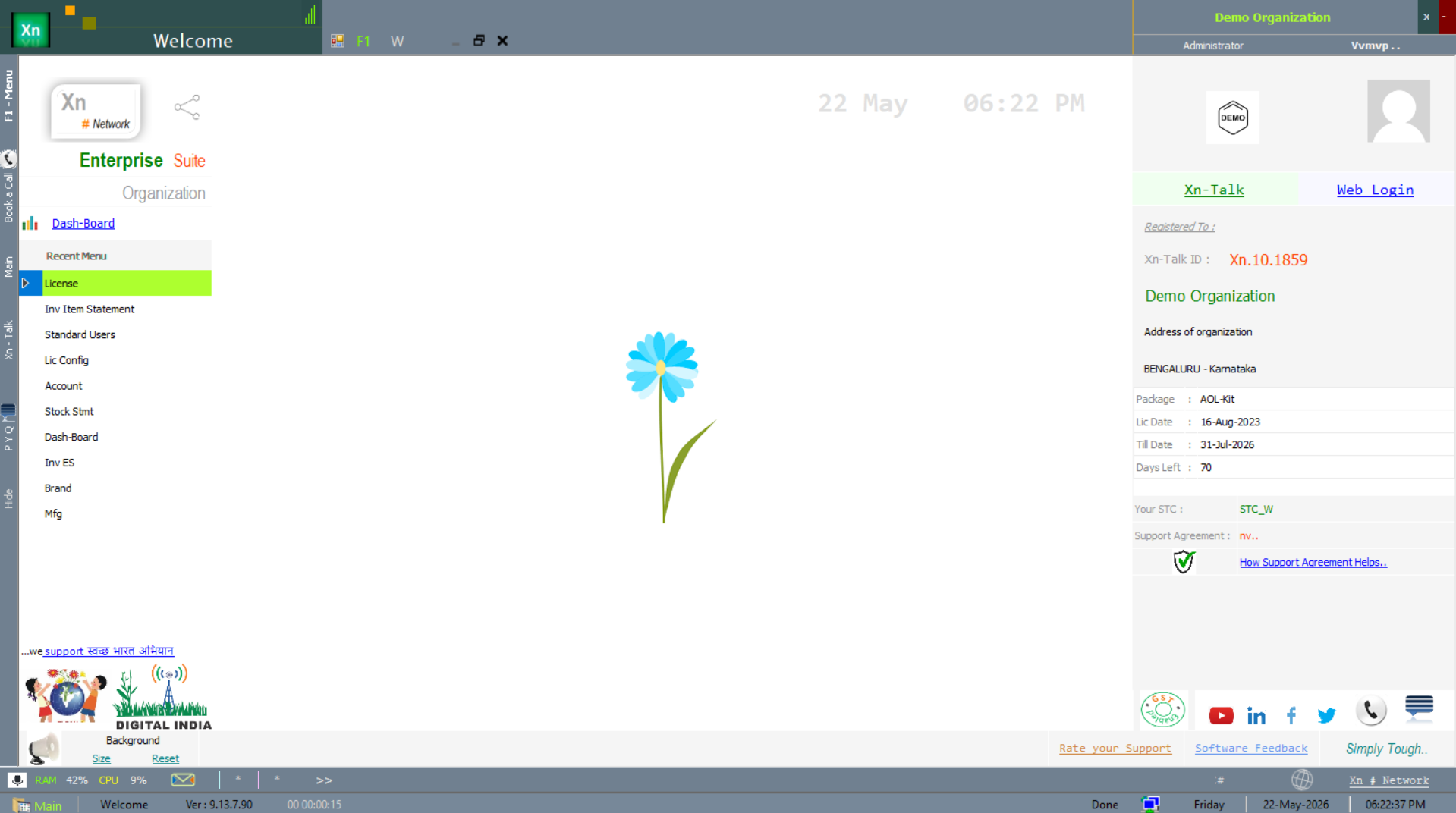
Welcome dashboard overview
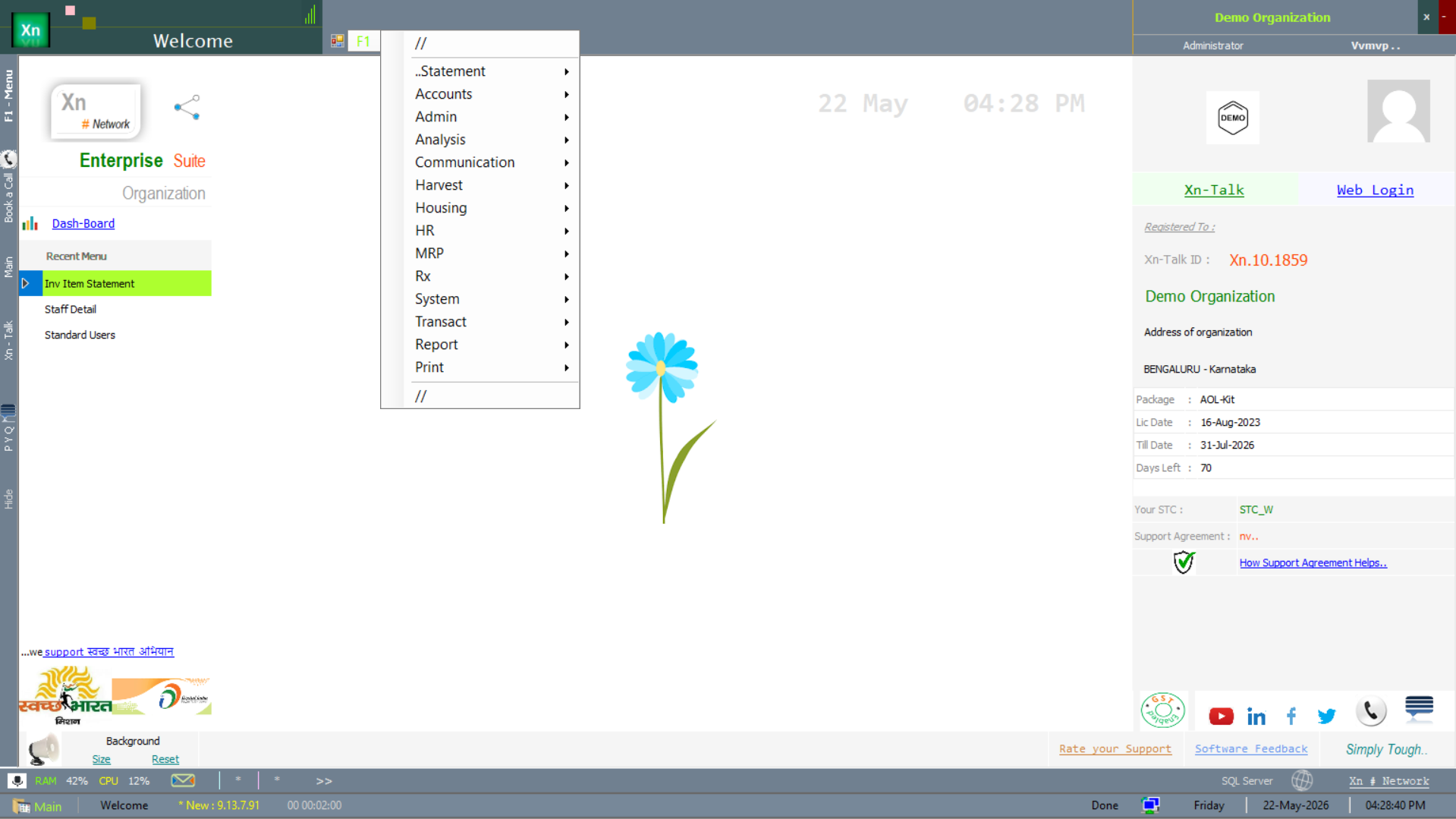
The Welcome screen is what you land on after login — left side carries the Xn / module menus, the central panel shows recent activity, and the right panel surfaces organisation, licence and Xn-Talk identifiers.
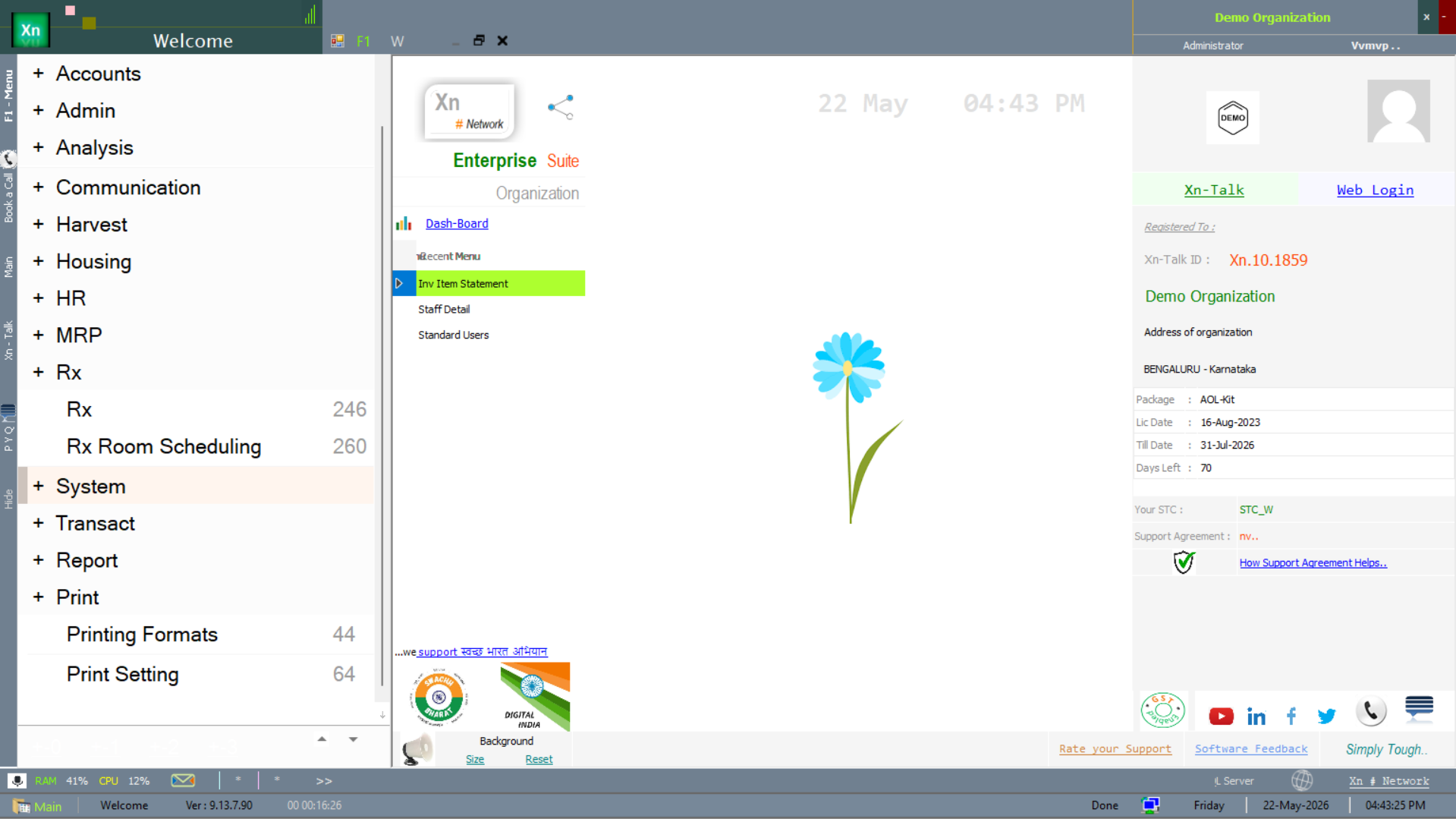
Module / main menu hierarchy
The screens below show the module-menu tree fully expanded — useful for spotting which module owns which screen at a glance.
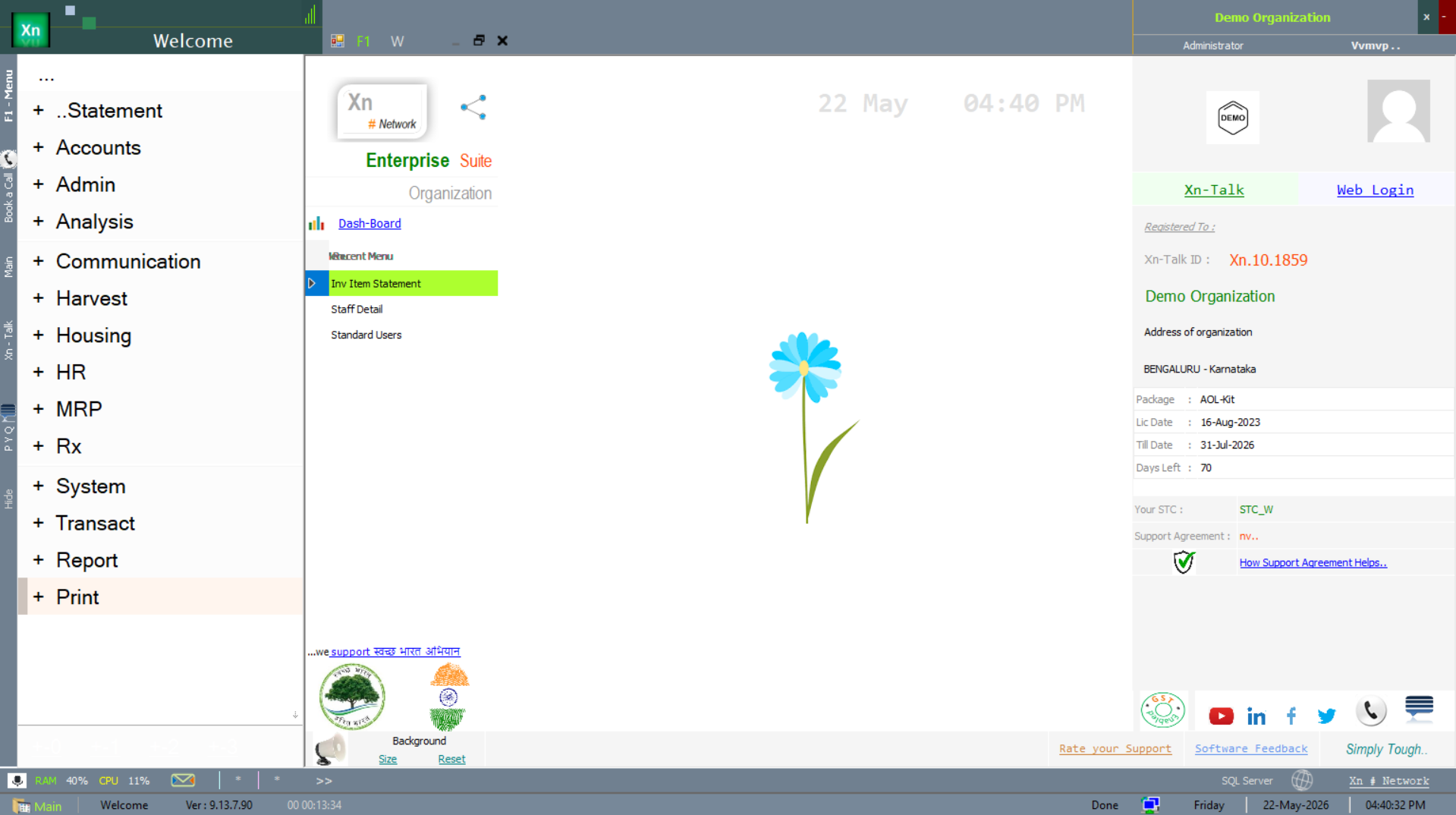
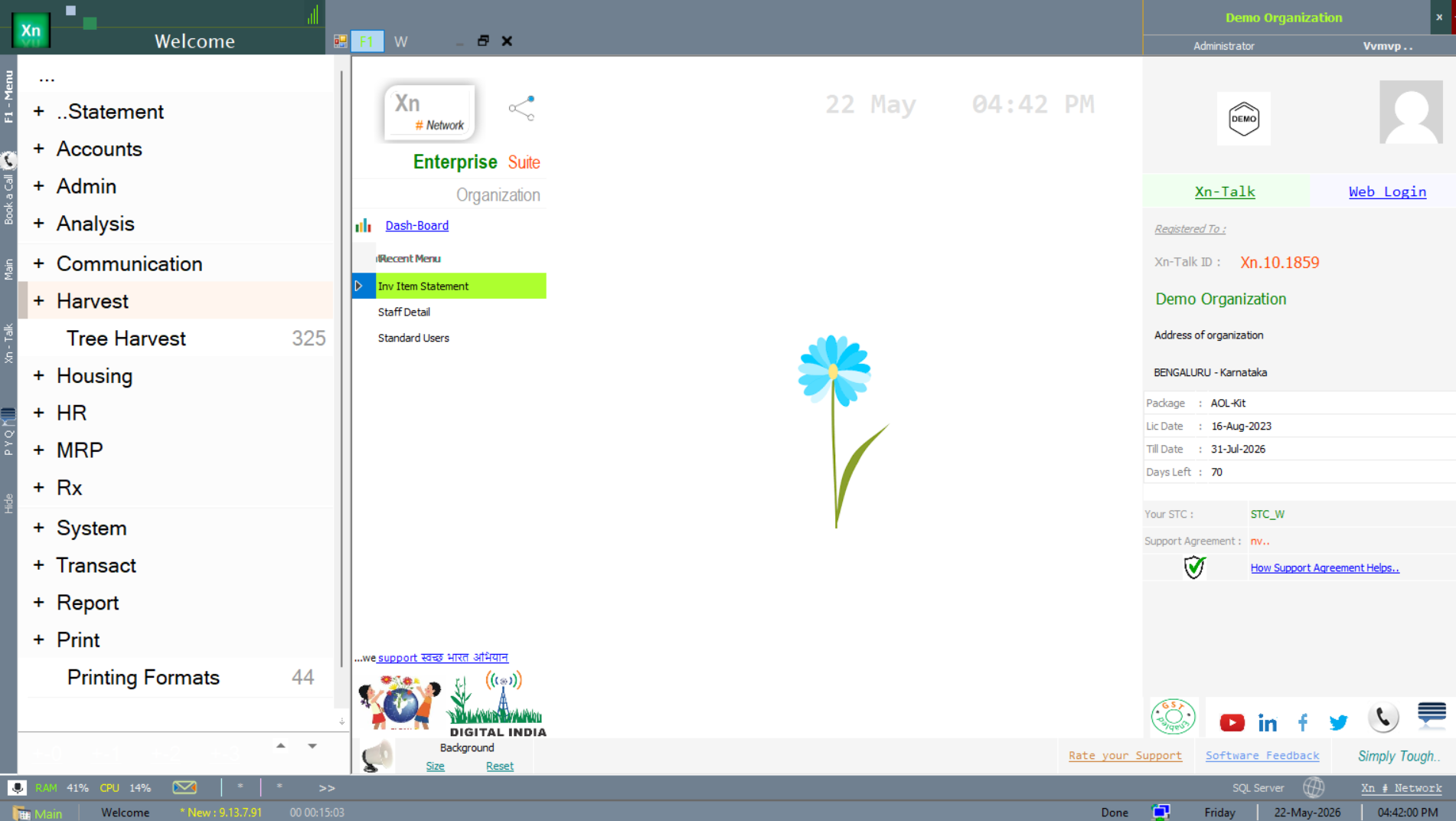
Apps and Window controls
Two utility sub-menus complete the Xn-button surface — Apps for bundled utilities and updaters, and the Window menu for managing the open sub-windows inside ZN ERP.